

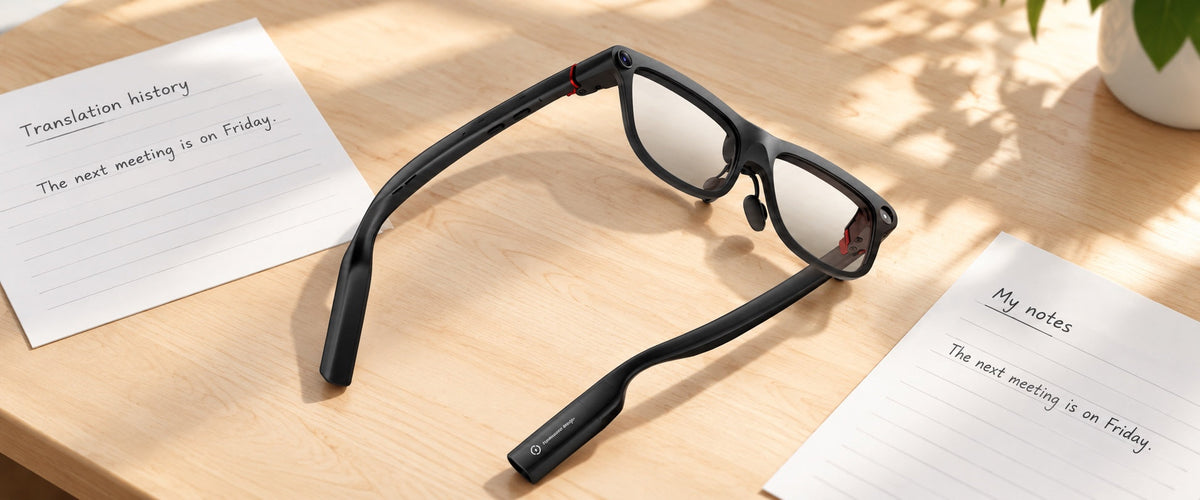
A translated conversation from INMO GO3 moves into your notes app through standard copy and paste. Translation history from INMO GO3 syncs automatically to the INMO Global app on your phone. From the app, you can review, copy, and share the full record of each session. Each translation session also generates an automatic AI summary that helps you identify the core takeaways. Once copied, the text pastes directly into any notes app that accepts text, placing translated meetings, lectures, and multilingual conversations alongside your existing notes.
That makes the real decision less about whether it works and more about what to copy. A full record lets you revisit the conversation's content and context, while an AI summary highlights the main takeaways. For spoken meetings recorded through the glasses rather than translated live, audio recordings also provide text transcripts and summaries. Choosing the right format for each note saves editing time later.
How to Copy a Translated Conversation Into Your Notes App
The process runs from the glasses to your phone and then into whichever notes app you prefer. The record moves as copied text, ready to paste into any app that accepts text input, so there is no file format to convert along the way.
- Run the translation on GO3 during your conversation. Translated text appears on the lens in real time, keeping your focus on the person speaking.
- Open the INMO Global app on your phone, where translation history syncs automatically from the glasses.
- Select the translation session you want to save, review the transcript, and copy the translation history.
- Open your notes app, paste the text into a new or existing note, and add a descriptive title and date.
Copying places the conversation text directly onto your phone's clipboard, ready to paste into your notes app. The INMO Global app also includes a share option if you prefer to send the session record directly. The INMO Global app is available on both iOS and Android, supporting standard text handling on both platforms.
Reviewing a session in the app before copying provides a clear overview of the exchange. A brief read-through highlights which exchanges contained critical decisions or technical terminology, making it straightforward to decide whether the entire dialogue or just key excerpts belong in your permanent notes.

Full Record, AI Summary, or Recording Transcript
INMO GO3 generates distinct text records depending on how a conversation is conducted. Understanding how each record is created helps you choose the right material for your notes.
| Text format | How INMO GO3 creates it | Practical role in notes |
|---|---|---|
| Full translation history | Synced automatically to the INMO Global app for later review; can be copied and shared | Supports review of lecture and discussion content and context |
| AI translation summary | Generated automatically for each translation session | Provides a quick overview of the conversation to identify key takeaways before copying |
| Recording transcript and summary | Audio is transcribed automatically; an AI meeting summary is generated with one tap; both can be copied or shared | Supplies meeting transcripts and AI summaries for recorded spoken sessions |
The full translation history is the most comprehensive option. It lets you revisit the discussion and consult the surrounding context when adding details to your notes. This is especially useful when reviewing academic lectures, technical presentations, and detailed client discussions. For deeper guidance on structuring academic material, see this guide to using translation glasses for lectures.
The automatic AI translation summary serves a different organizational need. Rather than preserving every conversational line, it condenses the dialogue into core themes and main points. This summary is particularly helpful when reviewing notes on a tight schedule or creating an executive overview. A practical approach is to write your own summary of the key points at the top of the note while keeping the full conversation below, keeping a quick overview and the complete context in one place.
Spoken meetings recorded through GO3 offer a separate workflow. When a meeting is recorded, the app automatically generates an audio transcript and produces an AI meeting summary with a single tap. Both the transcript and summary can be copied or shared directly from the app, allowing you to paste a full transcript, an executive summary, or both into your documentation.
Saved conversations and meeting transcripts complement each other when documenting ongoing projects. For a broader view of how on-lens displays and saved records operate together in daily routines, read this overview of translation glasses with live subtitles and conversation history.
Laying Out Original and Translated Text in a Note
A pasted conversation becomes substantially more valuable when structured logically within your notes app. Begin every note with an informative title, the date, and the broader topic or context. Adding a personal takeaways block near the top keeps your own thoughts and action items distinct from the raw conversation text.
When working across two languages, separating the source wording from the translated text prevents confusion. A practical approach is to create two distinct subheadings, one for the original language and another for the translation, filing relevant passages under their respective headings during editing. Keeping technical terminology, proper names, and quantitative figures in both languages makes your notes easier to search and cross-reference, particularly when specific terms carry nuanced meanings.
Editing the text after pasting is an essential final step. Removing incidental conversational filler leaves a focused record of decisions and technical points. Adding a brief checklist of personal action items or follow-ups at the bottom establishes clear next steps alongside the recorded exchange.
FAQ
Should I copy translation sessions into my notes immediately or review them in batches?
Both approaches fit standard note-taking habits because translation history syncs automatically to the INMO Global app for later review. Copying immediately after an exchange captures fresh context, personal impressions, and priority follow-ups while the conversation is top of mind. Reviewing sessions in batches at the end of the day or week suits ongoing project logs and study schedules, making it easy to transfer only the discussions that contribute to your permanent records.
How is AI Notes different from translation history?
AI Notes and translation history are separate features designed for different tasks. AI Notes operates as part of the on-lens AI assistant, allowing you to capture spoken notes and photos simultaneously, organized by timestamp. Entries in AI Notes can be edited, merged, deleted, and synced to the cloud. Translation history, by contrast, specifically stores text records from your translation sessions in the INMO Global app, allowing you to review, copy, or share the dialogue for use in external notes.
Can I paste a translated conversation into an existing running note?
Adding multiple conversations into a single ongoing note relies on standard clipboard pasting. When maintaining a project log or a travel journal across multiple days, insert a dated divider or topic header before pasting each new translation session. This separates distinct conversations within a single document while keeping related research, agendas, and follow-ups in one accessible place.
Share:
Translation Glasses That Let You Read the Conversation Again on Your Phone
Can People Tell You're Reading With Teleprompter Glasses on Camera?