

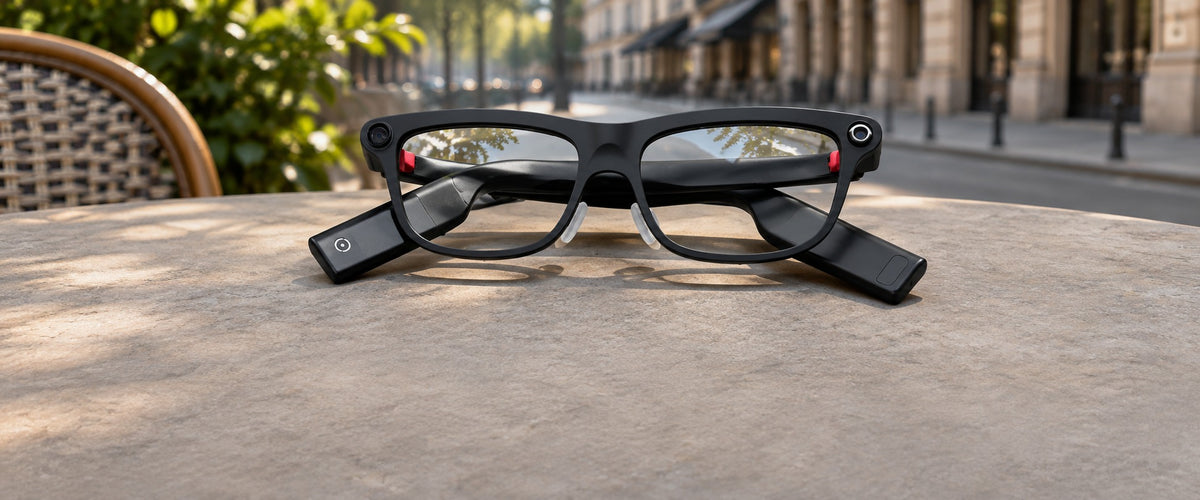
A walking route can sit in your line of sight on display smart glasses, cutting down how often you pull out your phone to check the next turn. INMO GO3 gives turn-by-turn directions for walking or cycling through HERE Maps, shows them directly in your field of view, and announces route guidance by voice. The phone handles the planning: pick a destination and a travel mode in the INMO Global app, start the route, and the directions move to the lens while the phone goes into a pocket or bag.
Turn Cues in View Cut the Phone Map Check to a Glance
Following a phone map on foot means looking down, finding your position, working out which way the map is facing, then looking back up to match it to the street before carrying on. Each check takes your eyes off the pavement and keeps a hand on the phone, and on an unfamiliar route most of those checks come as a junction approaches, the point where attention on the street matters most.
A route on foot is mostly straight stretches between turns, and guidance is needed mainly as each turn comes up. With the cue already in your field of view, the check moves from your hand to the lens: look at it as the junction comes up, make the turn, and leave the phone where it is. Route voice prompts carry the same guidance through your ears, a useful second channel when traffic or a busy crossing needs your eyes.
GO3 shows navigation on its binocular green Micro LED display, the same display that carries its subtitles and teleprompter text. A direction cue is short by nature, a symbol and a few words, so it suits a quick look between steps. Readers still comparing display styles for a trip can read about AI glasses and AR glasses for travel, translation and movies before choosing a pair.
How Do You Start Walking Directions on Smart Glasses?
Setting up a route on GO3 takes a few taps in the INMO Global app, best done before you move off:
- Check that the glasses name and battery level show on the app home page, which confirms GO3 is connected.
- If the light outside is very bright or quite dim, open the Touchpad screen from the glasses icon on the home page and set the display brightness.
- Tap Navigation on the home page.
- Search for your destination and match the address of the result to the place you mean.
- Select Walking, or Cycling for a ride.
- Tap Start Glasses Navigation, and the navigation information appears on the glasses.
If the mini map does not appear after the route starts, end the navigation in the app and start it again from Navigation with the same destination and travel mode.
Large cities have repeated street names and businesses with several branches, and every cue on the lens leads toward whichever result you picked in step 4. Comparing the address there for a moment saves a correction partway along the route.
Run these steps standing to one side of the pavement, not mid-stride, and read the first cue before moving off. It sets the direction you head in, and that is far easier to settle while you are still. With the route on the lens, the phone can go into a pocket. It stays paired with the glasses, and you take it out again for the jobs that belong to the app: choosing a new destination, ending the route, or restarting it.
Single Tap, Double Tap: Controlling the Route From the Glasses
During a route, a single tap and a double tap on the glasses touchpad handle the controls you need while moving, and anything that changes the route itself goes back to the app.
| Control | Result | When to use it |
|---|---|---|
| Single tap on the glasses touchpad | Shows or hides the mini map | Show it before a complicated junction; hide it on a long straight stretch |
| Double tap on the glasses touchpad | Exits navigation | You have arrived, or you are about to set a different route |
| End navigation in the INMO Global app | Stops the route from the phone | Restarting the route or replacing the destination |
A single tap changes only whether the mini map is showing, and navigation keeps running with the map hidden. A double tap on the same touchpad ends the route, so it belongs at your destination or at the moment you decide to plan a new one. Making either tap while you are standing still, or stopped on the bike, avoids ending a route by accident halfway along.
The mini map helps most where streets meet at awkward angles, where two turns come close together, or after a stop when you need to get your bearings again, because it shows the shape of the surrounding streets at a glance. On a long straight stretch the street layout tells you little you do not already know, so hiding the map until the next junction comes into view leaves the lens clearer for the walk itself.
Timing Your Glances on Foot and on a Bike
At walking pace you can slow down or step to the side to study the mini map whenever a junction looks complicated, and waiting for a crossing signal is a good moment to read the next cue, since you are already standing still. The habit that matters most is reading that cue before you reach the kerb and then giving the crossing your full attention, looking and listening for traffic until you are across.
Junctions arrive faster on a bike, there is less time to read, and both hands stay on the handlebars except when you signal a turn. Longer looks at the lens therefore belong at the start of the ride and at stops along the way, when the bike is stationary. If the route needs changing mid-ride, pull over and stop before touching the glasses or the phone.
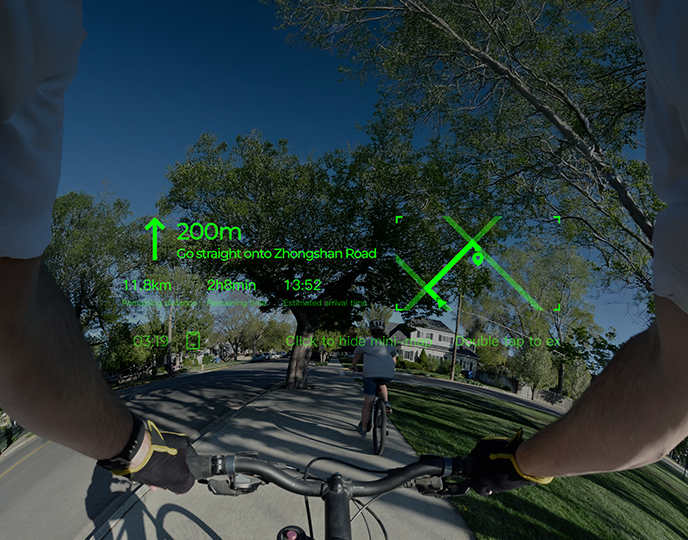
On the bike, glances at the lens have to fit between checks of the road ahead, so the route voice prompts carry more of the guidance than they do on foot. On a trip abroad, GO3 can also help with talking to locals in their own language, a separate feature you set up apart from navigation.
Battery Swaps Between Routes on a Long Day
GO3 runs on two swappable batteries, and with the portable charging case they cover a full day of use. On a day of several routes the spare battery is only useful in the bag you walk or ride with, so put a charged battery in the glasses and the spare in the case before leaving home or the hotel, and keep the case with you, not in luggage left behind.
Swapping when a route ends, while you are already stopped and no turn is coming up, keeps the change away from junctions; on a ride, park the bike first so both hands are free for the batteries. The magnetic swap takes about five seconds, and the battery you take out recharges in the case. When the day is over, connect the case to power with its Type-C cable so it is ready for the next day out.
FAQ
Does navigation work the same with iPhone and Android?
Navigation on GO3, including the mini map and route voice prompts, is available whether the glasses are paired with an iPhone or an Android phone. Routes are set up from the same Navigation page in the INMO Global app on both, and the gestures on the glasses touchpad do not change with the phone you carry.
Can you read the directions in bright sun or on an evening walk?
Display brightness on GO3 goes up to 1500 nits and can be raised or lowered to suit the light. A higher setting suits a sunny midday street, where the green cues sit against bright daylight, and a lower one suits an evening walk, when a bright readout is more than darker surroundings call for. A long walk can start in daylight and end after dark, so a stop along the way is a good moment to bring the level down from the app.
Can you follow a route with prescription lenses?
Official custom prescription lenses for INMO GO3 clip into the frame and sit against the display lenses, so you read the turn cues through your own correction. They cover nearsightedness and nearsightedness with astigmatism, which lets one frame carry both your vision correction and the route.
Share:
Can You Use ChatGPT or Gemini on INMO GO3? What the AI Assistant Does
Smart Glasses Phone Notifications: Read Alerts and Take Calls on INMO GO3