

INMO AIR3 owners covered by the recall do not need to send their glasses back. The remedy is a free online system update to version V3.16, and INMO assists each user in completing it remotely. Until that update is installed, stop using the glasses and contact INMO support to arrange the fix.
The recall was announced on September 24, 2026, by INMO International Technology Limited in cooperation with the U.S. Consumer Product Safety Commission (CPSC), under recall number 26-797. It addresses a safety risk in the left temple of INMO AIR3, which can overheat during prolonged use and poses a burn hazard. INMO has received 10 reports of overheating, including reports of burning sensations on the face and around the left ear.
Which AIR3 glasses the recall covers
The recall applies to black INMO AIR3 smart glasses sold from December 2025 through August 2026 on Amazon.com, Kickstarter.com, and inmoxr.com. The official announcement covers approximately 1,643 units in the United States and approximately 120 units in Canada. If your glasses were purchased in the United States or Canada through one of those channels during that period, they fall within the recall and qualify for the free update. Owners who purchased an AIR3 in the United Kingdom or other international markets can contact support to verify their device and confirm the applicable update process.
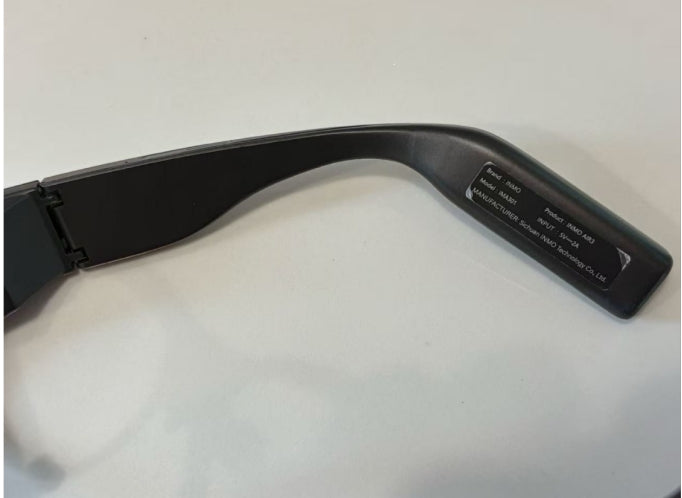
To identify whether your glasses are an affected unit, check the inner side of the right temple. The frame features a white label printed with “AIR3” and “INMO”. Checking this label confirms the model before reaching out to support. Include this label clearly when photographing your glasses for the support team.

Because of the burn hazard from overheating in the left temple, stop using the affected glasses until the V3.16 update is installed, and carry out the update steps under INMO’s guidance.
How to claim and install the free V3.16 update
Claiming the recall update and installing it on the glasses follows a clear sequence. Work through the following steps in order:
- Confirm the white label printed with “AIR3” and “INMO” on the inner side of the right temple.
- Stop using the glasses until the V3.16 update is installed, and carry out the update steps under INMO’s guidance.
- Email support.usa@inmoxr.com with a clear photo of your AIR3, your order number if available, and the channel where you bought the glasses (Amazon.com, Kickstarter.com, or inmoxr.com). You can also call 1-888-212-9620.
- Prepare the glasses for the update: connect them to Wi-Fi, make sure at least 1GB of storage space is free, and charge the battery above 80% (recommended in the firmware update guide).
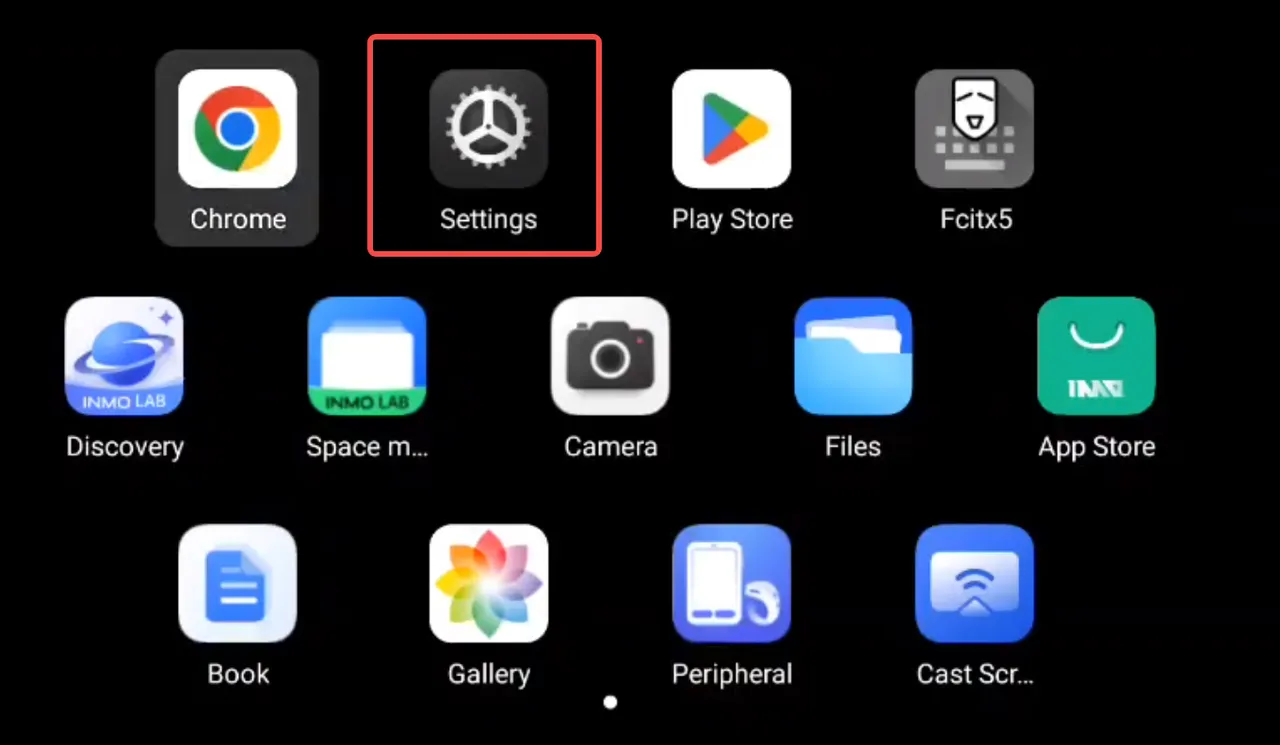
- On the glasses, open Settings from the home screen, select “About the Smart Glasses,” and select “System Version.”
- When the new version is detected, select “Update Now” to download the software package.
- Once the download completes, follow the on-screen prompt and select “Update Now” again to begin installing the update.
- Leave the glasses undisturbed during installation. Do not operate them, power them off, or restart them. The glasses restart automatically once the installation is complete.
The preparation in step 4 is necessary because the software package downloads directly to the glasses over the air. In the general AIR3 firmware documentation, the package is described as approximately 1GB, making sufficient free storage a required condition for download. Maintaining a battery level above 80% is recommended so the glasses remain powered throughout both the download and installation stages. The menu path and full setup checklist are documented in the AIR3 firmware update guide on the INMO Support site, which can be referenced while working through the procedure.
If the glasses do not detect an update in the System Version menu, or if the installation encounters an error, stop using the glasses and contact support.usa@inmoxr.com or call 1-888-212-9620 for assistance. Only install updates delivered through the official Settings menu on the glasses, and avoid attempting manual firmware installations from unverified third-party sources.
Confirming the update is installed
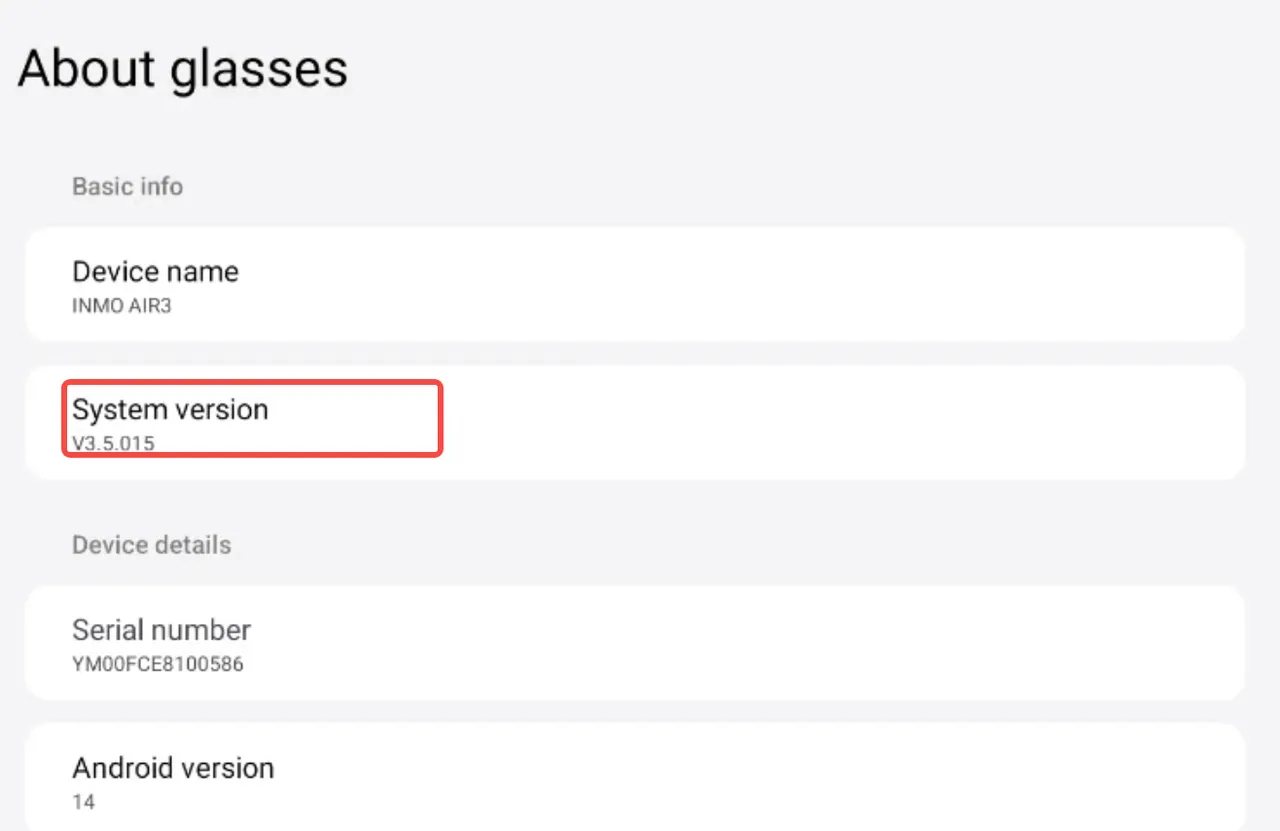
After the automatic restart, open Settings again, go to “About the Smart Glasses,” and select “System Version.” Version V3.16 is the specific remedy designated in the recall announcement. Checking this screen confirms that V3.16 is installed on your device. You can also reply to INMO support to confirm that your update is in place.
If the screen displays a different version number, send that number to support.usa@inmoxr.com so the support team can check the update status of your device and provide appropriate next steps. Keep the glasses out of use until the recall update is confirmed. For additional technical assistance and product documentation, consult the INMO AIR3 documentation on the Support site.
Frequently Asked Questions
Can INMO fix my AIR3 remotely if I bought it outside the US or Canada?
The published recall announcement applies to units sold in the United States and Canada through Amazon.com, Kickstarter.com, and inmoxr.com. If you purchased an AIR3 in the United Kingdom or another international market, email support.usa@inmoxr.com with a photo of the glasses and the purchase details. The support team can check your device information and advise on the appropriate update steps for your unit.
What if I no longer have my order number?
The order number is requested only if you have it available. If you no longer have access to your order records, provide a photo of the AIR3 showing the inner right temple label, along with the store or platform where the glasses were purchased. The support team can use those details to verify the unit and assist with the V3.16 update.
Why contact support before running the update?
The recall remedy is provided as an assisted update where INMO helps users complete the free online system update to version V3.16. When you contact support, you submit a clear photo of your AIR3, your order number if available, and the channel where you bought the glasses. The support team then assists you in carrying out the download and installation directly on the glasses through Settings. You can also continue contacting support if the update does not appear in the menu or if you encounter installation issues.
Share:
How a Software Update Addresses the INMO AIR3 Overheating Recall
INMO AIR3 Recall Customer Support: How to Get the V3.16 Fix and Check Your Update