


Spoken words in a conversation can appear as live text on caption smart glasses, so a person with hearing loss has something to read while facing whoever is talking. INMO GO3 does this through INMEET: microphones in the frame pick up nearby speech, and the transcription shows on both lenses as people talk. The system font size can be raised for easier reading, and each session is saved in the INMO Global app to read again later.
Smart glasses for hearing impaired users add a written line to the hearing you still have and the face you are watching. GO3 is a captioning aid for reading speech, not a hearing aid or a medical device. It suits people who already find conversation easier to follow with text in view, and relatives looking for a practical way to help a parent keep up.
How Do Caption Glasses Help Someone Who Is Hard of Hearing?
With partial hearing, a sentence is usually pieced together from several sources at once: the sound that still gets through, the shape of the speaker's lips, facial expression and the topic being discussed. INMEET on GO3 adds a written source to that mix. When a word sounds like two others, the transcribed line gives you a version to set against what you heard and what you saw on the speaker's mouth.
When captions run on a phone held at waist height or lying on a table, checking a line means looking down at the screen and back up at the speaker. INMEET text on GO3 appears in front of your eyes with your head up, so you can glance between the line and the person talking while staying turned toward them. Pickup comes from a four-microphone array with noise reduction in the frame, and the phone can stay in a pocket or on the table.
Glasses that only play sound near the ear add more audio to the channel that is already the hard one to use. A display opens a visual channel alongside the voices in the room, a contrast explored in display smart glasses compared with audio-only glasses.
Larger Text, a Quick Start and the Summary View
The text size and the GO key shortcut are set from the INMO Global app on the phone paired with GO3, and a first setup for someone who relies on captions takes six steps:
- Pair the glasses by tapping Connect on the INMO Global app's home page.
- Raise the system font size under the settings icon, reached through the glasses icon on the home page.
- On the same settings page, assign the GO key to INMEET.
- Back on the glasses icon screen, set the brightness for the room where most conversations take place.
- To start captions, press the GO key, or swipe the right temple touchpad to INMEET and tap to enter. A tap pauses or resumes, and a double-tap or another GO press ends the session.
- After the conversation, open INMEET in the app to read the saved record.
A larger font suits wearers who read slowly or find small text hard to see, and a smaller one fits more words on each line. Raise the size a step at a time during a few minutes of real conversation, and keep the setting at which a phrase can be read in one glance.
Assigning INMEET to the GO key gives a relative who prefers not to learn menus one button to remember, and the touchpad route stays available for anyone who likes it. Brightness can follow the light through the day: set it for the room where most talk happens, raise it outdoors in daylight and lower it in a dim room in the evening.
The transcription appears in green on both lenses, drawn by a binocular Micro LED display with diffractive waveguides, so both eyes read the same line while you look through the lenses at the person in front of you.
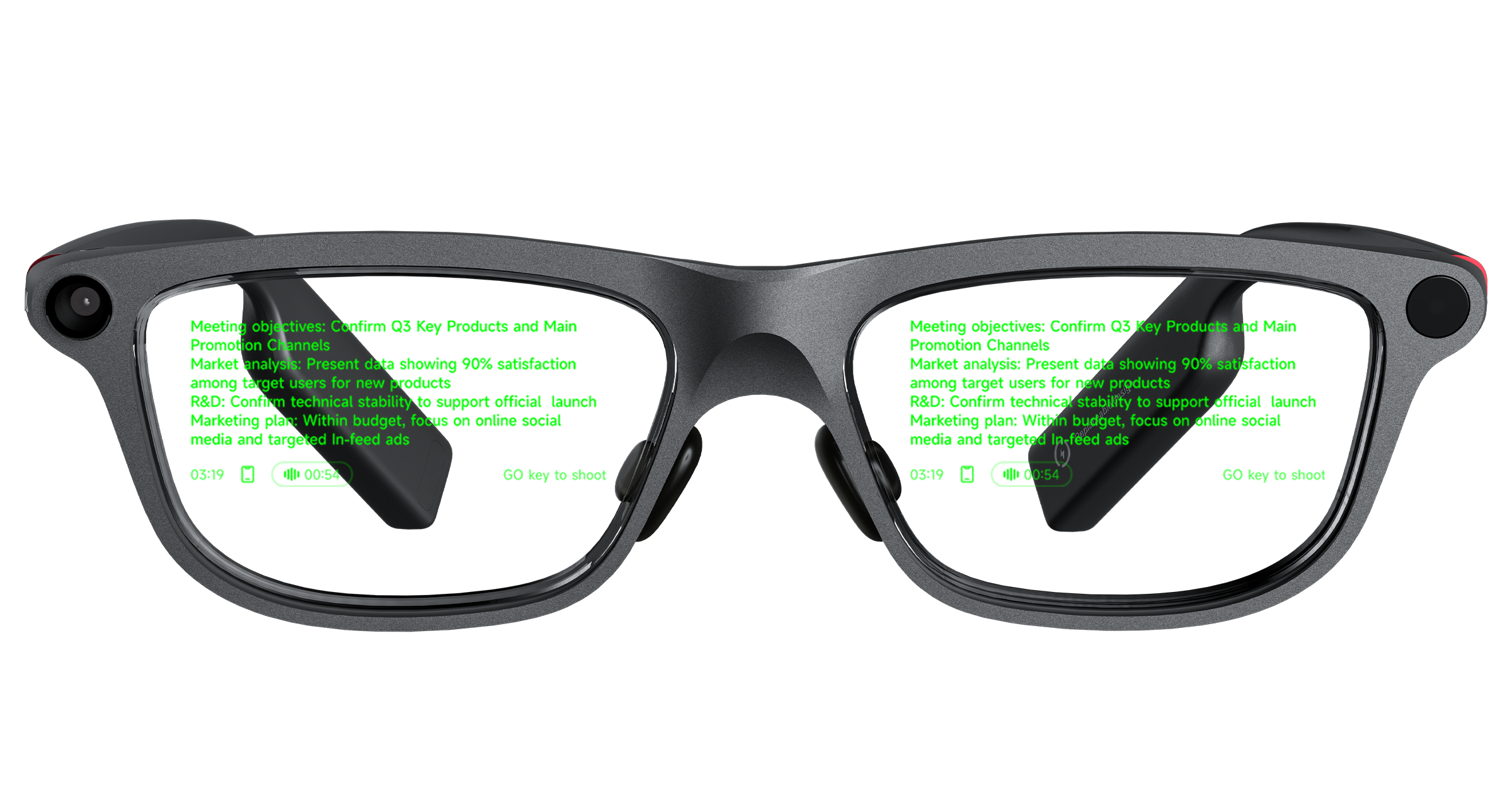
Sliding the touchpad to the Summary view shows a short summary of each topic the conversation has already finished. After a stretch of talk has gone past and the thread is lost, those summaries give you the earlier points in brief before you return to the live line.
Conversations at Home, at Work and in a Group
A one-on-one talk at home puts the speaker close and usually facing you, so the live line and the speaker's mouth are both in the direction you are already looking. Larger gatherings and work meetings shift more of the load onto the summary and the saved record.
| Situation | What to lean on during the conversation | What to read afterward |
|---|---|---|
| One-on-one talk at home | The live line and the speaker's face | The transcript, if a detail was unclear |
| Family gathering with several voices | Summaries of finished topics in the Summary view | The transcript, with your lines kept apart from other speakers' |
| Phone or app call | Live transcription of the call | The call record in INMEET |
| Work meeting | The live line | AI minutes and to-dos built from the record |
Gatherings where several people talk at once are where a mark made during the recording pays off. When a remark goes by unclear, marking that moment lets you jump straight to it in playback afterward, then hear it and read it again in context. Work meetings lean more on what Organize with AI builds from the record, and the meeting setup is laid out in live caption glasses for English meetings.
Reading a Conversation Again After It Ends
Every INMEET session is saved in the INMO Global app, giving someone with hearing loss a second pass at the parts that went by too fast. The transcript holds the full text of what the glasses picked up, readable at your own pace on the phone screen, and it is the place to look back at a date, a name or an amount mentioned along the way.
Organize with AI produces something different: a meeting summary, a mind map and to-do items generated from the saved session. In daily life the to-do list can be the most practical part, since arrangements mentioned in passing end up written down, and those to-dos sync to Scheduled Tasks so reminders appear on the glasses when they are due. Each record can be renamed and exported, for instance to send a relative a copy of what was agreed. Reviewing a translated conversation follows a similar pattern, shown in live subtitles with a conversation history.
Buying for Yourself or for a Family Member
People who already switch on captions on a phone or TV, and who find a written line easier to follow than sound alone, are a strong fit for GO3: the same kind of text moves from the hand to the lens, and the speaker stays in front of them. Buyers who expect to use the glasses mostly at work get the most from saved transcripts and AI minutes, while buyers who use them mostly at home get the most from the live line during face-to-face talk.
A relative receiving GO3 as a gift wears a frame of about 58g with 8mm temples, and all-day use runs on a pair of swappable batteries that recharge in a portable charging case, with a magnetic swap taking about five seconds. Finishing the app setup before the glasses change hands leaves the battery swap as the main thing to show in person.
Wearers who need vision correction can order official custom prescription lenses that clip into GO3, covering nearsightedness on its own or combined with astigmatism. The order asks for sphere, cylinder and axis values for each eye plus pupillary distance, or an uploaded prescription that includes it, so a recent eye test result is the document to have ready.
FAQ
Can GO3 show captions during a phone call?
INMEET works on phone calls and on calls in third-party apps, with live transcription available while the call is being recorded. Recording can start from the GO button or begin by itself when automatic call recording is turned on in the INMEET settings. The finished call is saved next to your other sessions, so arrangements made by phone can be read back like any conversation in the room.
Can the saved record show who said what?
Each saved record separates what the person wearing GO3 said from what the other speakers said. After the conversation, AI processing of the record can identify the other speakers, and their names can be edited, so a family discussion reads as an exchange between named people when you look back at it.
Can a relative follow the live text on the phone too?
Live transcription in INMEET appears on the phone as well as on the glasses. A relative sitting beside the wearer can follow the same text on the phone screen, and the two of you are then reading the same line whenever a word in the transcription needs to be talked over.
Share:
Smart Glasses for Inventory Photos: Recording Merchandise Condition With INMO GO3
AR Glasses for Reading Ebooks: Text Size, Page Turns and Two Ways to Read on INMO AIR3