

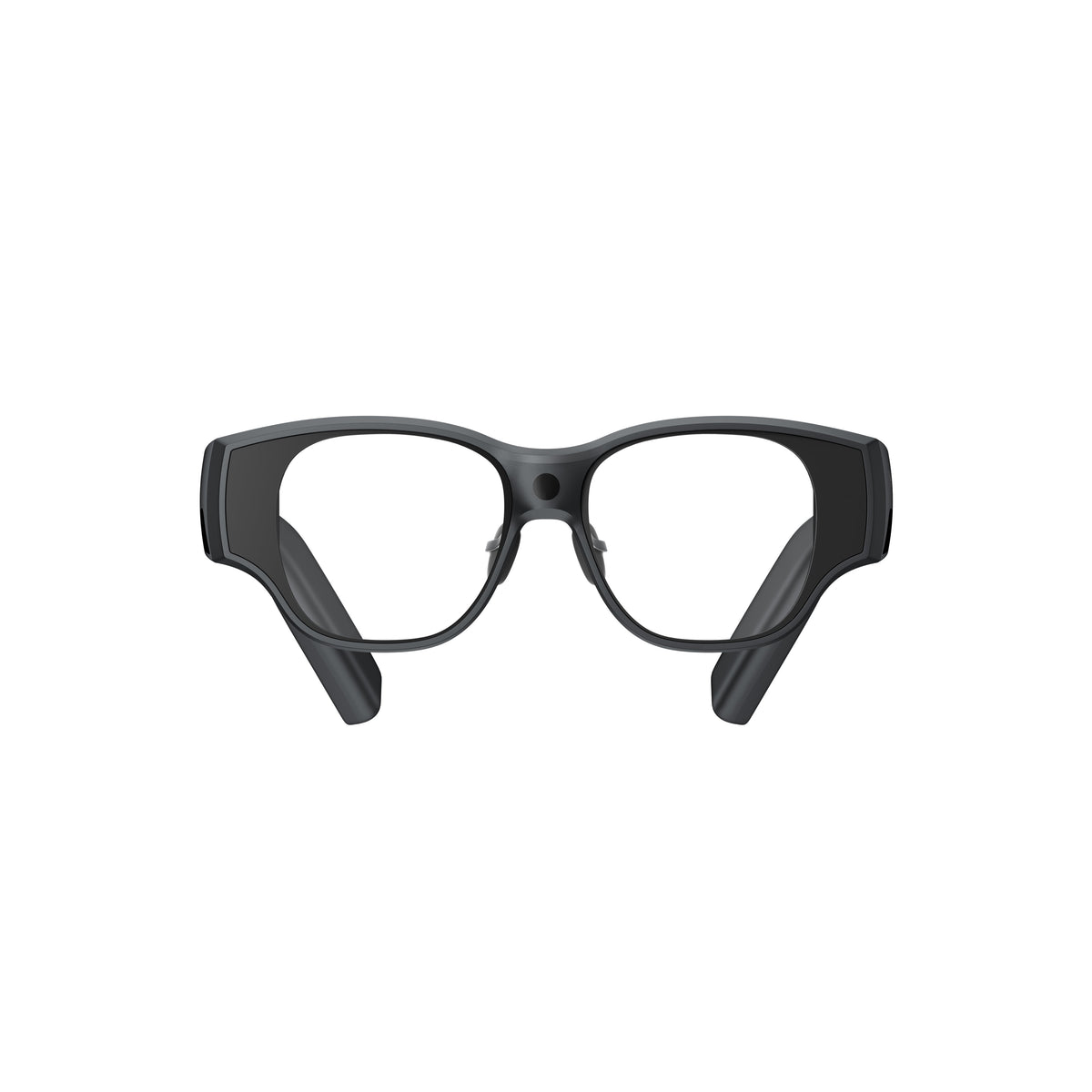
To receive the recall fix for INMO AIR3, contact INMO customer support by emailing support.usa@inmoxr.com or calling 1-888-212-9620 with a photo of the glasses, your order number if available, and the purchase channel. Support coordinates a free online system update to version V3.16. Recalled units should remain unused until this update is installed.
Once the update is installed, you can verify version V3.16 directly in the device settings. Keeping your direct email correspondence provides personal documentation of the completed process.

Before You Contact Support: Confirm Your Glasses and Gather Details
INMO International Technology Limited announced the recall on September 24, 2026, in cooperation with the U.S. Consumer Product Safety Commission (Recall No. 26-797). It covers black INMO AIR3 glasses sold from December 2025 through August 2026 on Amazon.com, Kickstarter.com and inmoxr.com. That comes to about 1,643 units in the United States and about 120 in Canada. Affected units have a label on the inside of the right temple printed with “AIR3” and “INMO”.

The recall addresses a burn hazard where the left temple can overheat during extended use, posing a risk of burn injuries. At the time of the announcement, ten reports of overheating had been received, including burning sensations on the face and the left ear. If your glasses match the affected description, stop wearing them and leave them unused until the official update is installed.
A few minutes of preparation lets your first message to support cover everything at once. The recall instructions ask for the first three items below. The fourth is an optional extra that shows support where your glasses currently stand.
- A clear photo of your AIR3. Including the temple label makes the model easy to identify.
- Your order number, if you have one.
- Where you bought the glasses: Amazon.com, Kickstarter.com or inmoxr.com.
- If you already know it, the system version currently installed on the glasses.
Send these details by email to support.usa@inmoxr.com, or call 1-888-212-9620, Monday through Friday, 9 a.m. to 5 p.m. ET. Email leaves a dated written thread, which helps if you choose to ask support to confirm that your update is noted.
What Happens After You Reach INMO Support
The remedy is a free system update to version V3.16, installed online with help from INMO support.
While the support team provides specific instructions for receiving the recall update, the AIR3 firmware update guide outlines the general operational requirements for system updates on the device. Those standard prerequisites include an active Wi-Fi connection, at least 1GB of available storage, and a recommended battery level above 80%. The guide notes a typical package download size of approximately 1GB for general updates, and support provides the specific instructions to complete the recall installation.
During installation, the glasses should remain untouched and allowed to restart automatically once the installation completes. Because network speeds vary and each phase involves different actions, breaking the workflow down into distinct stages makes tracking progress straightforward: submitting your initial details, receiving guidance from support, downloading and installing the update, and optionally asking support to confirm your update on file.
Keeping a personal record helps you monitor each phase. Note the date of your initial message, save support email replies, record any case reference number provided, and retain copies of the photos and order details you submitted. While maintaining this log is not a formal recall prerequisite, it helps you keep complete documentation should questions come up later.
How Long Does the Fix Take, and How Do You Know It Worked?
The overall support and update workflow moves through submitting your details, receiving guidance from support, installing the firmware, and verifying the version on the device. Installation time itself depends on file download speed and the device restart cycle. Checking the installed firmware version is something you can do directly on the device. On the glasses, open Settings, select About the Smart Glasses and look at System Version, which should read V3.16 after the recall update.
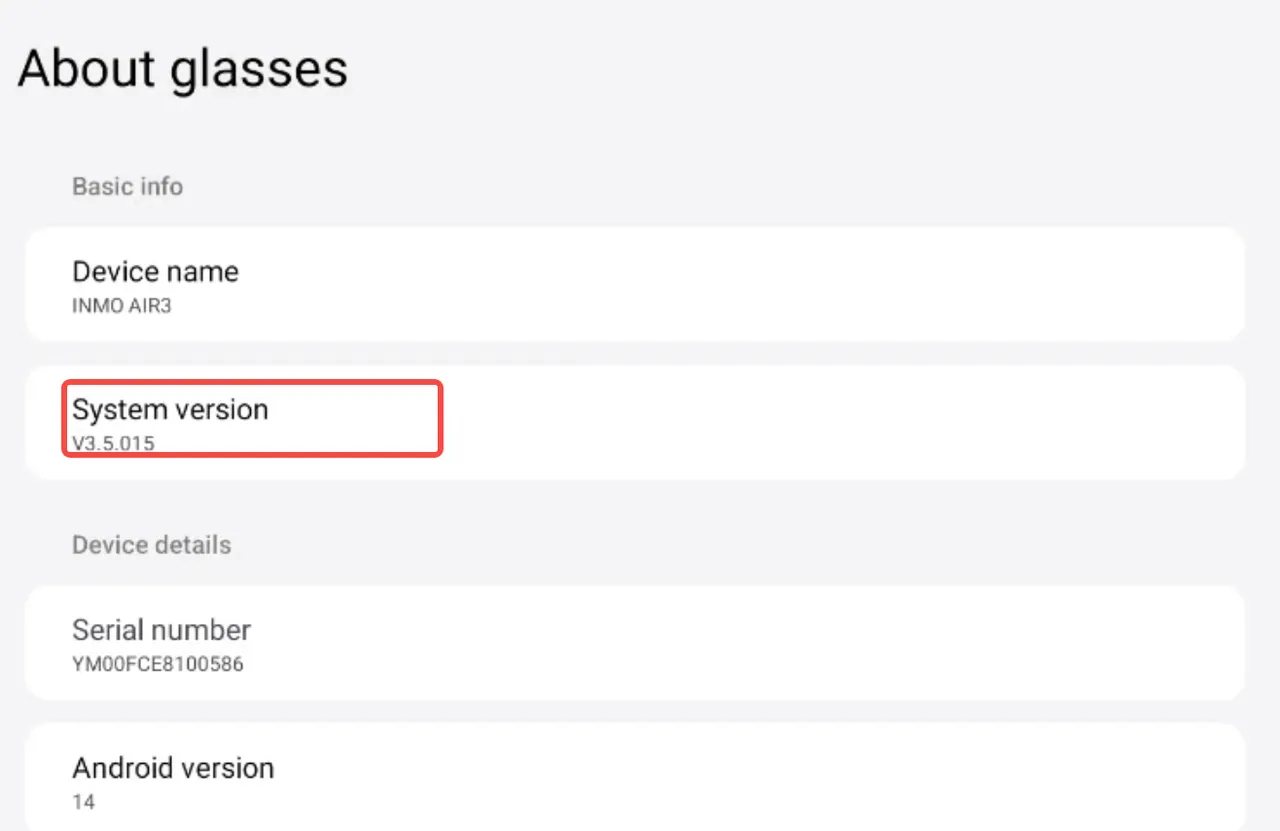
Displaying V3.16 confirms that the designated firmware package is installed. You can ask support whether they can confirm in writing that your unit has completed the recall remedy, and save whatever reply you receive for your records. If the device displays an unexpected version string or fails to detect the release, consult support to confirm whether the installed build satisfies the recall remedy rather than assuming an alternate version qualifies.
If you have safety concerns or notice unusual warmth on the left temple, stop using the glasses and contact support again with your case details. Do not wear them for long periods to test whether the issue persists. Further documentation and support channels remain accessible through the AIR3 support site and the dedicated recall email.
Frequently Asked Questions
Does the AIR3 recall apply in the UK or elsewhere outside North America?
The announced recall covers units sold in the United States and Canada. If you bought AIR3 somewhere else, including the UK, email support.usa@inmoxr.com with the same details (a photo, your order number if available, and the purchase channel) and ask which arrangement applies to your glasses. Phone hours are set in Eastern Time, so email is often easier from other time zones.
What should you do if the AIR3 update does not appear or fails to install?
If the update does not appear before you begin, check your Wi-Fi connection and look at the current System Version under Settings, then ask support to confirm when the release is available for your device. If the installation has already started and appears to stall, do not power off, restart, or operate the glasses, as the official guide advises against interrupting an ongoing update. Instead, note whatever prompt or behavior is visible on the display and reply in your existing email thread with support.usa@inmoxr.com. Sharing those details and a photo of the screen helps support provide targeted guidance without requiring you to guess how long to wait or risk interrupting the process.
Will V3.16 change how AIR3 performs?
You can review and adjust standard device behavior directly in Settings, including display brightness and the system performance modes under Battery. If you observe changes after updating that affect how you use AIR3, write down the details and raise them in the same support thread so they become part of your case record.
Share:
INMO AIR3 Recall: Do You Need to Send Your Glasses Back?
AR Glasses vs VR Headset for Movies: How INMO AIR3 Handles Viewing and Light Work