

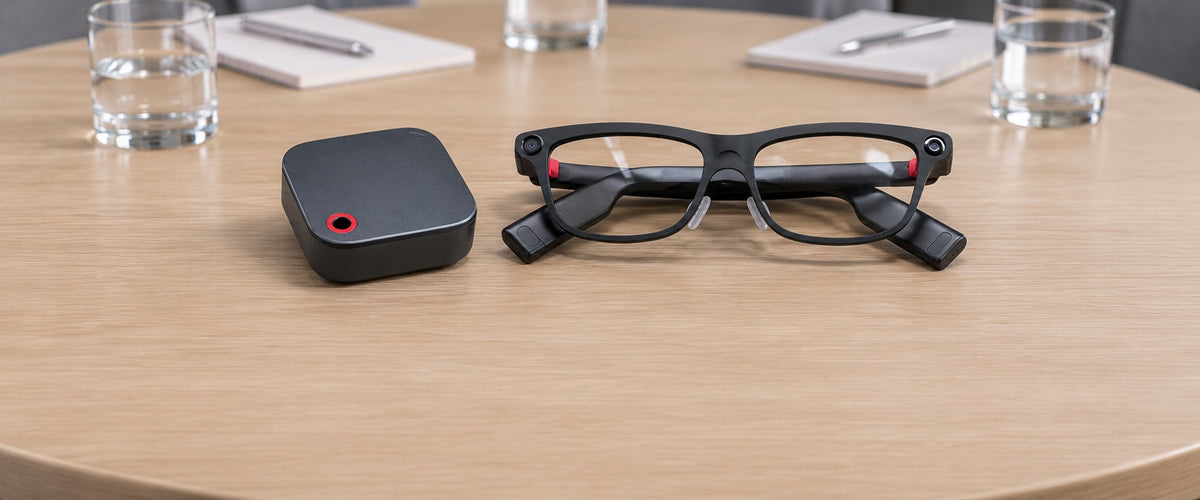
Who said what in a meeting can be traced on INMO GO3 in two stages. Each INMEET record keeps the words of the person wearing the glasses apart from those of other speakers, and after the meeting, AI speaker identification sorts the other voices so you can change each speaker label to a real name in the INMO Global app. The original audio and the marks added during the meeting then take you back to the moments that decide ownership, such as a proposal or a commitment, so you can listen again before the notes go to your team.
Can Meeting-Recording Glasses Tell Who Said What?
One INMEET recording passes through five stages on its way from the room to a shared file, and the speaker information it carries grows at each of them.
| Stage | What you can see about speakers | What it is good for |
|---|---|---|
| While INMEET records | Live transcription on the lenses and your phone, plus any moments you mark | Following the discussion and flagging a decision as it happens |
| In the saved record | Your own words kept apart from other speakers | Finding your own commitments and open questions |
| After AI processing online | Speakers identified across the conversation, alongside the notes, mind map and to-dos | Seeing how the discussion divided between participants |
| After you rename | Speaker labels carrying the names of the people in the room | Reading the record as a set of named contributions |
| At export | The combined document and, when needed, the meeting audio | Sharing the discussion with colleagues who were not there |
Your own lines in the saved record are where your follow-ups sit: the dates you offered, the documents you said you would send, the questions you still owe an answer on. Reading just those passages after a long session is a quick way to build your personal action list, so the split between you and everyone else is usually the first one people put to use.
A summary line saying the group agreed to move a deadline tells an absent colleague far less than a record showing which participant raised the new date and which one accepted it. That detail comes from the full speaker split after the meeting and from the names you attach. A wider look at recording meetings and calls is in this guide to smart glasses that record meetings for work.
Why Speaker Labels Start Without Names
Speaker diarization, the general technique behind this kind of feature, detects when the speaker changes and groups passages of speech by the voice they come from, giving each group its own label. The grouping is based on how voices sound, and a voice by itself carries no name.

On GO3, the after-meeting identification marks where one participant stops and another begins, and the rename step is where you supply the part only the people in the room know: which voice belongs to which colleague or client. Placing the naming step after the meeting also means you can do it calmly, with the whole conversation in front of you.
Wherever a proposal, a commitment, a deadline or an objection was voiced, knowing who spoke carries the most weight, so start the audio check at those passages. Widen it to the surrounding discussion whenever an owner is still unclear, or when the record is going to people who were not in the room.
Putting Names on Speakers and Replaying Key Decisions
After the meeting, the review runs in this order:
- Double-tap the right temple to end the INMEET recording.
- In the INMO Global app, open the saved record in INMEET.
- With your phone online, tap Organize with AI to generate the meeting notes, mind map and to-dos.
- Review the speakers identified after the meeting and change each label to the person's real name, using each voice's opening passages and your own lines as reference.
- Jump to each mark and play the audio around it, moving back with the progress control when the context starts earlier.
- Export the record as a PDF, Word or TXT document, and export the WAV audio separately if a colleague needs to hear a passage.
Live transcription on the lenses shows each line as it is spoken, so a mark can go in at the moment someone makes a proposal or accepts a task, and those marks serve as the index your listening starts from. Playback then lets you hear the few seconds before and after a decision, where the context often sits, such as the question someone was answering when they agreed.
The saved record already separates what you said, so a question you put to a particular colleague sits just before the reply it drew, and that reply points to the label that belongs to them. Your own lines become the anchor for attaching names, and the content carries the rest of the matching: the voice presenting the budget figures, the one describing a team's schedule, the one responding about their own document.
When two people speak at the same time, follow the content as well as the voices: who asked, who answered, who referred to their own team or document. The transcript gives you the words and the audio gives you the flow of the exchange. Where an owner still reads as open, record the decision as it stands and ask the participants to confirm the owner in your follow-up message.
Assigning Owners From a Named Record
Inside a named INMEET record, the discussion reads as a sequence of contributions from identified people, so turning a decision into a task with an owner takes less guesswork. A colleague who missed the meeting needs something different from you: what was decided, which items were assigned to them, and the reasoning behind each one. Write those owners into your follow-up note by name, quoting the relevant line from the record where the wording matters.
One exported document from INMEET brings the marks, to-dos, summary and full transcript together with the mind map's outline, so the meeting can sit alongside the rest of a project's paperwork. This walkthrough of full transcript export goes through the file in more detail. Before sending anything, read your note once from the point of view of someone who was absent, and check that every action in it has a named owner.
To-do items from INMEET also sync to Scheduled Tasks, where reminders reach the glasses. The named record helps you sort them: keep the items you accepted in Scheduled Tasks, and pass the others along in your follow-up note with the line from the record that shows who took them on.
How Much Naming a Meeting Needs
A short check-in where only your own follow-ups matter can stop at the split between your words and everyone else's, since your commitments are already easy to pull out of the saved record. Naming every speaker earns its time in meetings where responsibility is spread across several people: a planning session that hands out tasks, a review where competing proposals are weighed, or any discussion whose record will go to people who were absent.
The saved record keeps every voice whether or not you name it, so the level can be decided after you see how the discussion went. For a larger group, a sensible middle ground is to name the speakers who proposed something, raised an objection or took on an item, and leave brief contributors under their identified labels. Whatever level you pick, telling everyone at the start that the meeting is being recorded is good practice.
FAQ
Do participants need to record their voices before the meeting?
Speaker identification on GO3 works from the meeting recording itself, so nobody goes through a voice setup beforehand. People in the room simply take part in the discussion as usual. The identification runs after the meeting, which is also when you add the names.
What if two participants sound alike?
Naming the labels you are sure of first leaves fewer open, and the ones still in question can then get your full attention during playback. For a passage you remain unsure about, the exported audio gives you something to share: send it to a colleague who was in the room and ask for a second opinion, then weigh their view together with what each label actually said in the record.
What if someone joins partway through?
Add a mark as the new participant arrives, since their contributions to the record begin at that point and naming their label can start there. If they ask what they missed, the Summary view in INMEET on the glasses shows a running summary of the discussion so far, which helps you bring them up to speed while the recording continues.
Share:
Display Smart Glasses vs Audio-Only Glasses for Translation: Which to Choose
From Brainstorm to Mind Map: Using Smart Glasses to Review and Share Meeting Ideas