

The INMO AIR3 recall remedy is a free online system update to version V3.16, and you can confirm it from the System Version page in Settings once it is installed. After the update, AIR3 runs video and everyday Android apps on its built-in hardware platform: a Qualcomm Snapdragon octa-core processor, 8GB of RAM, 128GB of internal storage, and Android 14. To observe performance across your own routine, you can run a structured comparison directly on the glasses, using the same video or app alongside consistent performance mode, brightness, and power settings.
The update comes first. The recall covers AIR3 glasses in which the left temple can overheat during extended use, presenting a burn hazard, so recalled units should stay out of use until they are running V3.16. Once the update is in place, the settings and checks below help owners of INMO AIR3 review how the glasses handle their usual videos and apps.
Installing the V3.16 recall update
The recall was announced in cooperation with the U.S. Consumer Product Safety Commission (CPSC) on September 24, 2026, under recall number 26-797, following 10 reports of overheating that included a burning sensation on the face and left ear. The official remedy is a free online system update to version V3.16, and INMO assists owners in completing the update online. To begin, email support.usa@inmoxr.com with a photograph of your AIR3, your order number if available, and your purchase channel, or call 1-888-212-9620.
The installation itself runs directly on the glasses. The AIR3 firmware update guide outlines the necessary preparation and steps:
- Connect AIR3 to Wi-Fi and make sure at least 1GB of storage is free. A battery level above 80% is recommended.
- On the glasses, open Settings → About the Smart Glasses → System Version.
- When a new version is detected, select Update Now.
- Leave the glasses undisturbed while the update installs, without operating, powering off, or restarting them. AIR3 restarts automatically when the installation completes.
After the restart, return to System Version to confirm that V3.16 is displayed. That version number is also the first detail to record for any personal performance checks.
The hardware platform for video and everyday apps
AIR3 is an all-in-one pair of AR glasses, housing its computing hardware directly in the frame. The platform pairs a Qualcomm Snapdragon octa-core processor with 8GB of RAM and 128GB of internal storage, running Android 14. In everyday use, the onboard storage provides space for applications alongside video files transferred from a computer, allowing media to play straight from the device.
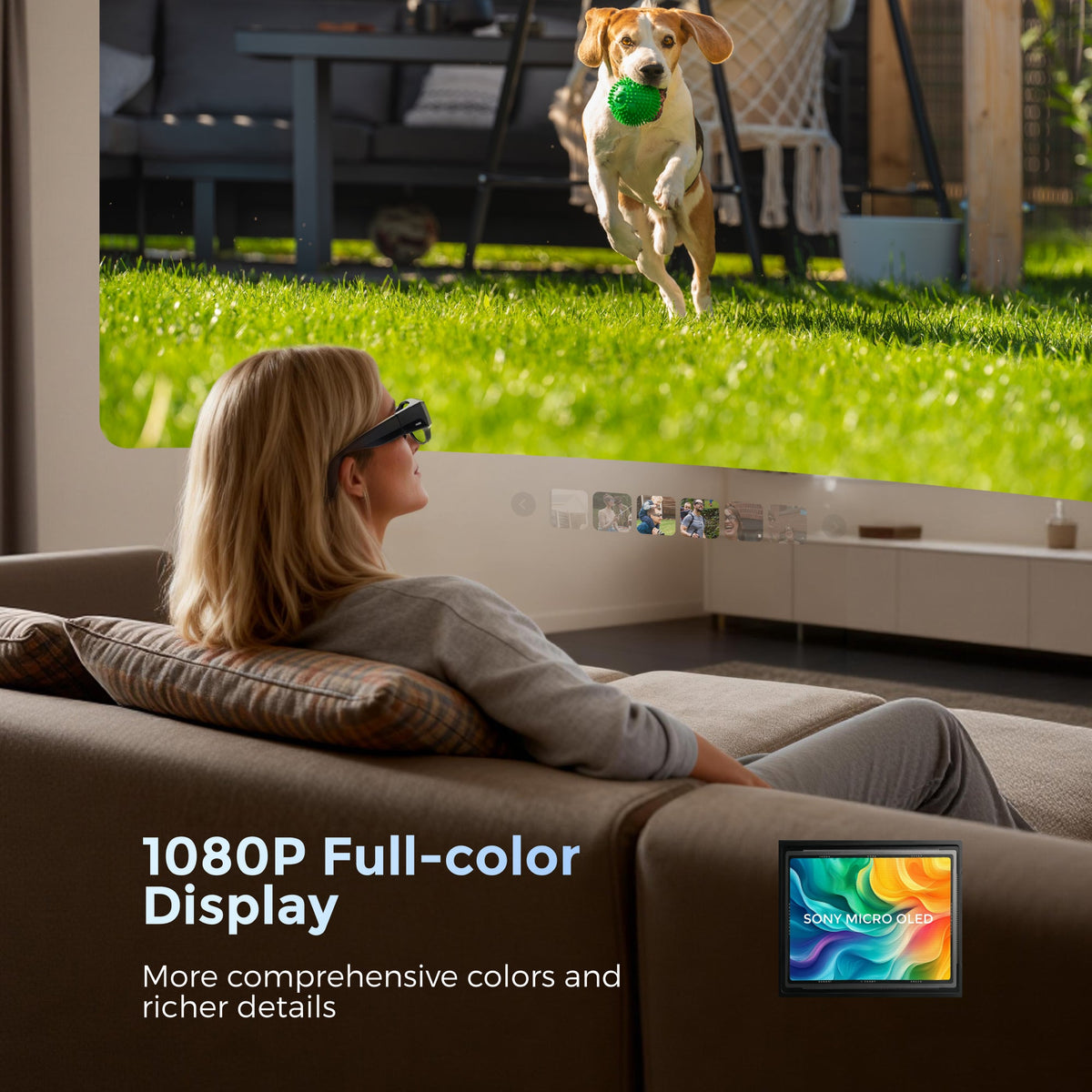
Because AIR3 runs Android 14, applications can be installed through Google Play directly onto the glasses. Video playback appears on a binocular, full-color 1080P display with a resolution of 1920×1080. That resolution sets the display detail the glasses present, while the video resolution and stream settings selected inside each application determine how sharp an individual clip appears. When comparing video playback over time, maintaining the same stream quality inside the app is just as important as keeping the display settings on the glasses consistent.

Settings to check after updating to V3.16
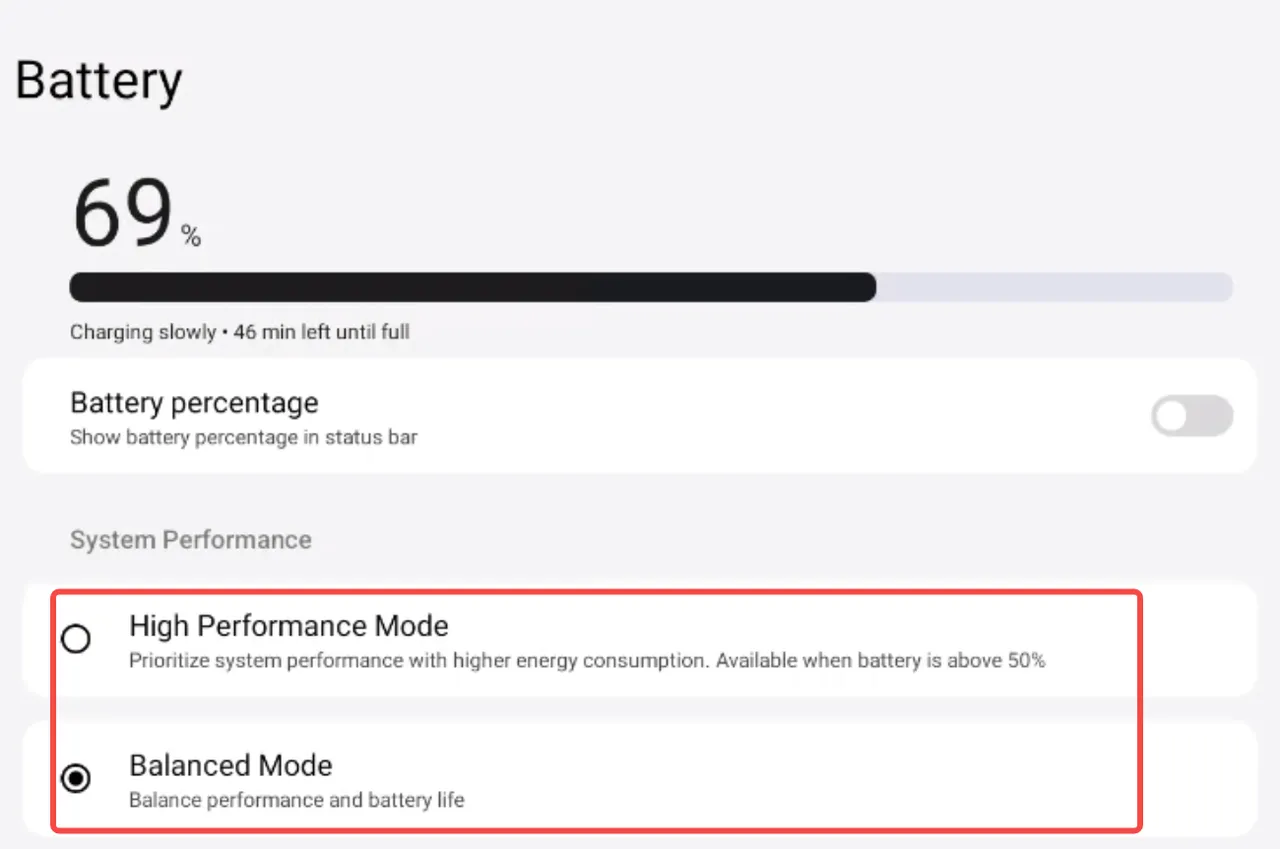
Several system settings shape how video and applications run on AIR3, and each of them can be reviewed directly in the settings menu once V3.16 is active. Under Settings → Battery → System Performance, AIR3 provides two operating profiles: Balanced Mode and High Performance Mode. The battery and performance settings guide shows where both profiles are located. Checking and noting which profile is active after restarting the glasses helps keep your subsequent playback checks aligned under the same system configuration.
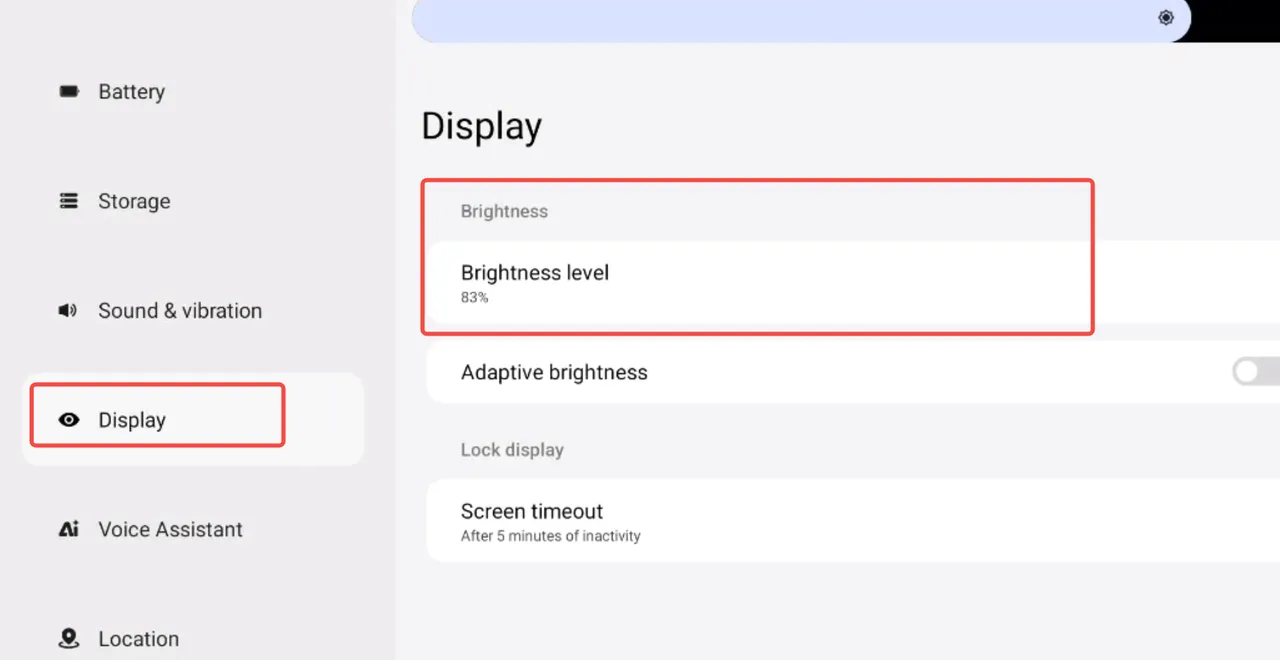
Display brightness is the next control to inspect. Under Settings → Display, users can set the brightness level manually or toggle Adaptive Brightness so AIR3 adjusts screen output according to ambient lighting. Because perceived image contrast changes with room lighting, recording the slider position and whether Adaptive Brightness is active keeps any playback evaluation consistent. The screen brightness guide covers these display controls.
Power Saving Mode is another setting to review. It can be turned on manually or set on a schedule with designated start and end times. While active, Power Saving Mode applies a dark visual theme, restricts select background operations, reduces visual transitions, and curtails certain network connections. Because these restrictions naturally alter background tasks and animations, checking whether a Power Saving schedule is running provides important context during a performance check. Power Saving Mode cannot be enabled while AIR3 is charging.
Can you run before-and-after tests on AIR3?
Personal before-and-after observations give you a structured record of how AIR3 handles your typical applications and video files under conditions you control. Because recalled glasses must stay out of use until V3.16 is installed, running tests on older builds prior to updating is not recommended. If you kept notes from earlier sessions, they can serve as a reference point. Otherwise, your first sessions on V3.16 establish a baseline for future system updates or personal checks.
- Select one reference video clip and two or three apps you use regularly.
- Note the system version, app versions, active performance profile, brightness level, Adaptive Brightness status, Power Saving schedule, battery level, and Wi-Fi network.
- Perform the same sequence of actions each time: open each application, navigate between pages, start the video clip, and drag the playback slider to a specific point.
- Record how the interface responds and how the video appears, then repeat the check later using identical settings.
- When evaluating how a specific display setting affects your viewing experience, adjust only that single parameter while keeping all other variables unchanged, such as comparing display clarity at two different brightness slider levels.
Testing one setting at a time helps you isolate how individual adjustments change display visibility or viewing comfort without conflating multiple factors. Application responsiveness and media playback can be recorded as independent observations across your sessions, giving you structured notes without assuming that display adjustments alter processing speed.
Getting assistance from INMO Support
The INMO AIR3 Support site brings together official documentation for system updates, performance settings, brightness adjustments, and video playback. For questions regarding the recall update or device behavior after installation, contact support.usa@inmoxr.com or call 1-888-212-9620.
The notes gathered from your personal checks make technical inquiries much easier to resolve. Include the installed system version, the specific application and its build number, your active performance profile and brightness settings, and the exact step where an issue occurred. With these details, support staff can offer specific guidance or direct you to the appropriate support resource.
Frequently asked questions
Is my AIR3 covered by the recall?
The recall applies to black INMO AIR3 glasses with a label printed with “AIR3” and “INMO” on the inside of the right temple, sold between December 2025 and August 2026 through Amazon.com, Kickstarter.com, and inmoxr.com. Approximately 1,643 units were sold in the United States and approximately 120 in Canada. If your glasses match this description, contact support.usa@inmoxr.com to receive assistance with the free V3.16 update.
Which video files work best for personal playback checks on AIR3?
Transferring a video file from a computer and opening it in the native Gallery app provides a reliable visual reference. Because the media plays directly from onboard storage rather than over a network, playback is isolated from Wi-Fi fluctuations and streaming server traffic, keeping your observations focused on consistent on-device settings.
How do you watch 3D videos on AIR3?
To view 3D content, transfer the 3D video file from a computer to AIR3 using a cable connection, open the file in the native Gallery application, and select the 3D icon to enter 3D cinema mode. The 3D video guide provides complete walkthrough steps.
Share:
AR Glasses Instead of TV in a Small Apartment: When It Works and Which Model to Choose
Teleprompter Glasses for Talking-Head Videos: When They Work Instead of a Camera-Mounted Prompter