

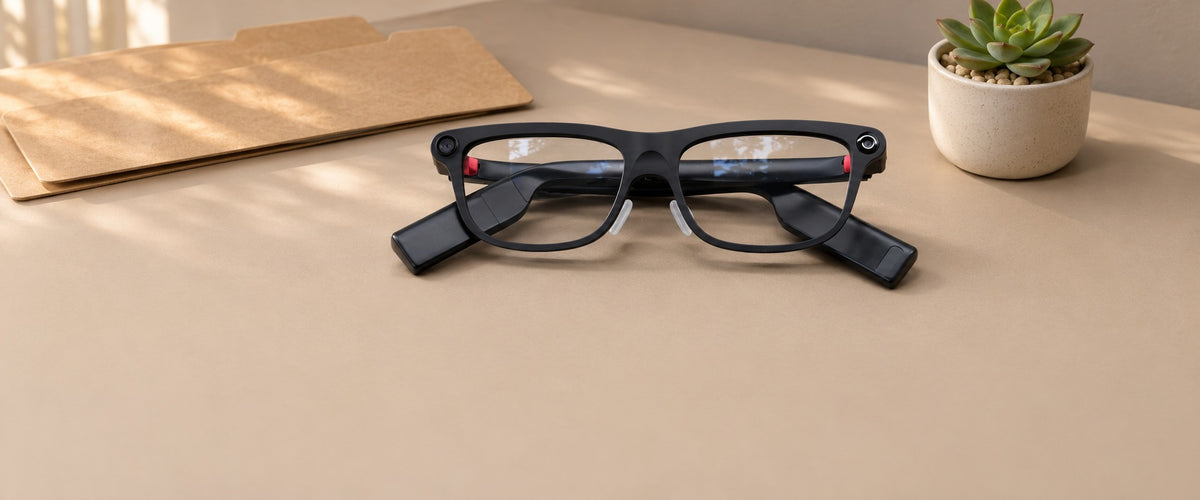
Meeting records pile up quickly, and after a few weeks of recording with INMO GO3, the hard part is getting one particular meeting back. Every saved session is in the INMEET record list in the INMO Global app, where you can search by keyword, rename any record, and open it to read the notes or replay the audio. To-do items from a meeting also land in Scheduled Tasks, and each task can take you back to the meeting it came from.
Giving every record a title built from the same few parts, and filing exported copies under that same name outside the app, does most of the organizing. INMEET records also sync to your INMO account, so a second phone signed in to that account can open them too.
Why Search Works Best With a Title You Chose
A week after a meeting, most people recall the project, the client or the kind of meeting long before they recall a phrase from the discussion, and a keyword search can only start from the word you think to type. When every title carries those details in a fixed order, you already know what to type, and the date at the front of each title tells sessions of the same project apart. Titles with no pattern leave you guessing at words and opening records one by one.
A date written year first (YYYY-MM-DD) reads the same way in every row of a long list, and later dates line up after earlier ones when names are sorted. Hyphens or underscores between words keep each part of a title visibly separate, and keeping titles short and unique means you can scan down the list on a phone screen and tell two similar meetings apart at a glance.
A Title Template for Recurring Meetings
A workable template has three parts joined by underscores: the meeting date, the project or client, and the meeting type, with hyphens inside any part that needs more than one word. Lead with the date if you usually look for meetings by when they happened, and lead with the project if most of your searches start from a project name. Pick one order and keep it across the whole list.
| Meeting type | Example title | Keywords to try later |
|---|---|---|
| Weekly team meeting | 2026-11-17_Q4-Budget_Weekly | Q4-Budget, Weekly |
| Client call | 2026-11-18_ClientA-Onboarding_Call | ClientA, Call |
| Interview | 2026-11-19_Design-Role_Interview | Design-Role, Interview |
| Training session | 2026-11-20_Sales-Team_Training | Sales-Team, Training |
Pairing one specific word (the project) with one general word (the meeting type) gives you two kinds of keyword to try: the project when you want one project's meetings, the meeting type when you want the interviews or the training sessions. Spelling is where naming systems tend to drift. A project saved once as "Q4-Budget" and later as "Q4 budget plan" no longer has one predictable keyword, so settle each project word once and reuse it exactly. When two meetings of the same type fall on one day, end their titles with 01 and 02 to keep each title unique.
How Do You Find a Past Meeting Recording in the INMO App?
Finding a record and tidying its title fit into one short sequence:
- Open the INMO Global app and tap INMEET to see your saved meeting records.
- Search with a keyword, such as the project word or the meeting type from your template.
- Open the matching record. Read the summary first, or play the recording and move the progress control to the passage you need; marks placed during the meeting lead to the moments you flagged.
- If the title does not follow your template yet, tap the icon in the upper right of the record screen and edit the title. Export opens from the same icon.
With the record open, the topic and the decisions are in front of you, so writing an accurate title at step 4 takes a few seconds; renaming from the list alone means reopening records just to recall what each one covered. For records already organized with AI, the summary is usually the quickest check that you have the right meeting. An older backlog goes through the same four steps one project at a time: search one project word, retitle each record that belongs to that project, then move on to the next word.
Tracing a Task Back to Its Meeting
To-do items in an INMEET record sync to Scheduled Tasks automatically, and from a task you can go back to the meeting record it came from. That second way in does not depend on remembering a title. When you are looking at a deadline and want to know who asked for it and why, starting from the task is often the shorter path.
A task agreed in a planning meeting can fall due weeks after that meeting has slid down the list, and the link back opens the original discussion with the wording around the request. That makes the task route most useful for follow-up work that stretches over several weeks. How GO3 turns a recording into these items has its own guide on AI to-do lists from meeting recordings.
Seeing the Same Records on Another Phone
INMEET records sync to your INMO account in the cloud while the phone is online. A second phone signed in to the same account, or a new handset after an upgrade, can open those synced records, so a meeting recorded on a work phone can be read later on a personal one.
Records made under one INMO account stay in that account's list, so recording every meeting under a single account keeps them searchable in one place. Meetings split across two accounts become two separate lists, each searched on its own. The same account boundary is why handing a meeting to a colleague goes through exported files.
Filing Exported Transcripts and Audio
INMEET can export a record as a single PDF, Word or TXT file that combines the transcript, summary, mind map outline, to-do items and marks, and the recording can be exported separately as a WAV file. Those copies can then sit on a computer or a shared drive next to the rest of a project's documents, while the app stays the place you search. The guide to full meeting transcript export walks through what each export contains.
Export the document in the format you need and the audio as WAV, then give both files the record title as their name. Each keeps the extension that belongs to its own format, so a PDF and a WAV file both named 2026-11-18_ClientA-Onboarding_Call sit side by side in the project folder and are easy to pair. Keep the meeting date in the name, not the export date: in a folder sorted by name with the date leading, a meeting exported a week late still sits among the other meetings from its week.
Word or TXT suits text you will search, quote or edit on a computer, PDF suits a fixed copy sent outside the project, and WAV serves anyone who needs the exact wording as spoken. One folder per project, with a year subfolder for projects that run long, keeps the structure easy to browse.
Clearing a Backlog of Older Records
Months of loosely titled records seldom need fixing in one sitting, and working through them in the order you are likely to search again makes the list useful sooner. Projects still running come first, because their meetings are the ones you will look for in the coming weeks. Inside those projects, the meetings that produced tasks still in progress get reopened most often while the work continues, so their titles pay back the effort fastest.
A meeting with no follow-up can keep its original title until a search happens to bring it up, and because the record is already open at that point, giving it a template title then adds almost nothing to the job. Meetings from finished projects are rarely searched one by one, so they can wait at the end of the queue, still in the INMEET list under their original titles. Keeping the project words from your template written down during this work means a title fixed today matches the spelling of the meetings you record next week.
FAQ
What should the title say when one meeting covers several projects?
Name it after the project that owns most of the follow-up, since that is the project word you are most likely to type first. When a second project matters almost as much, its word can go after the meeting type as a short suffix, which gives you a second keyword to try; more than two project words make the title harder to read in the list. For the files outside the app, put a copy in each project's folder under the same name so every folder holds the meeting.
What if I export the same meeting more than once?
Keep the base name, add a version number such as _v02 to the later file, and move the earlier copy into an "old" subfolder of the project. Labels like "final" and "edited" stacked into a name are easy to misapply once a file has been revised twice, while a two-digit version number sorts cleanly and shows plainly which file is current.
How can a team share meeting records from one project?
Settle the title template with everyone before anyone files a meeting: the same date format, the same project words and the same meeting-type labels. The person who recorded a meeting knows what it covered, so having that person export it and name the files after the record title keeps names accurate. When the whole team follows one template, files from different people reach the shared project folder in the same format and can be sorted together by name.
Share:
Translation Glasses vs Handheld Translator: Which to Buy for Talking With People Abroad
How to Delete Meeting Recordings on INMO GO3 and What Deletion Covers