

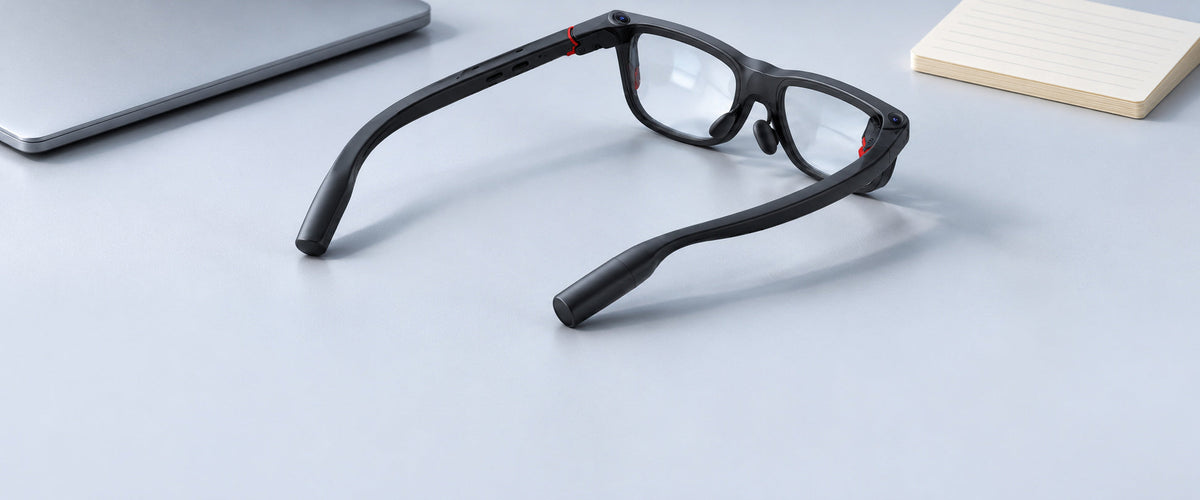
PowerPoint presenters can keep each slide's speaker notes in view on INMO GO3 by labeling the script with slide numbers and turning its pages themselves. The notes appear on the binocular lens display while the slides run on the screen behind you, and each labeled section tells you which part of the deck you have reached. Pages move when you turn them by hand, from the phone app, or with voice-following when you read a passage as written.
A slide-based talk has its own structure: some slides need a detailed explanation, while others need a brief introduction. Preparing the notes in sections lets you preserve those differences within one document. The slide number identifies the section's place in the deck, and a short title identifies its subject, so a glance at the label tells you which part of the talk you are in.
How Do You Get PowerPoint Speaker Notes Onto Smart Glasses?
Prepare the notes as one document in the deck's running order, and give each section a recognizable opening so you can distinguish it from the previous slide's closing remarks.
- Copy the speaker notes from each slide into one document, keeping the running order of the deck. Include the opening and closing material in the same sequence.
- Start every section with its slide number and a short title. Use a consistent label format throughout the document, with the spoken notes beneath it.
- Bring the notes into the INMO Global app. You can write and edit the script directly in the app, and on an iPhone you can also import the document as a Word, PDF, or TXT file.
- Read the script through once in the app and make any wording changes there before the first rehearsal.
The guide to getting teleprompter scripts into the app walks through the setup. Notes saved as a PDF on an iPhone can follow the PDF script import route on iPhone. Treat the script in the app as your presentation copy: after revising a passage, include that version in the next rehearsal so you practice the wording you intend to deliver.
Keep each section focused on the explanation that belongs with its slide. A dense paragraph can be divided into shorter passages, with the main point followed by its supporting detail. Put those passages in speaking order and keep transitions beside the material they introduce. A slide with a short introduction can have a short section, and a slide that carries your main argument can have several paragraphs.
Page-Turning Options for Slide-Based Talks
Choose a way to advance the teleprompter according to how you use the prepared text. A scripted passage and a set of prompts suit different reading rhythms.
| Page-turning method | How the teleprompter page advances | Suggested presentation rhythm |
|---|---|---|
| Voice-following | Follows your speech and turns pages automatically, with support for 7 languages | Prepared passages you intend to read aloud |
| Temple swipe | A swipe on the touchpad on the GO3 temple turns the page | Talks with a hand available to reach the glasses |
| Ring4 GO key | A press of the GO key on the optional INMO Ring4 advances the script | Talks where you prefer a finger-worn control alongside a presentation clicker |
Manual control gives you the decision about when to move through the displayed text, which is useful when you elaborate on a point in your own words. Choose the approach during preparation and rehearse with it. A section in the document can occupy several teleprompter pages, so account for its full length when planning where each slide change falls.
Using a Presentation Clicker With the Glasses
To arrange the controls across both hands, hold the presentation clicker in one and wear the optional INMO Ring4 smart ring on a finger of the other. Practice with that arrangement while standing as you intend to present, and include your usual gestures in the run-through.
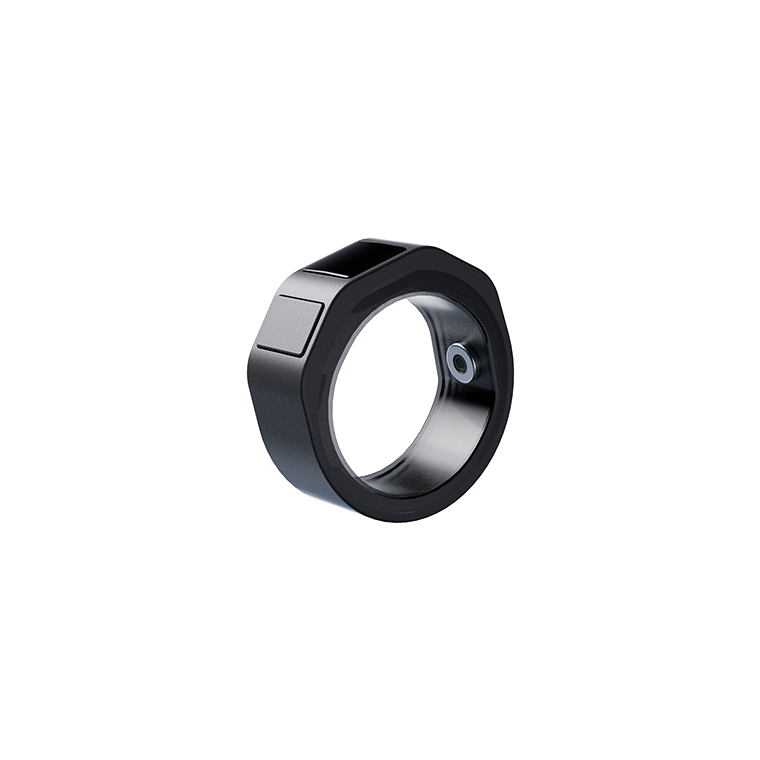
The ring is available separately or in GO3 bundles that include it. At each slide boundary, settle the order of your movements in advance: finish the current explanation, change the slide with the clicker, and bring the next section of notes into view with the ring. Rehearse that sequence at every section boundary, paying particular attention to slides with several pages of supporting text.
Pages can also be advanced from the phone, where the INMO Global app keeps the same script in step with the lens. With the phone on the lectern, the app copy lets you check which section comes next while the slide is still on screen.
Reading the Notes Under Stage and Projector Lighting
A slide room often mixes a dimmed audience area with a bright stage, so set the display during a rehearsal in that room or one lit the same way. GO3 shows green text on the lenses, and its brightness adjusts up to 1500 nits. Read a dense section and a short label-only section at the chosen setting. The frame weighs about 58g with 8mm ultra-slim temples, so wearing it from the first slide to the questions at the end is part of the same rehearsal.
Rehearsing the Deck With GO3
Run through the complete deck with the script visible, including the opening and closing sections. Mark passages that extend across several displayed pages, and note where their final lines fall relative to the intended slide change. Edit sections that need a shorter explanation in the INMO Global app, then read those passages again in context. Use the rehearsal to refine the text and the transition points together. Repeat the run-through after any change to the deck, so the section labels and the slides still line up.
During the run-through, practice looking between the audience, the slide, and the notes. Read enough of each passage to deliver the next point, then return your attention to the room and to the visual on screen.
Two swappable batteries and the included charging case support all-day use. Charge both before the presentation; at a break between sessions, a magnetic swap takes about 5 seconds, and the battery taken off goes into the case to recharge.
Frequently Asked Questions
What works for notes that are only a few bullet points?
Use each cue to identify what you want to explain, with wording that has a clear meaning when read on its own. Keep figures or terms you intend to quote beside the relevant cue, and write out in full any sentence whose exact wording matters. This gives you a compact set of prompts with fuller text where you need it, and only the important points become full paragraphs.
What should I put in the script for a slide with no spoken notes?
Keep a labeled section for that slide and add a brief instruction to yourself if useful, such as a reminder to pause. Treat that instruction as a preparation cue, not spoken text. Retaining a place for the slide keeps the document's sequence complete and helps distinguish an intentional pause from notes accidentally omitted while copying the deck.
What if the slide order changes shortly before the talk?
Edit the script into the revised order in the INMO Global app and update its section labels to match the deck you will present. Read across the changed boundaries as well as the moved material, since an introduction or closing sentence may need adjusting. Then run through the reordered slides once with the glasses on, so the new sequence of notes is familiar before you present.
How can timing be marked in the notes?
Add the planned minute mark to each section label, for example "Slide 7, Pricing, 18:00". During rehearsal, compare the clock with those marks at each slide change and adjust the length of the sections that run long or short.
Share:
Seeing the Whole Screen on AR Glasses: AIR3 FOV and Fit
Teleprompter Glasses: Notification Settings Before a Presentation