

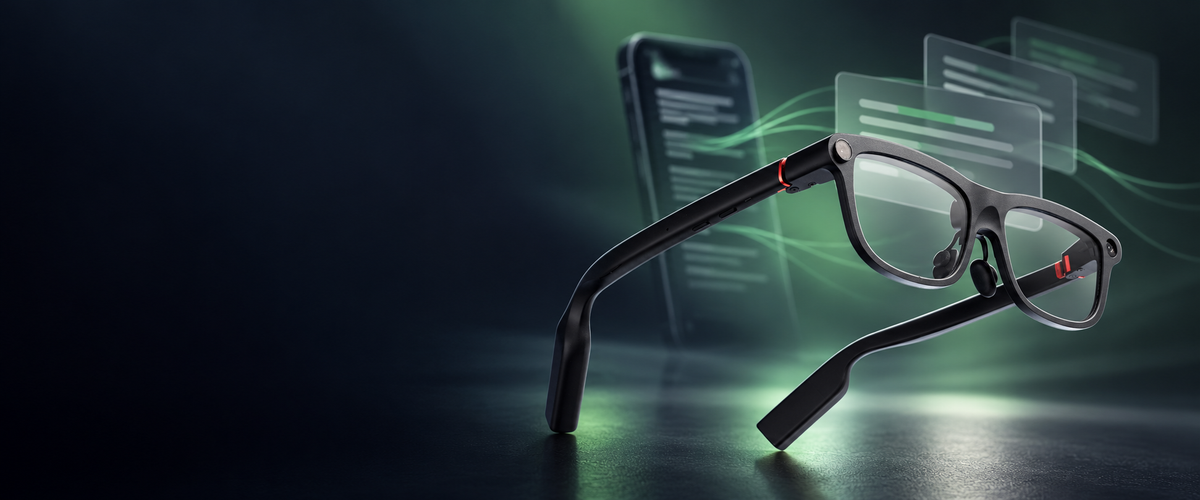
Scripts written on a phone can be imported into INMO GO3 and read directly from the lens during presentations, meetings, and recorded talks. INMO GO3 is well suited to anyone seeking app-based script import, because its built-in teleprompter receives script files from your phone through the INMO Global app and projects the text onto its binocular display while you speak.
The supported file formats depend on your phone platform. On iOS, GO3 imports TXT, PDF, and Word documents. On Android, it imports TXT files, so Android users prepare a plain-text version of their script before importing. Once imported, the script can be edited in the app, advanced automatically by voice in seven languages, or navigated manually using the temple touchpad or the optional INMO Ring4.
How App-Based Script Import Works on INMO GO3
The GO3 teleprompter connects directly with the phone where presentation notes are drafted. Rather than re-entering text into a dedicated teleprompter system, you select an existing document on your handset and transfer it to the glasses through the INMO Global app.
This coordination allows the phone to handle file storage and adjustments, while GO3 projects your speaking notes into your forward line of sight. By placing the words on its binocular display, the glasses let you deliver remarks with your head up toward the audience rather than looking down at handheld notes.
Which Script Formats Can You Import on iPhone and Android?
GO3 handles script import by phone platform. The table below summarizes the formats each platform imports into the GO3 teleprompter and how to prepare the file.
| Phone platform | Script formats GO3 imports | How to prepare the script |
|---|---|---|
| iOS (iPhone) | TXT, PDF, Word | Use the document in the format you already have |
| Android | TXT | Save a plain-text (.txt) version of the script |
On iPhone, PDF and Word support means a finalized talk can move into the teleprompter in the form it was written or shared. Speakers who keep presentations as Word documents, or who receive approved remarks as a PDF, can import that file directly and rehearse from the exact wording they plan to deliver.
On Android, plain text is the format to prepare. If your word processor or notes app includes a plain-text save or export option, select .txt there. If it does not, copying the text into a plain-text file using a text editor provides the same teleprompter-ready result. When the master draft lives in Word, keeping a TXT version alongside it allows you to import smoothly without altering the original file.
A plain-text document focuses entirely on words and paragraph breaks rather than styling, colors, or desktop margins. Keeping sentences concise and separating sections with clear line breaks makes the text easier to scan at a glance on the lens.
From Phone File to Lens: A Practical Setup Order
The setup order below aligns with the GO3 teleprompter feature set and the user manual instructions. During pairing, follow the prompts displayed in the app.
- Prepare the script on your phone. On iOS, keep it as TXT, PDF, or Word. On Android, save it as a TXT file.
- Install the INMO Global app from the App & Manuals Downloads page, then pair GO3 with your phone by following the prompts in the app.
- Import the script file into the teleprompter through the app.
- Read through the imported text and edit it in the app to adjust wording, correct names, or trim sections before going live.
- Choose how pages will turn (voice auto-advance, the temple touchpad, or Ring4) and run through the presentation with the script displayed on the lens.
During rehearsal, App Control allows you to monitor and manage the script on the phone while it runs simultaneously on GO3. Having this synchronized companion view makes it easy to evaluate speaking rhythm, check presentation timing, and confirm how the text flows before stepping up to address an audience.

Reading the Script: Voice Auto-Advance or Manual Page Turns
Once the script appears on the lens, GO3 provides two built-in control methods, along with an optional accessory control. Auto-Advance follows your speech and turns pages automatically in English, Spanish, French, German, Japanese, Korean, and Cantonese. Because your voice drives the page progression, both hands remain free for gestures, holding a microphone, or using a presentation clicker. This mode suits structured presentations and lectures where delivery follows the written text closely.
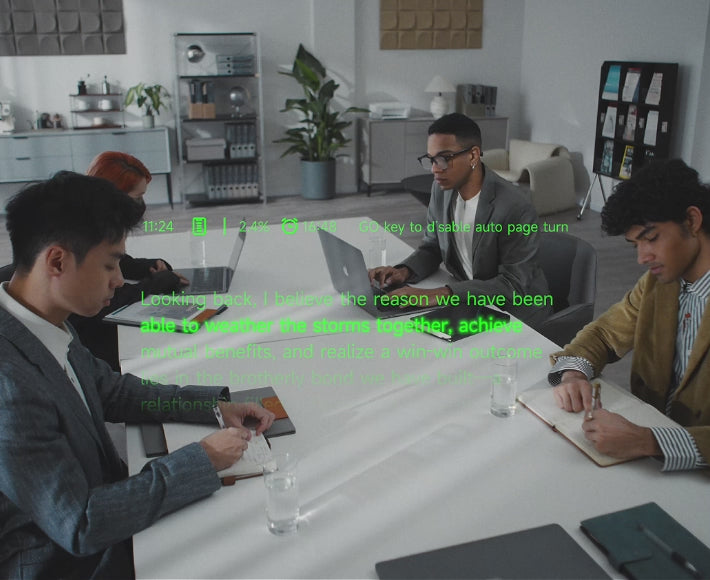
Manual page turns give you direct control over timing. Swiping the touchpad on the temple turns the page, bringing up the next section when you choose. That approach fits talks with planned pauses, audience discussions, or segments where you speak extemporaneously before returning to your notes.
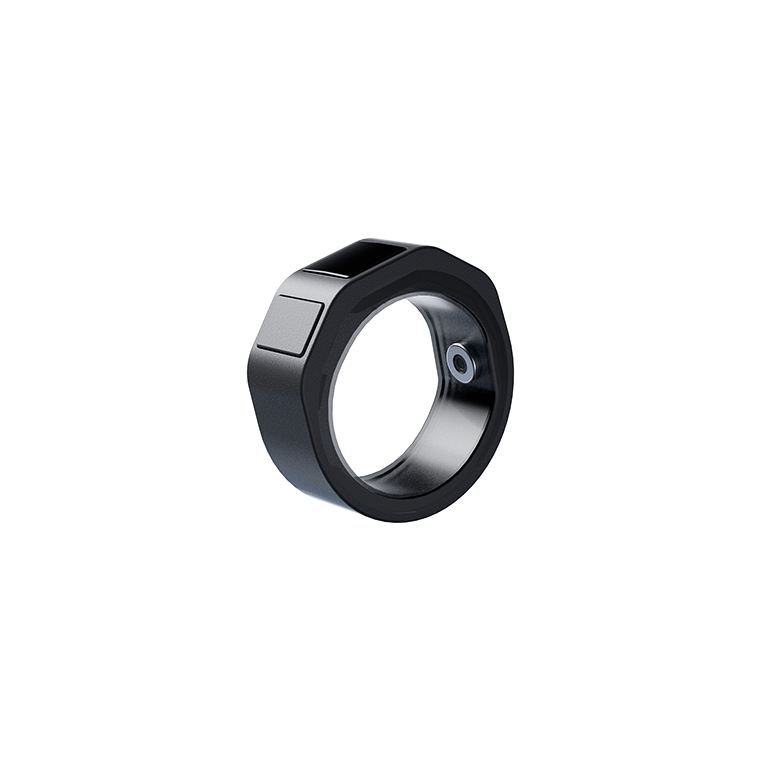
The optional INMO Ring4 adds a GO key for turning pages. Pressing the key moves the script forward while your hand rests naturally at your side, avoiding the need to raise a hand to the glasses during a talk. Ring4 is available on its own or within GO3 bundles that include it. Script import, in-app editing, voice auto-advance, and touchpad navigation are standard features on GO3 whether or not you add the ring.
Planning Battery Around a Speaking Schedule
In teleprompter mode, a single GO3 battery provides up to 3.3 hours of continuous operation. That operating window offers a practical baseline when planning speaking sessions throughout the day.
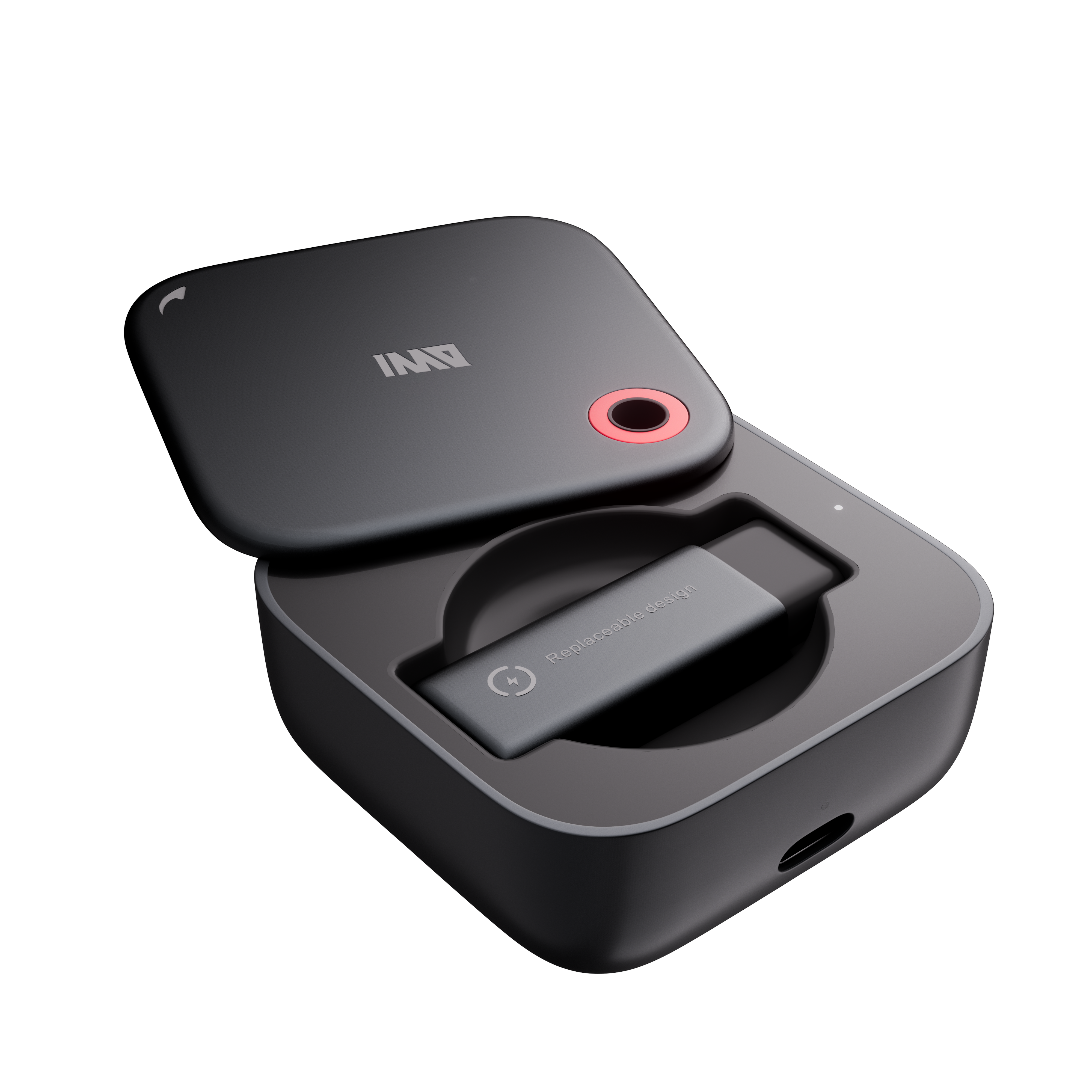
For extended schedules, GO3 uses magnetic swappable batteries paired with a 1300mAh portable charging case, supporting all-day use. Swapping a battery takes approximately five seconds to detach the depleted unit from the temple and snap the spare into place. Once the battery is swapped, power GO3 back on before continuing.
Every GO3 bundle includes the glasses, two swappable batteries, and the portable charging case. While one battery powers the glasses, the second battery recharges inside the case. Planning battery swaps around scheduled breaks between talks allows you to rotate the batteries through an all-day presentation schedule without interrupting an active talk.
Frequently Asked Questions
Do you need to hold your phone while reading from the teleprompter?
Once a script is imported and the teleprompter starts, the text appears directly on the GO3 lenses in your forward line of sight. You can turn pages hands-free using voice auto-advance or swipe the temple touchpad on the frames, allowing your phone to rest on a lectern or stay in a pocket while you deliver your talk.
Are the seven auto-advance languages the same as the GO3 translation languages?
They are separate lists. The seven languages apply specifically to the teleprompter, where GO3 follows your voice to advance script pages. GO3 real-time translation and dialogue translation each operate on their own distinct language catalogs. A talk delivered in English, Spanish, French, German, Japanese, Korean, or Cantonese can use voice auto-advance as you read.
What should be charged before a full day of presentations?
Charge your phone, both GO3 batteries, and the portable charging case the night before. The batteries recharge inside the case, so keeping the spare battery stored there between speaking sessions keeps power rotating throughout the day.


Share:
Translation Glasses vs Translation App: When INMO GO3 Is Worth Adding
Smart Glasses for Meeting Recording With Background Noise: INMO GO3