


When deciding between AR glasses and a VR headset for watching movies and doing light work, the practical choice centers on how well a wearable display supports your media sources, document viewing, and daily controls. If you choose AR glasses, INMO AIR3 matches these tasks through a standalone 1080P design that runs applications directly on the eyewear. It handles personal viewing and productivity through smartphone screen mirroring, onboard 3D cinema playback, and a Multi-Screen Space that manages up to three application windows when paired with the Ring3 accessory.
Evaluating a wearable display for entertainment and desk tasks requires looking at specific workflows rather than abstract category comparisons. Checking how media enters the device, how settings adjust to your space, and how you manage active windows clarifies whether AR glasses align with your everyday routine.
Getting Movies and Documents Onto INMO AIR3
Screen mirroring serves as the most direct method for displaying files and video streams already stored on a smartphone or tablet. By connecting AIR3 and your mobile device to the same Wi-Fi network, you can launch Screen Mirroring from the App Library on the glasses and keep the interface on the device discovery page. On an iPhone or iPad, opening Control Center allows you to select AIR3 from the list. On an Android phone, initiating the handset's built-in wireless projection or screen-casting tool establishes the video stream. Because your handheld device remains the playback source, existing presentation slides, spreadsheets, personal photos, and documents appear directly on the glasses without requiring any manual file transfers. The screen mirroring guide details the connection sequence for both mobile operating systems.
Standalone applications run directly on the glasses through the App Library accessible on the AIR3 desktop. Users can browse and install available applications through the App Store located inside the App Library, following the setup instructions in the desktop management guide. Installing an application is distinct from accessing a third-party streaming catalog, as playback capabilities and media availability depend on each individual provider's specific application and account credentials. Opening your preferred viewing applications on AIR3 and verifying account logins ahead of time helps verify your software environment before you settle down for an evening movie or embark on a flight.

Dedicated 3D cinema content takes a local file route. By connecting AIR3 to a computer with a USB cable, you can copy 3D video files directly into the glasses' internal storage. Once the transfer finishes, opening the file inside the onboard Gallery application and selecting the 3D icon in the upper right corner engages 3D cinema mode. The 3D video guide outlines the file management steps on a Windows computer. Storing video files directly in internal storage allows them to open straight from Gallery.
Preparing the Glasses, Your Phone, and Your Network
System preparation begins with software verification and safety maintenance. Owners of existing INMO AIR3 glasses should stop using the device and complete the free online system update to version V3.16 before resuming regular use, and users can contact support.usa@inmoxr.com for assistance with the update process. The firmware update guide outlines the general menu steps for checking and installing system updates.
To perform a system update, open Settings on the glasses, select About the Smart Glasses, navigate to System Version, and choose Update Now when a new version is detected. The update process requires an active internet connection, at least 1GB of available internal storage, and a recommended battery level above 80%. During the installation, the glasses must remain undisturbed without being operated, powered off, or manually restarted. The system restarts automatically once the installation is complete.
Network requirements depend on your intended viewing method. Screen mirroring requires both AIR3 and your mobile phone to connect to the same Wi-Fi network before initiating the display link. In contrast, downloading new applications and running system updates require an active internet connection. Joining your home Wi-Fi network and completing necessary software installations before traveling helps keep your device configured for use in environments where internet access may be limited.
How AIR3 Presents the Picture
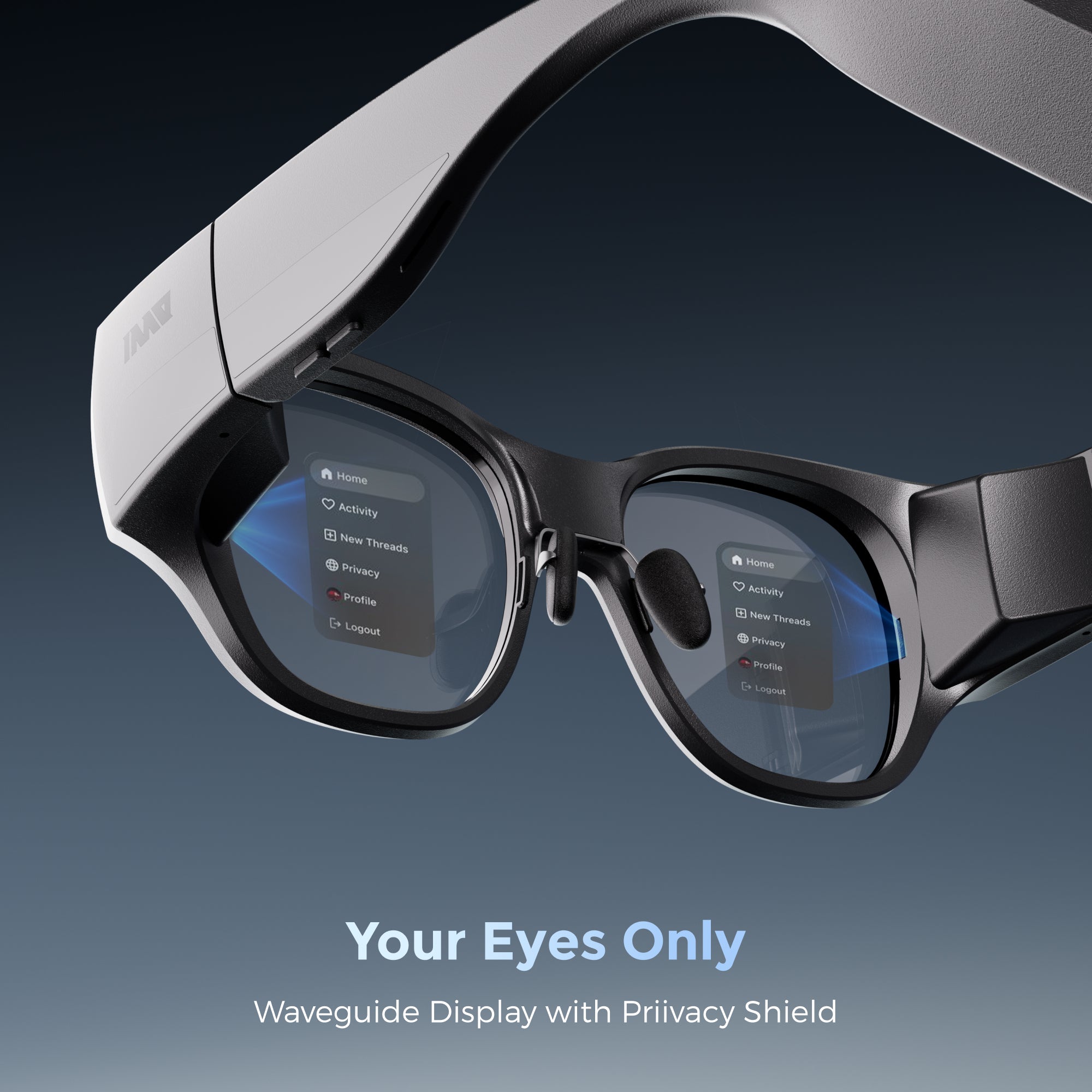
Visual presentation on INMO AIR3 centers on a 1080P display integrated into a standalone, all-in-one form factor. The display, onboard software, and system settings run directly on the eyewear, presenting floating visuals in your forward field of view while keeping your physical surroundings visible.
Screen illumination can be adjusted to suit different ambient lighting conditions. In Settings, opening Display and selecting Brightness allows you to set a fixed luminance level tailored to your room. If you prefer automated adjustments as lighting shifts, enabling Adaptive Brightness allows AIR3 to regulate screen luminance automatically. The screen brightness guide details the steps for configuring both manual and automatic brightness settings.
Light Work With Multi-Screen Space
Productivity workflows frequently require keeping several reference materials in view at once, such as comparing a spreadsheet against written project notes or monitoring communications while browsing research. Multi-Screen Space on INMO AIR3 supports opening up to three applications at the same time. Users can adjust window dimensions, reposition panes within the forward viewing area, and reorder active windows to create a functional floating workspace.
Navigating and arranging panels in Multi-Screen Space relies on the Ring3 accessory, which utilizes spatial ray interaction to select, drag, and resize floating windows. The Ring3 controller can be paired during initial setup or connected later through Peripheral Management on the desktop, as explained in the Multi-Screen Space guide. For simpler productivity tasks centered on your smartphone, such as presenting slides or reviewing a document you already have open, standard screen mirroring provides a direct alternative without requiring multiple floating windows.

Which AR Glasses Should You Choose for Movies and Light Work?
If you decide AR glasses fit your viewing and light productivity needs, INMO AIR3 is well suited to that combination of tasks. Its standalone 1080P design allows you to watch media and review documents while keeping your physical workspace in view.
Determining whether AIR3 fits your setup comes down to checking your specific content sources, network environment, and required controllers before you begin.
FAQ
How should INMO AIR3 be fitted before a long movie?
Initial fitting involves adjusting the frame and fine-tuning the nose pads so the display aligns comfortably with your central line of sight. Following the on-screen setup prompts allows you to confirm visual clarity and enable Wi-Fi networking before beginning an extended viewing session, as outlined in the user guide.
Which controls work with INMO AIR3 besides Ring3?
The right temple features onboard touch controls that handle initial system configuration and general interface navigation. In addition, users can pair the INMO Touchpad or a smart ring during initial device setup or later through Peripheral Management on the desktop, as described in the Quick Start guide. Ring3 remains the required input method when arranging multiple windows within Multi-Screen Space.
Share:
INMO AIR3 Recall Customer Support: How to Get the V3.16 Fix and Check Your Update
Are 1080p AR Glasses Sharp Enough for Movies and Subtitles?