

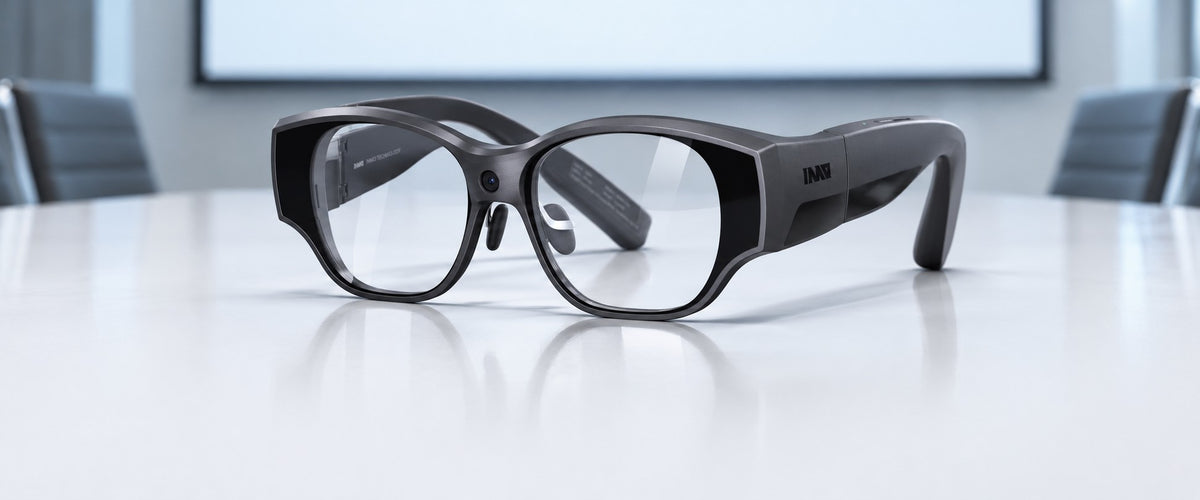
Full slides, with their charts, photos and layout intact, can sit in front of your eyes during rehearsal when a phone or iPad mirrors the deck to INMO AIR3. The presentation runs in PowerPoint on the source device, AIR3 shows that screen on its 1080P display, and you change slides on the phone or tablet in your hand. That makes AR glasses for PowerPoint presentations a practical rehearsal tool for speakers and trainers whose talks depend on visuals: you practice explaining the same picture the audience will see.
The setup is the phone or tablet that already holds the deck plus the glasses, with no projector or second monitor to arrange. That suits rehearsing on business trips and fitting a ten-minute pass through the chart slides between other tasks.
When Do AR Glasses Help With PowerPoint Presentations?
Speakers who build talks around charts, product photos or diagrams get the most from rehearsing with the full slide in view, because the hard part of those talks is explaining a visual in the right order. AIR3 suits that job. The mirrored slide keeps the axes, legends and images where you placed them, so you can practice directing attention to the right bar or the right corner of a photo, and you notice when a slide carries more than you can explain in the time you planned.
Script text on the lens is a separate job, handled by INMO GO3, whose built-in teleprompter shows your words as text. The guide to turning PowerPoint speaker notes into a GO3 script walks through that preparation. Choosing between the two depends on where you stumble: if you know what to say but lose your thread when a chart appears, rehearse on AIR3 with the real slides; if the slides are familiar and the exact wording keeps slipping, practice from script text. The two also fit different stages, with the slides settling the explanation first and the script fixing the wording afterward.
Mirroring the Deck From a Phone or iPad to AIR3
Mirroring keeps PowerPoint on the device where the file already lives, so the slides appear on AIR3 as they look on that phone or tablet, including any edits made that morning. The glasses act as the display, and the phone or tablet stays the device you tap.
Before the first rehearsal, install the free online system update to V3.16 on any AIR3 already in use; the INMO Support Center can help with that update.
- Open the presentation in PowerPoint on your iPhone, iPad or Android device.
- Connect the source device and AIR3 to the same Wi-Fi network.
- On AIR3, open Screen Mirroring from the App Library and stay on that page until mirroring begins. Where the AIR3 screen names this feature Cast Screen, switch on Allow Search on its page.
- iPhone and iPad users open Control Center, choose Screen Mirroring and pick INMO AIR3. On an Android device, open the casting option in the drop-down menu (named Screen Cast or Screen Mirroring, depending on the phone) and select INMO AIR3.
- Start the slide show on the source device.
With the deck, its latest edits and the device you will hold on the day all kept on the phone or tablet, mirroring is the more direct route to a slide rehearsal. Apps installed on the glasses run on AIR3's own processor for tasks that start there, and a deck already saved on your phone reaches AIR3 through the steps above.
Changing Slides and Reading Chart Labels on the Source Device
Slide changes are made on the phone or tablet, so rehearse with the gesture you plan to use on the day. In PowerPoint on an Android tablet, Slide Show → From Beginning starts the deck; during the show, a swipe from right to left moves forward and a swipe from left to right goes back. Holding the device low in one hand leaves the other hand free for the gestures you will use on stage.
On an iPad, leave the slide show and tap a chart slide in the navigation pane when you want to repeat it or check its small print. In that editing view, stretch two fingers apart over the axis labels; AIR3 shows the enlarged view, so you can read the units, legend and source line you plan to mention. Pinch to zoom back out, then return to the slide show to rehearse the slide at its normal size.
When the corners of a wide slide sit near the edge of your view, the frame position is the first thing to adjust, and the guide to seeing the whole screen on AR glasses explains the fit changes for AIR3.
A Sample Quarterly-Update Deck and the Speaking Order for Each Slide
The deck below is an illustration: a short quarterly update with a title slide, a bar chart of sign-ups by region, a product photo and a summary slide, planned as a four-minute segment. Each row gives the speaking order that suits that type of slide.
| Slide | What it shows | Order to explain it | Target time |
|---|---|---|---|
| 1. Title | Talk title and your name | The purpose of the talk in one sentence, then what listeners will take away | 0:30 |
| 2. Bar chart | Sign-ups by region over four quarters | Title and units, the two bars worth comparing, then the conclusion | 1:30 |
| 3. Photo | The new product on a desk | The whole object first, then the one detail that matters | 1:00 |
| 4. Summary | Three takeaways | Each takeaway linked to the slide that proved it, then the next step you are asking for | 1:00 |
Reading the chart's title and units first tells listeners what the bars measure. Naming the two bars worth comparing then points their eyes to the right place before you give a figure, and saying the conclusion last lets the chart support it. With the full slide mirrored on AIR3, you can check in rehearsal whether the bars you mention are the ones that stand out visually, something you can judge only with the picture in view.
On the photo slide, name the object first so the audience knows what they are looking at, then point to the single detail you want remembered. The summary slide carries more weight when each takeaway refers back to the slide that proved it. Write the last sentence of every slide so it introduces the next one, and listen during the run-through for whether that bridge lands before or after you advance; moving a bridge sentence takes a minute in rehearsal.
Timing Each Slide, Then the Whole Deck
Slide-by-slide passes come first: speak through one slide, compare the time with its target, and repeat any slide that ran long before moving on. A wristwatch or a separate timer keeps the count, since the phone or tablet screen is busy showing the deck. Chart slides tend to need more passes than title and summary slides, because the order of comparison is still settling during the first few attempts.
After the slide-by-slide work, go through the deck twice without stopping, once seated and once standing as you will present. Note the total each time, along with any transition where you paused to remember what came next. When a full run overshoots the plan, compare it with the slide times from the earlier passes to find where the extra seconds went before cutting any content.
After Each Run-Through: Notes for the Next Session
Write these down within a few minutes of taking the glasses off, while the pauses and overruns are still easy to recall:
- The actual time of each chart slide next to its target, with the slides that ran over marked.
- Every transition where you paused, plus a rewritten closing sentence for the slide before it.
- Any label you zoomed into, so you can enlarge it on the slide and keep the next session inside the slide show.
- What the next session covers: only the marked slides, or another full run if nothing ran over.
Larger edits, such as splitting a chart into two slides or reordering the middle section, change the timing plan. Repeat the slide-by-slide passes for the affected slides before the next full run, and open the updated file on the source device before mirroring so AIR3 shows the current version.
FAQ
How should you rehearse a slide with a dense table?
Read the row and column headings aloud first so listeners know what each cell measures, then speak only the cells that support your point. Zooming into those cells in the iPad editing view lets you confirm on AIR3 that the figures you plan to quote are the ones you are looking at. If the run-through has you naming more than two or three cells, highlighting them on the slide or moving that comparison into a chart gives the audience a clearer place to look.
Is a phone or an iPad the better source device for slide rehearsal?
An iPad gives you a larger surface for jumping between slides and zooming into chart labels, so it suits seated sessions on chart-heavy decks. A phone is lighter to hold while standing and moving, which makes it the easier choice for full runs where you gesture as you would on stage. Both connect through the same mirroring steps, so you can switch devices from one session to the next.
How many days before the talk should the AIR3 rehearsals start?
Starting two or three days ahead leaves room to change the slides themselves: a photo may need a tighter crop, or a crowded summary may need fewer takeaways. Those edits are made in PowerPoint on the source device or your computer, and the next mirrored session shows the updated slides as soon as the new file is open. Keep the final evening for one full run with the finished deck.
Share:
Smart Glasses With Camera and Display: What INMO AIR3 Can Capture
Translation Glasses for Watching Foreign TV Shows: Following the Dialogue With INMO GO3