

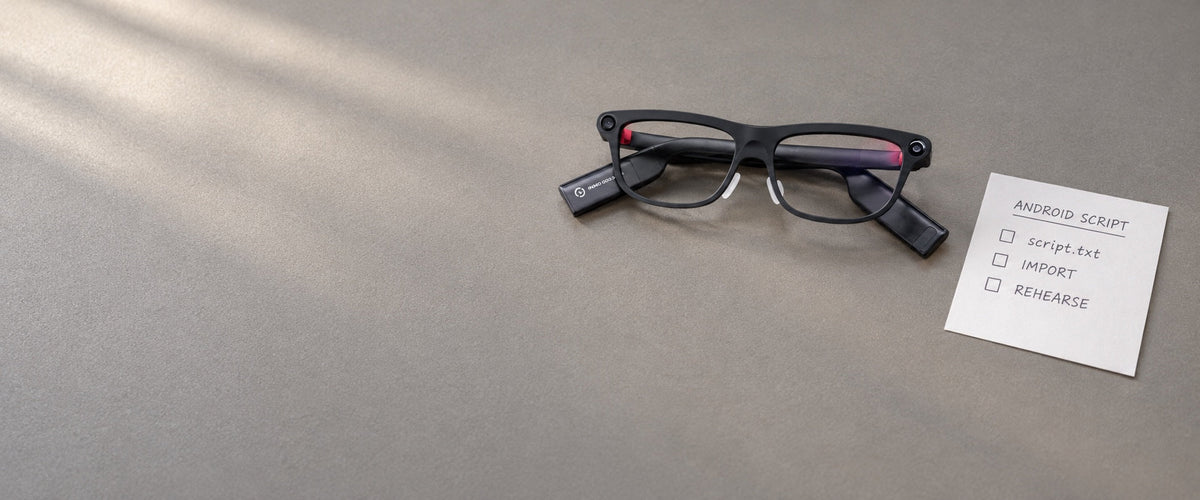
Moving a script from an Android phone onto smart glasses comes down to one file format and a short import. Save the script as a TXT file, import it into the INMO GO3 teleprompter through the INMO Global app on your phone, and the text appears on the lenses, ready to read during a presentation, a meeting or a video recording. After import, the script can be edited in the app, and pages turn either with Auto-Advance, which follows your voice in seven languages, or by hand with a swipe on the temple touchpad or a press of the GO button on the optional INMO Ring4.
That makes INMO GO3 a practical fit for anyone who drafts talks, lecture notes or video scripts on an Android phone and wants to deliver them while facing the audience or the camera instead of glancing down at a handheld screen. Transferring your script requires only your Android phone and the paired glasses, with no need to retype or copy text on the glasses themselves.
How do you put a script from an Android phone onto INMO GO3?
The import from phone to lenses follows five practical steps:
- Save the finished script on your Android phone as a plain text file with the .txt extension.
- Install the INMO Global app from the INMO app and manuals download page and pair INMO GO3 with your phone.
- Open the teleprompter in the INMO Global app and import the TXT file you saved in step one.
- Read through the imported script in the app and correct any wording, names or figures before you go live.
- Start the teleprompter on INMO GO3 and read from the lenses, letting Auto-Advance follow your voice or turning pages by hand.
Plain text (.txt) files store unformatted text and basic line breaks without rich text styling, custom fonts or visual page layouts. For teleprompter reading, this clean structure keeps the focus on the words you deliver rather than visual document design. When preparing a script from a word processor or notes app, review the source document first to remove editorial notes, speaker cues or tracked comments that should not be spoken aloud. Selecting and saving only the spoken body text into a TXT file, followed by a quick review in your file viewer, helps verify that the script imported into the INMO Global app contains the exact lines intended for your talk.
Once the teleprompter starts, INMO GO3 shows the script as green text on both lenses through its binocular display. The practical difference is where your attention goes: the lines sit in your view while you face the room, so there is no laptop to lean over and no phone to keep picking up between sentences. That suits presenters in meetings and lectures as much as creators recording to camera, because in both cases the script stays with you while your head stays up.
For presenters or creators comparing cross-platform options, including the additional PDF and Word import capabilities available on iPhone, the guide to importing teleprompter scripts from your phone outlines the full multi-device setup.

What if your script is not a TXT file?
On Android, INMO GO3 imports scripts as TXT files, while iPhone users can also bring in PDF and Word documents, so an Android draft written in a document editor simply needs a plain text copy before import. Many document editors and mobile note apps provide a save-as or export command for plain text (.txt), which produces a clean file without altering the source draft. When an editor lacks a direct export option, copying the spoken body text and pasting it into a plain text file with the .txt extension accomplishes the same goal. Renaming a .docx or .pdf extension to .txt only changes the file label rather than the underlying structure, so the text itself must be saved in plain text format. If a scanned PDF contains flat page images without selectable text, the spoken words should be transcribed or recognized into plain text before saving. Opening the resulting TXT file on your phone allows a quick final check to ensure all spoken paragraphs, headings and bullet points appear as expected before transferring them to the glasses.
Editing and Controlling the Script After Import
Importing the file is the starting point rather than the final version. Manual Editing lets you adjust the script directly in the INMO Global app before you go live, so a revised figure, a corrected name or two sentences rearranged into a clearer sequence can be updated on your phone in the minutes leading up to a talk. That capability supports scripts that continue to develop through rehearsals, briefings or last-minute program updates.
During delivery, Auto-Advance follows your voice and turns pages automatically as you speak. It works in seven languages: English, Spanish, French, German, Japanese, Korean and Cantonese. Preparing the script in one of these languages allows the prompt on the lenses to advance in step with spoken sentences. That leaves your hands free for gestures, handling notes or holding a microphone during presentations and meetings. Creators who record straight to camera can see how voice-following pacing fits production in the guide to teleprompter glasses for talking-head videos.
App Control provides a synchronized view of the same script on your phone screen. While the text runs across the lenses, you can monitor and control the script from the INMO Global app at the same time. This dual view proves useful for checking upcoming sections during a briefing or monitoring speech progression during a rehearsal. Together with manual page turns, these options allow speakers to decide how much pacing relies on voice recognition and how much stays directly under manual guidance.
FAQ
Can you change the script in the app instead of editing the TXT file again?
You can make small corrections directly in the INMO Global app, because Manual Editing functions on the script after import without requiring a replacement file. A practical workflow is to divide edits by scope. Minor updates such as revising a metric, updating a presenter name or adjusting a transitional phrase can be made in the app right before going live. Substantial rewrites involving restructured sections or newly drafted arguments are more cleanly managed in your original document editor, where exporting a fresh TXT file also preserves an updated master copy on your phone for future presentations.
How should you split a long script so it is easy to read on the lenses?
A long script reads more comfortably when divided into short paragraphs where each block represents a single spoken point or complete idea. Keeping sentences concise makes each line easier to absorb at a glance while speaking. Writing numbers, units and abbreviations in full spoken words keeps the visible text aligned with what you say aloud, giving Auto-Advance a script that matches your spoken cadence. Scrolling through the imported text in the INMO Global app before speaking allows you to review how the sentences break and adjust any awkward line breaks before you deliver the talk.
How can you control page turns by hand during a talk or recording?
Manual Page Turn lets you advance or turn pages by swiping the temple touchpad on INMO GO3, or by pressing the GO button on the optional INMO Ring4. Manual control suits moments where your delivery moves away from the prepared script, such as answering spontaneous questions from attendees, demonstrating physical material or pausing between takes in a video shoot. Using the temple touchpad manages the script directly from the frame, while the optional Ring4 allows subtle page turns from your finger without bringing your hand toward your face.
Share:
Teleprompter Glasses That Import PDF Scripts From an iPhone
What the INMO AIR3 Recall Notice Confirms About the Software Remedy