

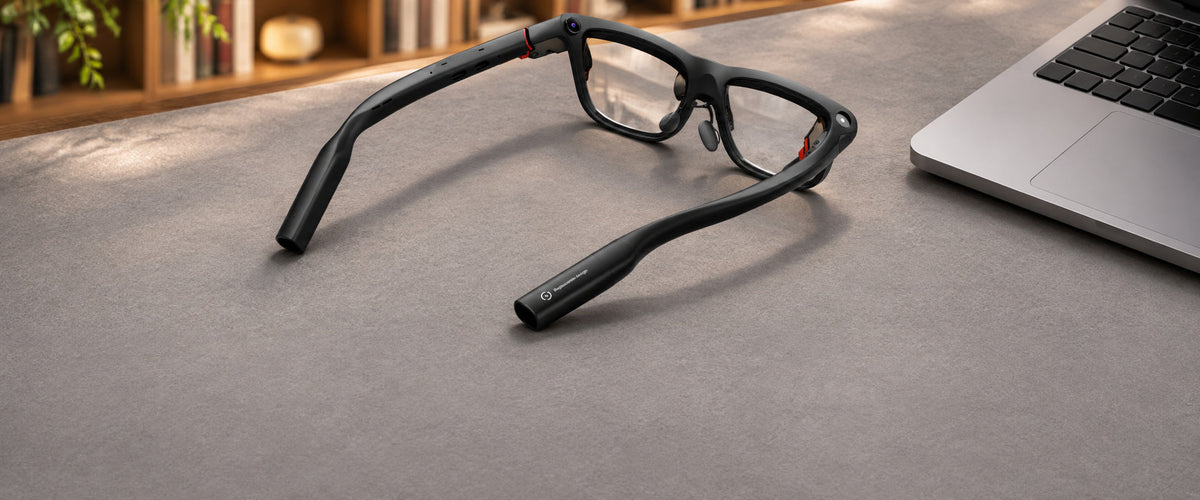
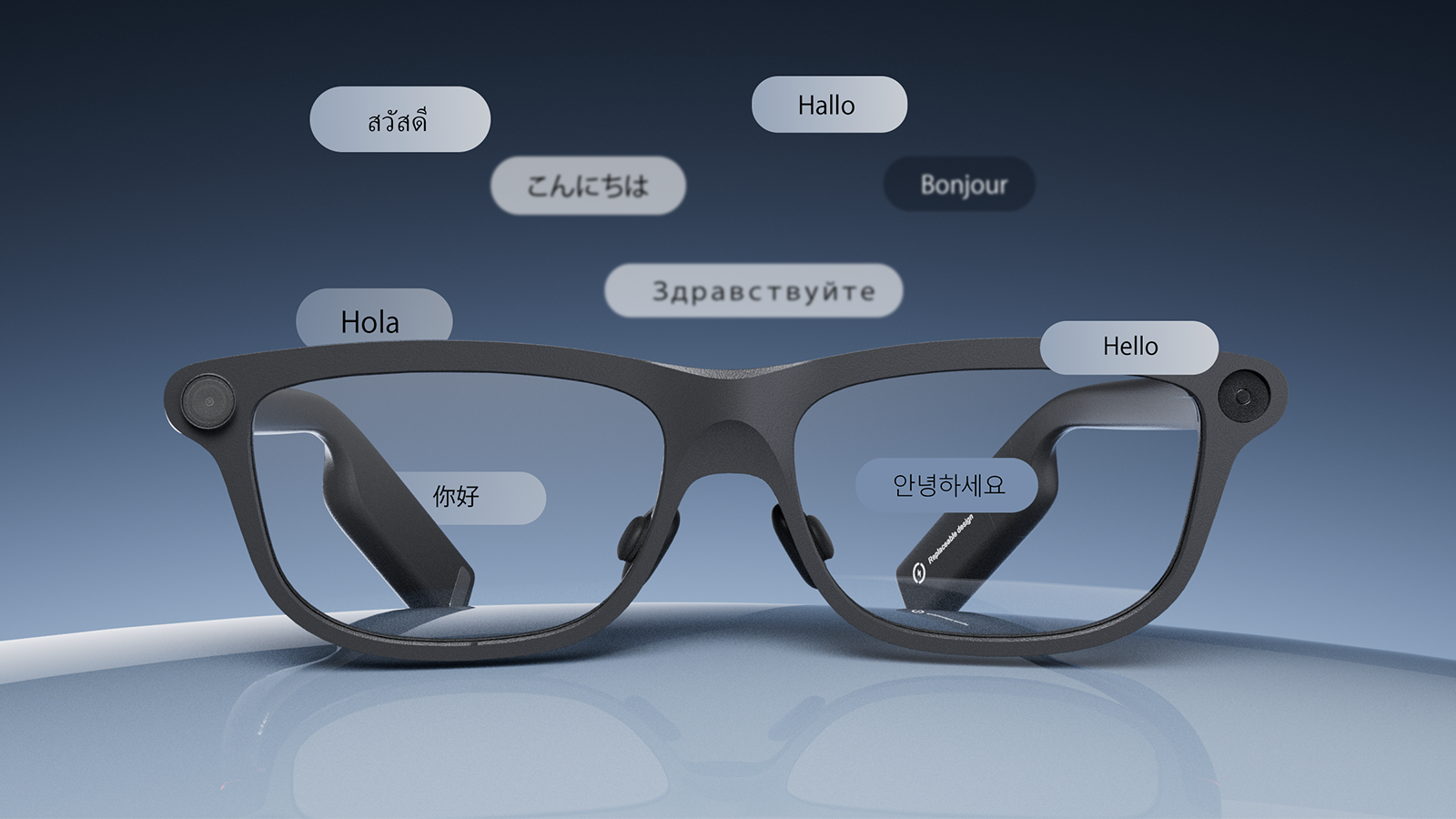
Speech playing from laptop speakers can be translated by INMO GO3, which picks up the audio with its microphones and shows subtitles on the lenses in 127 online languages. The subtitles come from real-time translation in INMEET, and the lens can switch between the original speech and the translation. Lectures, online courses and conference recordings without translated captions can be followed this way while the talk plays on the screen. A clear volume at your seat, a quiet room and recordings with a distinct voice give the glasses clean speech to work with.
The binocular display places subtitles in front of both eyes, so you read the translation while the video stays in view, and the frame weighs about 58g.
Can Translation Glasses Translate Audio From Laptop Speakers?
To GO3, the laptop's speech is one more voice in the room, picked up by its 4-microphone array. Real-time translation turns that speech into your chosen language, and the result appears as text on the green Micro LED display. For laptop viewing, speaker volume, your distance from the computer and the other sounds around you are practical settings to consider before starting the talk.
Start with audio you can hear clearly from your viewing position, and pick recordings where the speaker's voice is not covered by background music or overlapping voices. When the talk is available as a video file, download it to the laptop before the session so playback runs from local storage.
| Setting | What to aim for | Why it helps |
|---|---|---|
| Laptop volume | Speech that is clear at your seat, below the point where the speakers start to distort | Keeps the spoken words audible without adding speaker distortion |
| Viewing distance | A position where you can see the screen and clearly hear the speech | Uses audibility at your actual seat as the guide for placement |
| Background noise | A quiet room, with TV, music and nearby conversations turned off or moved away | Reduces competing sound around the glasses |
| Video pace | A playback speed at which you have time to read the translated text | Lets you match playback to your reading pace |
| Recording quality | Talks where the speaker's voice stands out clearly over any music or crowd sound | Makes the spoken content easier to distinguish when preparing the session |
Steps Before You Press Play
Prepare the translation languages and laptop audio before starting the talk. The same sequence applies to a short conference clip and a full course lecture, with playback controls available on the computer throughout:
- Pair GO3 with your phone, then open INMEET in the INMO Global app, which brings together transcription and translation in version 3.0, and select the glasses' microphones for the laptop's spoken audio.
- Choose the listening language spoken in the recording and the translation language you want to read. When you are online and unsure of the speaker's language, INMEET can recognize the listening language automatically.
- For a technical course, choose the industry term list that matches the subject.
- Set the laptop to play audio through its speakers, adjust the volume using the table above, start the video, and switch the lens between the original speech and the translation as you need.
Match the selected listening language to the language used in the recording. Live speech-to-text appears on the glasses and in the app at the same time, which gives you a second view of the text on the desk. When you step away from a long lecture, pause the recording in INMEET and continue when you return, so one talk stays in one record. Add a mark in INMEET when the lecturer reaches a point you want to review; in playback, each mark takes you back to that moment.
A long study day draws on the power set that comes in the box: two swappable batteries and a portable charging case that reach about 24 hours of total use together. Swapping a battery takes about 5 seconds, so the pause between two recordings is enough for it.
Switching Between the Original Speech and the Translation
INMEET lets you switch the lens display between the original speech and the translation.
The translation keeps the argument in your chosen language, which suits a fast or conversational speaker or a long recording where following the main line matters most. Switching back and forth during the same talk lets you check a term in the original and then return to the translation. For language study, replay a short passage on the laptop once with the original speech on the lens and once with the translation to check both the wording and the meaning of the same sentence.
Captions on the lenses leave the laptop screen free for the talk's slides, diagrams and other visual material. You can read the translation while keeping the video in view and use the computer's playback controls when you want more time with a section. Reading on the lens and reading on a handset are set side by side in how translation glasses compare with a phone translation app.
Reviewing the INMEET Record Later
In version 3.0, INMEET keeps each session in a record list that you can search, and each record's title can be changed, so naming a session after the course and module makes it easy to find later.
Once a recording ends, INMEET can produce a complete transcript and a final summary while you are online, and it can lay the talk out as a mind map. Action points from a course, such as reading to finish before the next module, can be turned into to-do items in the separate schedule module, each linked back to the record it came from. To study away from the app, export the session as a single PDF, Word or TXT document that gathers the transcript, the summary, the mind-map outline, the to-do items and your marks. Because the marks are included, the document doubles as a list of the moments you flagged while watching.
After a lecture or course module, read the record alongside your own notes to revisit terminology and the ideas you want to study further.
FAQ
Should I use the laptop's built-in speakers or an external speaker?
Start with the built-in speakers and judge the speech from the position where you will watch. A separate speaker connected to the laptop is another way to play the talk aloud and gives you a choice of where to place the sound source. An external speaker placed between the laptop and your seat brings the voice closer to the glasses. In a shared space, place it near your viewing position and set a moderate volume that keeps the voice clear.
What helps when the lecturer speaks very fast?
Use the computer player's pause and replay controls to spend more time on dense sections. Pausing at a slide change gives you time to read and take notes, while a slower playback setting, where available, lets you spread out the spoken content. Replay a passage on the laptop when you want to hear it again, and resume once you are ready to continue. Display choices for rapid speakers are explained further in translation glasses and fast speech.
Can a course record be opened on another phone?
INMEET records sync to your account in the cloud while you are online. Signing in with the same account in the INMO Global app on another phone brings up the same record list, so a transcript made at your desk can be reviewed later on a different device. Rename each record after the course and module before switching phones, so the list stays easy to search wherever you open it.
Share:
Seeing the Whole Screen on AR Glasses: AIR3 FOV and Fit
Teleprompter Glasses: Notification Settings Before a Presentation