


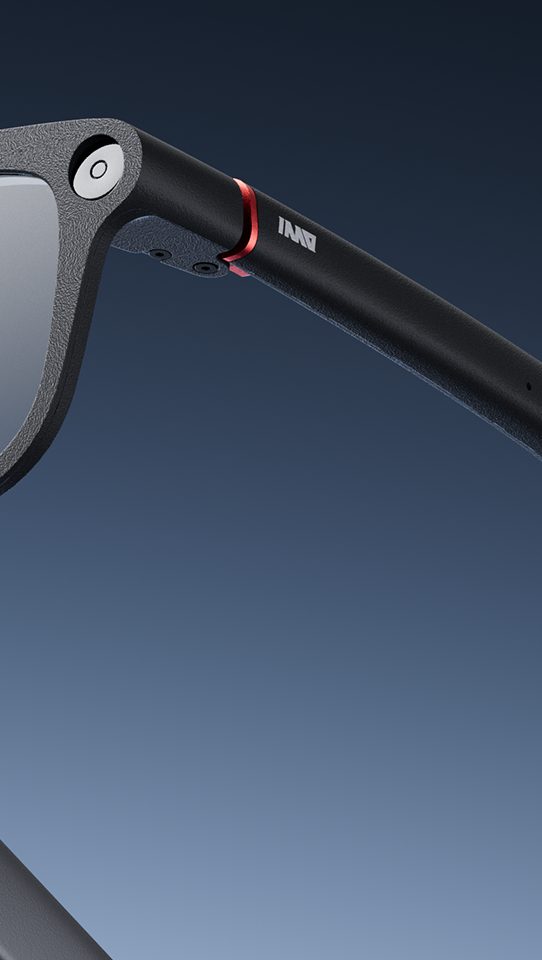
First-person photos and short videos come straight from the frame of INMO GO3. A camera built into the corner of the glasses captures what you are facing: choose Camera or Video on the right temple and tap to open that mode, then the next tap takes the photo or starts the clip, with each video clip running up to 60 seconds. To get the files onto your phone, open the Photo/Video album in the INMO Global app and tap refresh; the captures transfer across, ready to delete or share to other platforms.
The phone can stay in a pocket while you shoot, since the camera rides on the frame, and while a clip records your hands can go back to the work as the picture follows where you turn your head. That suits three kinds of capture in particular: documenting how a task is done, keeping visual notes while traveling, and showing colleagues the current state of something at work.
How Do You Take Photos and Videos on GO3 and Send Them to Your Phone?
The glasses stay paired with your phone through the INMO Global app, and the work splits between them: you shoot on GO3 and handle the files on the phone. The full sequence, from the first swipe to a shared file, takes seven steps:
- On the glasses, swipe the touchpad on the right temple to select Camera or Video, then tap to enter that mode.
- Tap to take a photo, or tap to start recording. In Video, tap again to end the clip, and tap once more when you are ready to start the next one.
- To move between photos and clips, swipe to the other mode and tap to enter it, the same way as in step 1.
- On your phone, open the INMO Global app and tap Photo/Video on the homepage to open the album.
- Tap the refresh icon at the top of the album to transfer what the glasses captured to your phone.
- Select a photo or video to delete it or share it to other platforms.
- To set a photo watermark, open a photo preview and tap the settings icon in the top-right corner.
The first tap in step 1 only opens Camera or Video; the capture itself comes with the next tap. Opening the mode a moment before the thing you want to record leaves a single tap as the only action when it matters. Transfer is also something you start: captures wait on the glasses until a refresh brings them into the album on your phone.
Photos for Details, Short Clips for Sequences
A photo suits information that holds still and that you will want to read or check later: a label, a reading on a display, a finished result. A short clip suits anything where order or movement carries the meaning, such as a sequence of hand movements or the way something opens and fits together. The deciding question is whether the viewer needs to see what happened, or only how things ended up.
| Photo | Short video | |
|---|---|---|
| How to capture | Select and enter Camera, then tap for each shot | Select and enter Video, tap to start, tap again to stop |
| Length | A single frame | Up to 60 seconds per clip |
| Best for | Labels, readings, finished results, details to check later | Sequences, movement, steps that only make sense in order |
| On the phone after transfer | Preview, delete, share | Delete, share |
A clip that covers one action is easier to follow than a long take holding several, because the viewer can see where the action starts and where it stops. A task that runs past one clip is easiest to split before you begin, at the points where one stage of the work ends and the next starts, so each clip holds a single stage a viewer can find on its own. A photo at each of those breaks, taken after switching to Camera as in step 3, records the state the next stage starts from: the still gives a reference to study, and the clips show how things got there.
Framing Shots From the Wearer's Viewpoint
The GO3 camera sits at the corner of the frame, so the shot follows your head and the camera needs no hand to hold it. The result is close to the view of the person doing the task. That is what makes first-person footage useful for documenting procedures: the next person to repeat the task sees it from the angle they will work from, not from a bystander's position across the room.
On a trip, photos taken at head level become visual notes of what you saw along the way, sorted later when there is time. At work, a short clip of how things currently stand answers questions that a written message would only raise.
Face the subject squarely before you tap, hold still while the photo is taken, and turn your head slowly while recording, since every head movement moves the frame with it. For close work, lean in so the subject fills more of the view. Before a long task, take one test photo, transfer it and look at the framing on your phone. A test shot shows where the camera's view sits relative to where you are looking, so you can adjust your head position before the shots that matter.
After the Transfer: Sorting and Sharing the Files
After each refresh, go through the new items in the album while the task is still fresh in your mind, delete the outtakes such as early starts and duplicate shots, and share the keepers, clearing the album like an inbox after every batch. Sharing to other platforms is how GO3 captures join the rest of your work, sent on to whichever messaging or storage app your team already uses.
When a set of clips explains a procedure, pick them out in the order the work happened and send them in that sequence, since the viewer follows the order you send. A one-line caption for each step in the message adds the missing context: the clip shows what happened, and the caption tells the viewer what to look for in it. Refreshing at the end of each task, not once at the end of the day, also keeps every review session down to one job's files.
Shooting Around Other People
People nearby may not realize that a pair of glasses can take pictures, so saying what you are doing helps. Ask before you photograph or film someone, and ask again before you share images of them.
Framing the hands, the equipment or the document, not the people around it, keeps most shots free of anyone's face. In meetings and shared workspaces, mention what you are capturing and why before the first shot, and delete any image of a person who asks not to be included. A broader look at how the camera fits alongside translation and recording is in the overview of GO3's camera and privacy design.
Advice for Trainers, Travelers and Team Updates
Keeping about the same working distance and head position from one stage to the next helps a set of procedure or training clips read as a single record, and looking through the whole set on the phone before sending shows whether a stage is missing while the setup is still in place to film it again. Travelers lean the other way, toward Camera mode, since most of what a trip leaves behind are scenes that hold still. Picking a short list of favorites at the end of each day keeps the album from turning into an unsorted archive.
A colleague update that opens with what the other person needs to check or decide, with the capture attached as the evidence, gives them a clear reason to open the file and a clear thing to look for. If translation or meetings are the main reason you wear GO3 and the camera is a useful extra, keep the routine light: capture when a moment calls for it, and keep the INMO GO3 user guide handy for the exact menu names.
FAQ
Where do GO3 photos and videos stay before they reach your phone?
GO3 has 64GB of onboard storage, and new captures stay on the glasses until a refresh in the Photo/Video album brings them to your phone. Everything you do with a file after that, from clearing out outtakes to sending it on, starts from the album on the phone.
Can you add a watermark to photos taken with GO3?
Photo watermarks are a setting in the INMO Global app, reached while a photo preview is open. Check the setting before you start sharing photos, so the pictures you send out carry the marking you intend. A watermark is most useful on images that leave your own circle, such as photos posted publicly or sent to clients.
How can you tell the glasses are ready before you tap refresh?
While GO3 is connected, the home screen of the INMO Global app shows the name and battery level of your glasses. That display is a quick check before you open the album. If the name is not shown, tap Connect on the homepage to search for the glasses and connect them, then open Photo/Video and refresh to bring the latest captures across.
Share:
Can INMO GO3 Play Music From Your Phone? Setting It Up as a Bluetooth Audio Device
Does the INMO AIR3 Recall Affect INMO GO3? How the Notice Draws the Line