

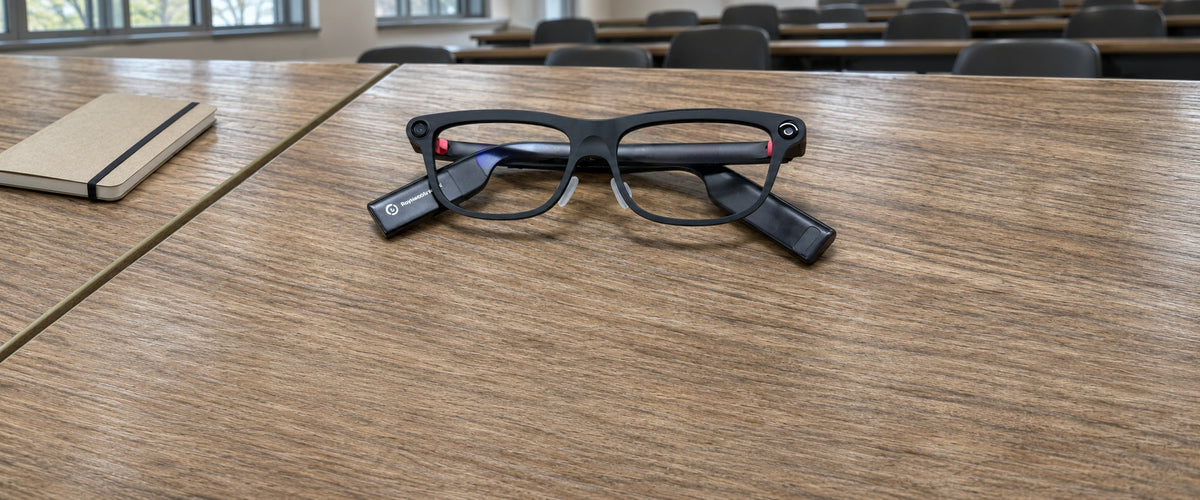
In a lecture hall, INMEET on INMO GO3 can record an on-site session with either the glasses' microphones or your phone's microphone. Real-time translation in INMEET covers 127 online languages and appears as subtitles on the lenses, where you can switch between the original speech and the translation. The live transcript also appears on your phone, and after the lecture the same recording can produce a full transcript, a summary, and a mind map.
When a lecture hall uses a microphone and loudspeakers, the amplified speech travels through the room to GO3's microphones. A useful starting point is a seat where that speech is clear and nearby conversation is limited.
Where Should You Sit So Translation Glasses Hear the Lecturer?
Distance, room reflections, and background noise all matter when choosing a listening position. Begin with the actual sound source: the lecturer's voice in an unamplified session, or the loudspeakers in an amplified one.
| Where you sit | Sound to pay attention to | Suggestion |
|---|---|---|
| Front rows during an unamplified lecture | The lecturer's voice reaching the seating area | Choose an available seat closer to and facing the lecturer |
| Within a hall loudspeaker's coverage | Amplified speech from the room's sound system | Look for a position where speech is clear, with an open path toward the loudspeaker |
| Middle or back rows without amplification | Distant speech alongside room noise and reflections | Consider moving forward when seating permits |
| Near entrances or nearby conversations | Movement and speech close to your listening position | Choose a quieter part of the seating area |
| Near ventilation or projection equipment | Mechanical sound around the seat | Leave some space between your seat and audible equipment |
How GO3 Captures Speech and Displays the Translation
GO3 uses a 4-microphone array with noise cancellation. Its binocular green Micro LED display uses a diffractive waveguide to bring translated text into your field of view, so you can read the subtitles while looking toward the slides, the same listening and reading pattern described in the guide to translation glasses for lectures.
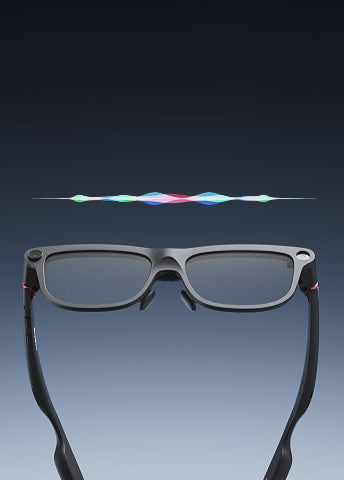
In INMEET, the display switches between the original speech and the translation. The original wording helps when a technical term needs to match the slides or the reading list, and the translation keeps the explanation in your preferred language; you can change between them as the lecture moves from definitions to discussion.
Display brightness is adjustable up to 1500 nits. Adjust it to suit the room's lighting as part of your preparation, alongside selecting the subtitle view.
Across a full day of lectures, the two swappable batteries and the charging case in each set support up to about 24 hours of total use between them.
Setting Up INMEET Before the Lecture Begins
INMEET brings lecture translation, transcription, and recording together in one place. Before the lecturer begins, select the listening language and the translation language for the session. When the lecturer's language is not known in advance, INMEET can recognize the listening language automatically while online. You can also choose industry terms that match the subject of the lecture.
In the settings, INMEET can open on either the transcript page or the summary page, so the view you use most is the first one you see when the session starts. Live speech-to-text appears on the phone and on the glasses at the same time.
Start INMEET as the lecturer introduces the session, check that the transcript appears on the lenses, and add a first mark where the main content begins so the recording has a clear starting point for later review.
Working With the Hall's Sound System
In an amplified lecture, the relevant sound source at your seat is the hall's loudspeaker output, so a seat within a loudspeaker's coverage and with a clear view of the slides can work well even some distance from the stage.
Use the opening remarks or a sound check to listen for the spoken words from an available seat. Pay attention to speech clarity as well as loudness, since a loud room and an intelligible voice are different things to assess.
During sessions without amplification, focus the same preparation on the lecturer's direct voice. When a session combines a presentation and discussion, consider the seating arrangement for both tasks before choosing your position.
During the Lecture: Marking the Points You Want to Revisit
When the lecturer reaches a point you want to return to, add a mark to the recording at that moment. In playback, each mark takes you to that point in the recording. While online, INMEET also shows running notes on the lenses for topics the lecturer has already finished, giving you a summary of earlier sections while the talk continues.
After the Lecture: Recordings and Follow-Up Questions
After the session, INMEET produces a full transcript, a final summary, a mind map of the lecture, and to-do items with online AI processing, the same recording workflow covered in the article on meeting recording with noise reduction. The transcript, summary, mind-map outline, to-do items, and marks export together as one PDF, Word, or TXT file, and the audio recording exports separately as a WAV file. Reading the exported file next to your own notes is a quick way to fill gaps before the next class.
Questions for the lecturer after class move to Two-Way Dialogue Translation, a separate mode with 78 languages on Android and 82 on iOS. You read the lecturer's answer on your lenses, and what you say is voiced in the lecturer's language by your phone or by the optional INMO Speaker, which pairs with your phone separately from the glasses. A press of the GO button on the temple changes the pickup between directional and 360°. The lens in this mode shows the translation alone or the original and the translation together.
Frequently Asked Questions
Can the phone's microphone be used for lecture recording?
INMEET can record with the phone's microphone as well as the glasses' microphones. Choose the phone before the session starts, place it on a desk facing the lecturer, and check that the first sentences of the talk appear in the transcript.
Can I pause a lecture recording during a scheduled break?
INMEET provides recording controls to pause, continue, and end a recording on Android and iOS. Use pause during a scheduled break and continue when the session resumes.
Can GO3 translate a lecture in a hall with no internet connection?
In a hall without internet access, offline translation is available for 9 languages on both Android and iOS. Download the offline language packs for the listening and translation languages you need in the INMO Global app before the day of the lecture, and keep the glasses paired with your phone during use.
How do you find one lecture again in a semester of recordings?
INMEET keeps each session in a recording list that you can search, and each recording's title can be changed. Name recordings by course and date to organize them for later review. Once you have opened a recording, use its marks to return to the points you selected during the lecture.
Share:
Seeing the Whole Screen on AR Glasses: AIR3 FOV and Fit
Teleprompter Glasses: Notification Settings Before a Presentation