


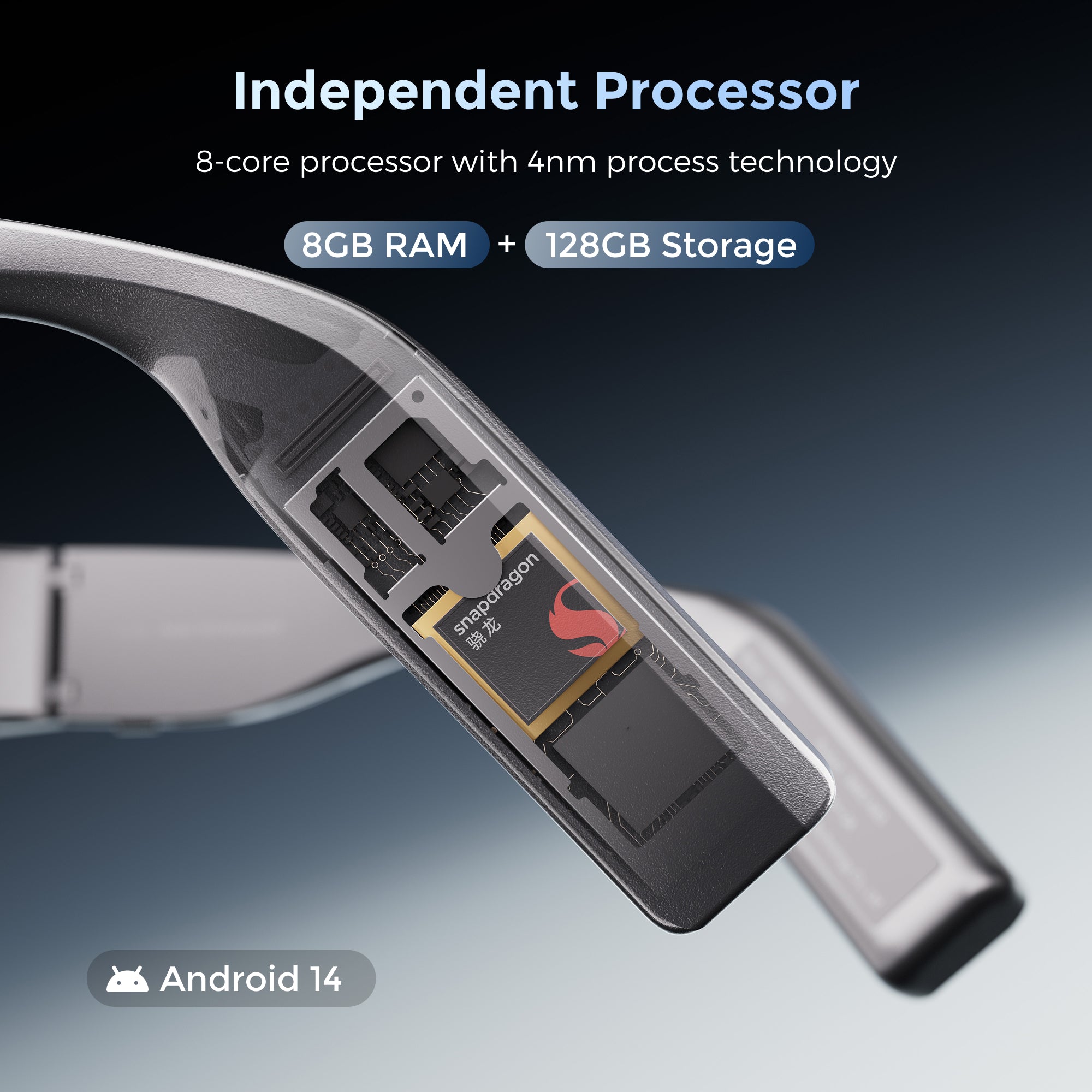
Standalone operation is the defining trait of INMO AIR3: a Qualcomm Snapdragon processor, 8GB of RAM, 128GB of storage and Android 14 sit inside the frame, so apps, films and games run on the glasses with no cable to a phone. Assessed task by task, INMO AIR3 covers private film viewing on a 1080P Micro-OLED display with a 3D cinema mode, reference work across up to three app windows, and four capture tools that record either the display or the scene in front of you. Phone casting and Xbox streaming add content that already lives on other devices.
Standalone Glasses Versus Cabled Display Glasses
Cabled display glasses act as a wearable monitor for a phone, laptop or console at the other end of the wire, showing whatever that device sends. AIR3 takes the all-in-one route, carrying its own processor, memory, storage and system, so the glasses join Wi-Fi, sign in to accounts and install video, reading or office apps from Google Play or the INMO App Store by themselves.
A touch area on the right temple, the INMO Touchpad, the Ring3 controller and the voice assistant all operate the system. The Touchpad is a pocket-sized cursor and scroll surface for leaning back with a film, Ring3 casts a pointing ray for arranging windows, and Voice Wake-Up with "OK Amu" keeps both hands free. Bluetooth keyboards, mice, speakers and game controllers pair with the glasses as well, so one frame can serve as a writing setup on one day and a game screen on the next.
How Good Is INMO AIR3 at Each Task?
Films stored on the glasses, installed apps and the four capture tools run on AIR3 itself and travel with the frame, while phone casting and Xbox streaming draw on a second device that holds the content.
| Task | Where it runs or is stored | How it reaches the lens | What you control it with |
|---|---|---|---|
| Streaming and video apps | Apps installed on the glasses | Played on AIR3 over Wi-Fi | INMO Touchpad |
| Your own video files, including 3D | Onboard storage, copied from a computer | Gallery, with 3D cinema mode for 3D files | INMO Touchpad |
| Reference reading across apps | Up to three apps in Multi-Screen Space | Floating windows you resize, move and close | Ring3 pointing ray |
| Writing and editing | Office and notes apps on the glasses | The app's own window | Bluetooth keyboard and mouse |
| Phone content | iPhone, iPad or Android phone | Screen Mirroring, with both on the same Wi-Fi | The phone's own screen |
| Xbox games | The console | XBXPlay, on the home network or remotely over the internet | Bluetooth controller |
| Captures | DCIM folder on the glasses | Camera, Screenshot, Live Screenshot, Screen record | Control Center |
Someone who mainly watches films can run AIR3 with the Touchpad alone. Ring3 joins the kit for anyone who wants Multi-Screen Space, since its windows respond to the ring's ray, while a Bluetooth keyboard serves long typing inside individual apps and a controller serves console streaming.
Films, 3D Video and the Display Behind Them
Video on AIR3 plays on a 1080P RGB waveguide display built on Micro-OLED, with a 36° field of view and up to 600 nits. The 36° figure describes the angle the picture spans in front of your eyes: a film fills the center of your view while your surroundings stay visible through the lenses, a layout suited to watching alone at home or while traveling. Brightness can be set by hand or left on Adaptive Brightness, which adjusts the level as the light around you changes. These figures are put in context in comparing standalone 1080p AR glasses beyond screen size.
3D files copied from a computer with the official AIR3 USB data cable open in Gallery like any other video, and the 3D icon in the player switches them into 3D cinema mode. Copying a set of titles ahead of a trip builds a library carried on the frame itself, and streaming apps on the glasses fill in the rest whenever Wi-Fi is available.
Three Windows and a Keyboard for Light Work
Multi-Screen Space, opened from the App Library, places up to three apps as floating windows, so a web page, a document and a notes app can stay open together. Window control in this mode comes from Ring3, the INMO ring that casts a pointing ray, and covers opening apps, resizing and moving windows, and closing them. Reference work benefits most, since moving between a source and your notes no longer means closing one app to open the other.
A paired Bluetooth keyboard handles typing inside individual office and notes apps installed on the glasses, and a Bluetooth mouse adds a pointer within those apps. With a keyboard in the bag, AIR3 covers drafting emails, editing notes or reviewing a document away from a desk.
Casting From a Phone and Streaming From an Xbox
Screen Mirroring on the glasses shows an iPhone, iPad or Android phone screen on the lens when the phone and AIR3 are on the same Wi-Fi network, and the phone remains the device you tap and scroll. This route fits apps you keep only on your phone and photo albums you want to view at a larger size.
Xbox owners have a second route through the XBXPlay client on AIR3. With remote features switched on at the console, XBXPlay streams Xbox games over the home network or remotely over the internet, and a paired Bluetooth controller handles play. The console runs the game while the glasses act as its screen, and Android games installed on AIR3 form a third option that runs on the glasses' own processor. The High-performance switch in Control Center raises the system's performance level for games and high-definition video, and the AIR3 gaming setup guide goes further into console play.
Photos, Screenshots and Screen Recordings
Control Center on AIR3 holds four capture tools, and each one produces a different kind of file. Camera takes photos and videos of the scene ahead, Screenshot saves the current display as a still image, and Screen record captures what is shown inside the glasses as video. Live Screenshot combines the view inside the glasses with the real-world scene in a single picture. Picking the tool before you start saves editing later: a Screen record of an app walkthrough shows the interface alone for a tutorial, while a Live Screenshot keeps floating content and the surroundings together when you want to show others what using the glasses looks like.
All four outputs are saved in the DCIM folder on the glasses. Connected to a computer with the official AIR3 USB data cable, the glasses appear as a storage device, and files can be copied from DCIM into folders on the computer for editing or sharing from there. Tutorial makers get a clean recording of the display this way.
Which Readers Get the Most From AIR3
Solo viewers get the most direct value, particularly those who keep a personal library of downloaded or 3D films and want a private picture without setting up a second screen. Students and writers who keep sources open while drafting come next, using AIR3 as a portable reading and writing station outside the office.
Xbox owners and people whose content lives mostly on their phones gain a wearable screen for what they already have, and creators who record app demos can produce both interface-only recordings and mixed real-world captures from the same frame. Readers shopping mainly for conversation translation, live subtitles of speech or a teleprompter for talks will find those jobs on INMO GO3, and the FAQ below sets the two models apart.
FAQ
Can INMO AIR3 be used without connecting a phone?
First-time setup and network activation take place on the glasses, using the right temple touch area or a ring to step through the screens. After that, installed apps, stored files and capture tools run from the frame, and a phone takes part only when you choose to mirror its screen.
Which apps can you install on AIR3, and where do they go?
Apps come from Google Play or the INMO App Store and install into the same onboard storage that holds your films, photos and documents. The system itself occupies part of the 128GB, and everything else shares the remainder, so clearing films you have finished watching frees room for larger apps and games.
How is AIR3 different from INMO GO3?
AIR3 shows a full-color 1080P picture and runs Android apps, films and multiple windows on its own. GO3 is built for translation, teleprompting and meeting recording, pairing with your phone and showing text on a green monochrome display. AIR3 fits watching and working inside apps, GO3 fits conversations and talks, and the two are set side by side in AI glasses vs AR glasses for travel, translation and movies.
What does it take to update the AIR3 system software?
Every AIR3 already sold is put back into use after V3.16, its free online system update, has finished installing, with the INMO Support Center on hand to help owners through it. An update package needs at least 1GB of free storage to download over Wi-Fi, and a charge above 80% is the recommended starting level:
- Open Settings and select About the Smart Glasses.
- Tap System Version to check for a new release.
- Tap Update Now when a new version appears, then leave the glasses untouched until they restart on their own.
How hardware and system software relate on these glasses is explained in AIR3 specs after the recall update.
Share:
INMO GO3 Review: Translation, Teleprompter and Meeting Notes in One Pair of Work Glasses
Teleprompter Glasses for Stand-Up Comedy: Putting Your Set List on the Lens