

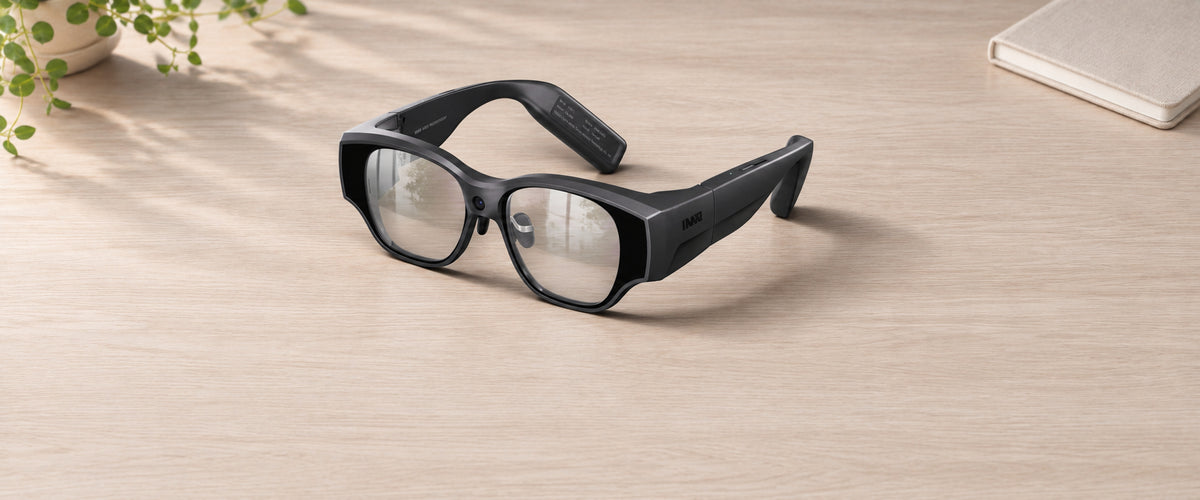
Without a phone attached, INMO AIR3 runs apps on its own processor and connects to Wi-Fi directly. A film saved on the glasses can play with no cable attached. Screen mirroring from a phone remains available when a video is already on the phone, so both kinds of viewing start from the same pair of glasses.
Three separate questions tend to get mixed together when people ask about phone-free AR glasses: whether a cable connects the glasses to another device, whether a phone does the processing, and whether a task needs internet access. The first two are settled by how the glasses are built. The third depends on the task, since some tasks reach out to the internet and others use only what is already on the glasses.
Which AR Glasses Work Without Being Plugged Into a Phone?
AR glasses get their picture and their software in a few different ways, and the common setups differ in where the apps run, where files are kept, and whether a cable stays attached during use.
| How the glasses are set up | Where apps run | Where videos and files are kept | Cable to a phone or computer | How you control it |
|---|---|---|---|---|
| All-in-one glasses (INMO AIR3) | Processor inside the frame | Storage on the glasses | Not used | Temple touch, voice, Bluetooth ring, INMO Touchpad, Bluetooth keyboard and mouse |
| Cabled display glasses | Connected phone, computer, or console | The connected device | Video cable throughout use | Controls on the connected device |
| Wireless phone mirroring (also available on AIR3) | The phone | The phone | Not used, both devices share one Wi-Fi network | The phone screen |
Cabled display glasses behave like a monitor worn on the face. The picture travels down a wire from the source device, so that device has to stay connected and close by for the whole session. An all-in-one design moves the processor, memory, storage, operating system, and battery into the eyewear, which is the approach AIR3 takes. Readers choosing between a display-first pair and a translation-first pair can compare the two directions in AI glasses and AR glasses for travel, translation, and movies.
The Computer Built Into the AIR3 Frame
The frame of AIR3 holds a Qualcomm Snapdragon octa-core processor made on a 4nm process, 8GB of RAM, and 128GB of internal storage, running Android 14.
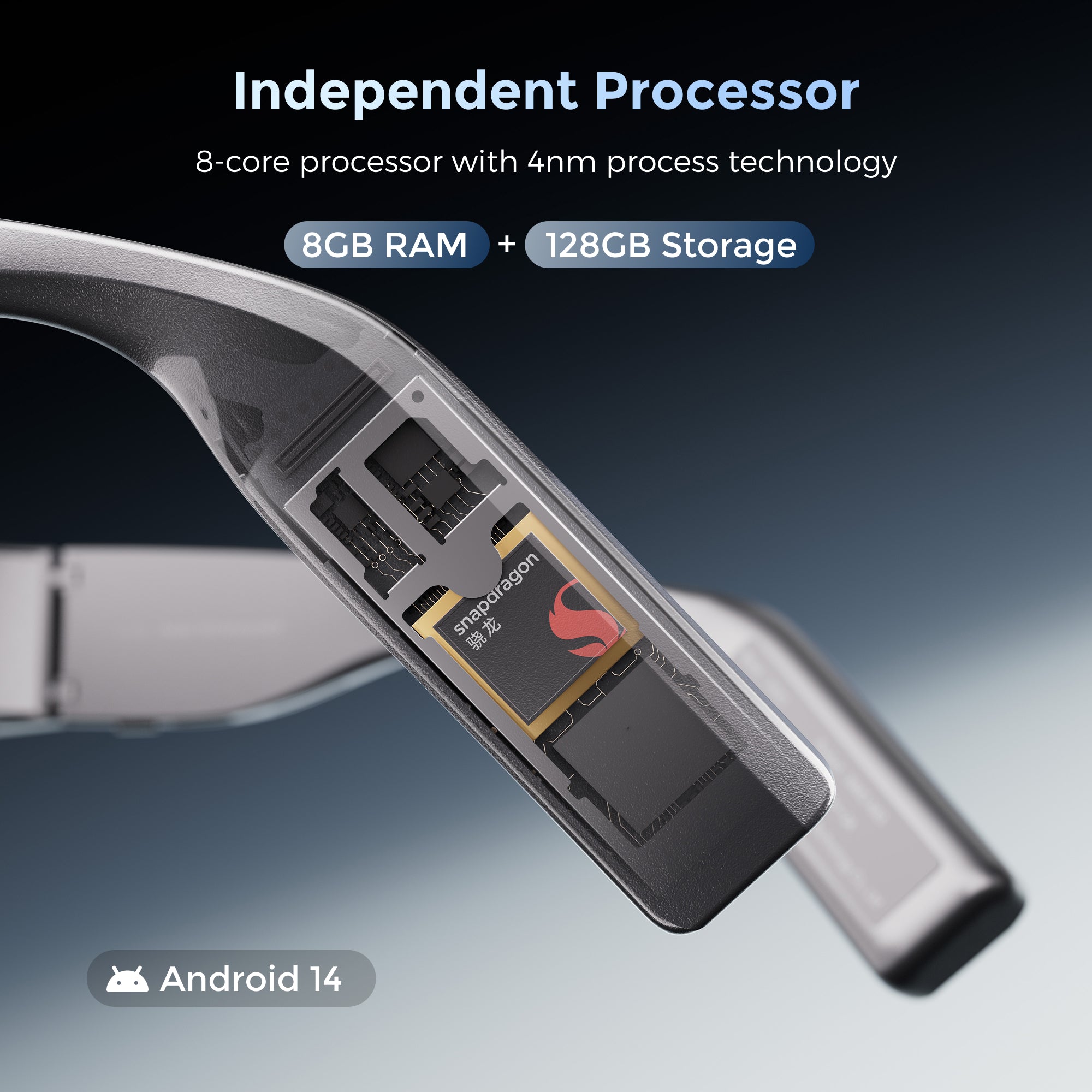
A 16MP camera with a 120° ultra-wide view is also built into the frame. Connections are handled on the glasses as well, with dual-band Wi-Fi on 2.4GHz and 5GHz and Bluetooth 5.3. Power comes from a battery built into the frame, so there is no separate battery pack or power cable running to a pocket. After power-on, the AIR3 desktop with your installed apps is the starting point.
Everyday Use With No Phone Attached
Most Android apps can be installed on AIR3 through Google Play. Joining a network starts in Settings → Internet, where turning on WLAN lists the Wi-Fi networks in range. Networks you have joined are saved on the glasses. Once connected, Google Play on the glasses works the same way it does on a phone: sign in, search for an app, install it, and open it from the glasses.
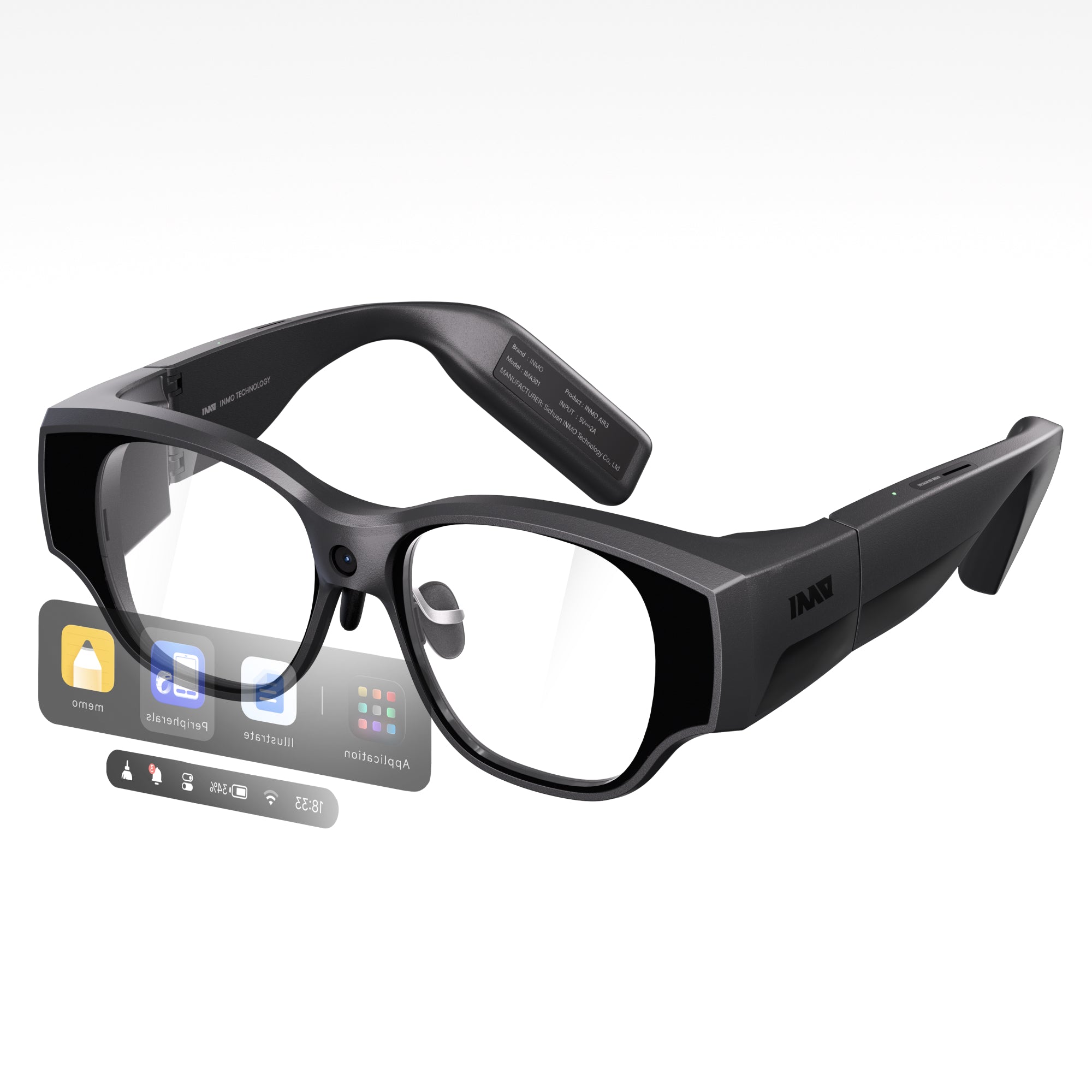
Personal videos can live on the glasses too. Connecting AIR3 to a computer over USB lets you copy video files into the glasses' internal storage through the computer's file manager and open them in the Gallery app on the glasses. The USB cable for this connects to the Type-C port on the glasses. Building a library this way before a trip is the subject of standalone AR glasses for watching your own travel videos.
Menus can be operated with the touch-sensitive temple, voice commands, an optional Bluetooth ring, or the INMO Touchpad. Voice commands begin with the wake word "ok amu". Longer typing calls for a keyboard, and Bluetooth keyboards and mice pair under Settings → Connected Devices → Pair with New Device, the same menu that connects a Bluetooth speaker or a game controller. Each accessory pairs in the same order: put it into pairing mode first, then select it from the list on the glasses. With a keyboard and mouse connected, AIR3 becomes a small portable workspace for writing and editing in the apps you have installed, such as drafting notes or editing a document.
Adjusting the Glasses From Their Own Settings
The controls for the glasses themselves sit in the Settings menu on AIR3. Settings → Display has a Brightness slider, an Adaptive Brightness switch that adjusts the level automatically once it is enabled, and Screen Timeout, which sets how long the screen stays on, from 15 seconds to 30 minutes. Accessory pairing sits in the same Settings menu, under Connected Devices, so display and accessory choices are both made on the glasses.
When a Phone Joins In: Wireless Screen Mirroring
A phone becomes useful when the content you want is already open on it, such as an app on your phone or a video playing there. In that case AIR3 can act as a wireless display while the phone runs the content, and the phone stays the device you tap and scroll on while the glasses show its screen.
- Connect AIR3 and your phone to the same Wi-Fi network.
- Open Screen Mirroring from the App Library on AIR3 and leave that page open.
- From Control Center on an iPhone or iPad, select Screen Mirroring and pick INMO AIR3, or on an Android phone, pick INMO AIR3 in the phone's casting menu.
If you already own an AIR3, install the free V3.16 system update before using the glasses, and the INMO Support Center can help with the update and with setup questions. The update itself runs from the glasses. Settings → About the Smart Glasses shows the System Version, and Update Now installs a newer version when one is available. Before starting, keep at least 1GB of storage free and the battery level above 80%, and the glasses restart on their own once the update is complete.
FAQ
Do you need a phone to set up AIR3 for the first time?
The first setup runs on the glasses. When AIR3 starts for the first time, swiping up or down on the right temple selects the system language, and the next screens ask you to accept the user agreement and pair a Ring or the INMO Touchpad. The pairing step can also be done later from Peripheral Management on the AIR3 desktop. Holding the power button for about 3 seconds brings up the menu to power off or restart.
Can you watch a movie stored on AIR3 without Wi-Fi?
A film copied to the glasses over USB is saved in their own storage, so it plays from the Gallery app on AIR3 once the file is on the device. Copying a few films before heading somewhere without a network gives you something to watch from the glasses alone.
Which tasks on AIR3 use a Wi-Fi connection?
Downloading apps from Google Play, watching online video inside an app, and installing system updates all use Wi-Fi, so these are the tasks to line up while a network is available. AIR3 connects on either the 2.4GHz or the 5GHz band, and the network is chosen under Settings → Internet.
Does AIR3 have an app source besides Google Play?
The INMO App Store is built into AIR3 as well, so apps can come from either Google Play or the INMO App Store and are installed directly on the glasses.
Share:
Translation Glasses Battery Life With Translation Running: How INMO GO3 Covers a Full Day
Translation Glasses for Long Travel Days Without Frequent Charging Stops