

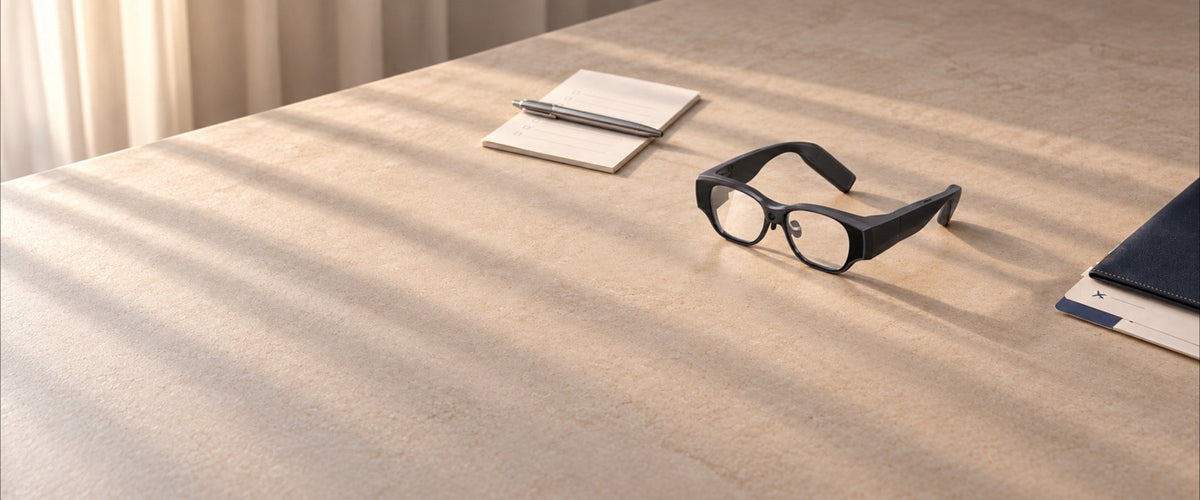
Copying your own videos onto standalone AR glasses before a trip means the glasses themselves handle playback on the road, with no separate media player in the bag. INMO AIR3 carries a Snapdragon octa-core processor, 8GB of RAM, 128GB of storage and Android 14 in the frame, and videos copied from a computer play in its built-in Gallery app.
Which Standalone AR Setup Plays Your Own Videos Without a Media Player?
AIR3 handles playback on its own, and each item below has its moment, either at home before departure or on the road.
| Item | What it does | When you use it |
|---|---|---|
| INMO AIR3 | Stores video files in onboard storage and plays them in Gallery on a 1920×1080 Micro-OLED display | During travel |
| Touchpad | Controls cursor navigation, video selection, Gallery scrolling and display brightness | During travel |
| Official AIR3 USB data cable and a computer | Transfers video files from computer storage to the glasses | Before departure |
| AIR3 charging cable and a power source | Charges the glasses through the Type-C port | During travel |
Because file transfers finish before departure, the computer and USB data cable stay home while the glasses, Touchpad and charging gear travel with you.
Before You Leave: Copying Videos onto the Glasses
Three tasks get AIR3 ready before departure: a system update, a quick storage check and the video transfer. Glasses you already own should receive the free online system update to V3.16 before use, and the INMO support center can help with the update. System updates download over Wi-Fi, require at least 1GB of free storage space and are recommended with battery charge above 80%, restarting automatically once installation finishes.
Before copying files, open Settings > Storage on the glasses to see how space is allocated. The System category holds the files that run Android 14, while installed apps, videos, images and documents each show their own share, so the screen gives a clear picture of the room available for your trip library.
Videos move onto AIR3 from a computer over the official AIR3 USB data cable:
- Connect AIR3 to a computer using the official AIR3 USB data cable.
- On a Windows PC, open This PC and locate "IMA301" or "Internal Shared Storage".
- Copy or drag your video files into a storage folder on the glasses.
- Disconnect the cable, open Gallery from the glasses home screen and verify that your videos appear.
3D video files follow the same transfer process. If additional file organization or cleanup is needed on the glasses, the built-in Files application allows viewing files in list or grid view, creating folders, and moving or copying files.
On the Road: Watching in Gallery with the Touchpad
AIR3 features a binocular full-color Micro-OLED display with 1920×1080 resolution, a 36° field of view and 62 pixels per degree, a pixel density that suits subtitles and interface text. The picture sits directly in your forward line of sight, so there is no screen to hold during playback.

The wireless Touchpad connects to the glasses over Bluetooth. After the Touchpad is powered on, a blinking blue light shows it is broadcasting under the Bluetooth name "INMO Touchpad". To pair the controller, navigate to Peripheral Management on the glasses desktop, locate "INMO Touchpad" and tap to establish the connection. Once paired, the Touchpad reconnects automatically when powered on. To pair it again from scratch, press and hold the camera button, then slide the switch to the left to clear the existing pairing information.
For navigation, moving a finger across the center touch area of the Touchpad directs the on-screen cursor, and clicking within the center area opens the selected video. Sliding along the side edge scrolls pages up and down, while sliding along the top edge moves pages or views left and right. The dedicated Back key returns to the preceding menu, and a short press on the Home key returns to the main desktop. During playback, the volume keys on the side of the Touchpad adjust the sound level, and a long press on the Home key activates the voice assistant.
Power for the Journey
AIR3 charges through a built-in Type-C port using the official charging cable connected to a compatible power adapter or portable battery pack. Enabling Settings > Battery > Show battery percentage keeps the remaining charge visible in the status display.
The Battery settings menu also provides system performance controls. Under Settings > Battery > System Performance, you can switch between High Performance Mode and Balanced Mode. Power Saving Mode can also be configured with scheduled activation and deactivation times, and it switches the interface to a dark theme when enabled.
The Touchpad also uses an internal rechargeable battery. An LED indicator displays charging status: solid red indicates charging in progress, solid green confirms a full charge, and a flashing red light upon contact warns of low battery levels.
Processing, Storage and Display in One Frame
A tethered wearable video setup divides tasks between two separate pieces of hardware: display-only glasses that act as an external monitor, and a connected host device such as a phone, tablet or media player that stores and processes video files. That architecture requires keeping both devices connected during playback.
By contrast, AIR3 integrates processing, memory, storage and optics into a single wearable frame weighing approximately 135g. Because media files are stored locally and navigated wirelessly with the Touchpad, playback requires no tethered host device or connecting cables during a viewing session. Two related comparisons cover AI glasses and AR glasses for travel, translation and movies and AR glasses versus a VR headset for movies.
FAQ
Can INMO AIR3 play copied videos on a flight without Wi-Fi?
Videos copied into onboard storage before departure open from the Gallery app and play locally, so they are ready to watch on a flight with no in-flight Wi-Fi involved.
How do you prepare 3D videos for INMO AIR3?
Transfer 3D video files from your computer to the glasses using the official AIR3 USB data cable just like standard video files. On the glasses, open Gallery from the home screen, select the video to begin playback, and tap the 3D icon in the upper right corner of the screen to activate 3D cinema mode.
How do you adjust the picture for a dark cabin or a bright room?
Hold the Fn key on the Touchpad and slide along its side edge to change display brightness. The picture can be dimmed for a dark cabin or raised in a bright room during playback, without opening a settings menu.
Share:
Translation Glasses That Show Original Speech and Translated Subtitles Together for Lectures
128GB AR Glasses Storage vs External Player: Where Your Movie Library Should Live