

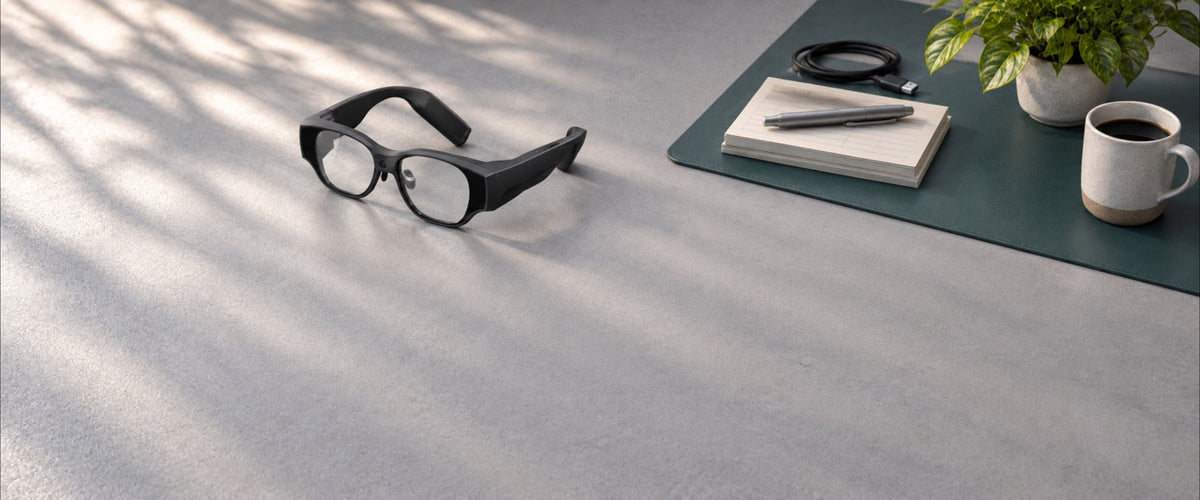
Movies you want to watch offline, such as on a flight without Wi-Fi, are best copied onto the 128GB of onboard storage in INMO AIR3, where they play in the glasses' Gallery app. A larger library that already lives on a phone or computer can stay there and be cast to AIR3 over Wi-Fi, so titles play on the glasses without copying any files.
INMO AIR3 is a pair of wireless, all-in-one AR glasses with 8GB of RAM, 128GB of storage and Android 14, so it holds and plays video by itself. You can keep the full library on your computer and copy a selection of titles onto the glasses for the times you want to travel light.
Onboard Storage or an External Player: Which Fits Your Movie Library?
| Your situation | 128GB onboard storage on AIR3 | Library on a phone or computer, cast to AIR3 |
|---|---|---|
| Where the movies are kept | In the glasses' onboard storage | On the phone or computer that already holds them |
| How you start a movie | Open Gallery on the glasses and play | Play on the source device and cast it to the glasses |
| Best suited to | Offline viewing, including a flight without Wi-Fi | Browsing an existing library without copying files |
| Getting ready | Copy movies from a computer over USB | Connect both devices to the same Wi-Fi network |
Planning a Library Around 128GB of Onboard Storage
Settings → Storage on the glasses shows how the 128GB is used, much like storage on an Android phone, along with the free space available for movies.

System updates come through Settings: navigate to About the Smart Glasses, then System Version, and tap Update Now if a new version is available. The update downloads over the glasses' internet connection as a package of roughly 1GB, and keeping the battery above 80% is recommended before starting.
Let the installation run without operating, shutting down or restarting the glasses; they restart automatically once it finishes. If you already own an INMO AIR3, complete the free online system update to V3.16 before using it for movies, and INMO support can assist with the process.
Loading Movies and Watching Them Offline in Gallery
Copying movies from a computer over USB works like copying files to any external drive. On a Windows PC, the glasses appear in This PC once connected, so the usual drag and drop applies.
- Connect AIR3 to the computer with the official AIR3 USB data cable.
- Open This PC and find the glasses listed as IMA301 or Internal Shared Storage.
- Drag the selected movie files into a folder on the glasses.
- On the glasses, open Gallery from the home page and play the video.
Once the files are on the glasses, playback in Gallery is entirely local, making it well suited for offline travel. 3D movies follow the same route: after copying the 3D video over, open it in Gallery and tap the 3D icon in the upper right corner to enter 3D cinema mode. For more on how the display handles films and subtitles, the guide to watching movies and subtitles on 1080p AR glasses covers the viewing side in detail.
Day-to-day housekeeping happens on the glasses through the Files app. It displays files and folders in either a list or grid view, and with the Touchpad you can create folders, move or copy files, and delete finished titles to recover space. Grouping movies into folders, for example by series or genre, makes titles easier to find in Files.
On the Touchpad, moving a finger within the center area moves the cursor and a tap there clicks, while sliding along the side edge scrolls a long folder list up and down. Sliding along the top edge moves pages or categories left and right, which keeps navigation quick once a library spans several folders.
To rotate titles, keep the original files on the computer and copy each trip's selection into its own folder on the glasses. Finished titles can then be selected together in Files and deleted while the originals stay on the computer, and the next selection can be copied over from the same source.
Keeping the Collection on a Phone or Computer and Casting
INMO AIR3 supports screen casting from a phone or computer, allowing media played on the source device to display on the glasses without copying files over, which suits browsing a large existing library. On iOS this uses Screen Mirroring, on Android it uses the phone's casting feature, and HarmonyOS devices cast through LeBo Cast.
At home, casting turns AIR3 into a personal screen for an existing movie library, the same idea behind using AR glasses in place of a TV in a small apartment.
FAQ
How many movies will fit on 128GB?
The space each movie takes depends on its length, resolution, and encoding, and your computer shows every file's size before you copy it, so a trip selection is easy to size against the free space shown in Settings → Storage.
How do I free up space after watching?
You can remove finished titles directly on the glasses in the Files app using the Touchpad, or manage files by connecting AIR3 to a computer over USB. In This PC, opening IMA301 or Internal Shared Storage allows you to delete entire trip folders before copying new titles across. It is also useful to check the DCIM folder on the glasses, which stores camera photos, captured videos, screen recordings, and screenshots. Clearing older items from DCIM frees up more room for movies.
How do I connect the Touchpad to manage files on the glasses?
Power on the INMO Touchpad, and its blue light flashes while it broadcasts over Bluetooth. On the glasses, go to the desktop, select Peripheral Management, tap to search, and connect to INMO Touchpad. After this first pairing, the Touchpad connects automatically each time it is powered on, so it is ready for sorting folders whenever a new selection of movies arrives.
Share:
Standalone AR Glasses That Play Your Own Videos While Traveling
Travel Translation Glasses That Show Subtitles and Speak Your Reply