

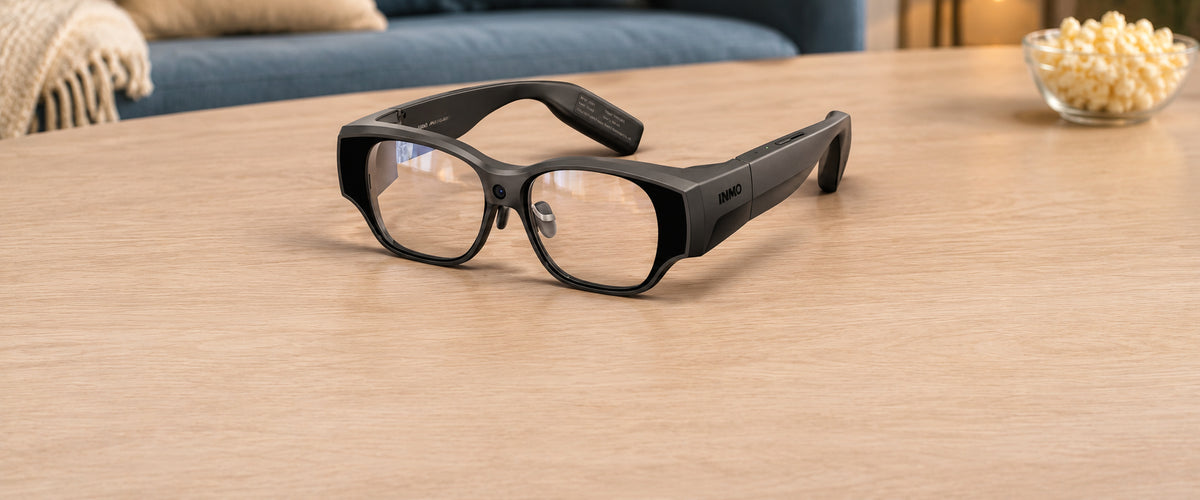
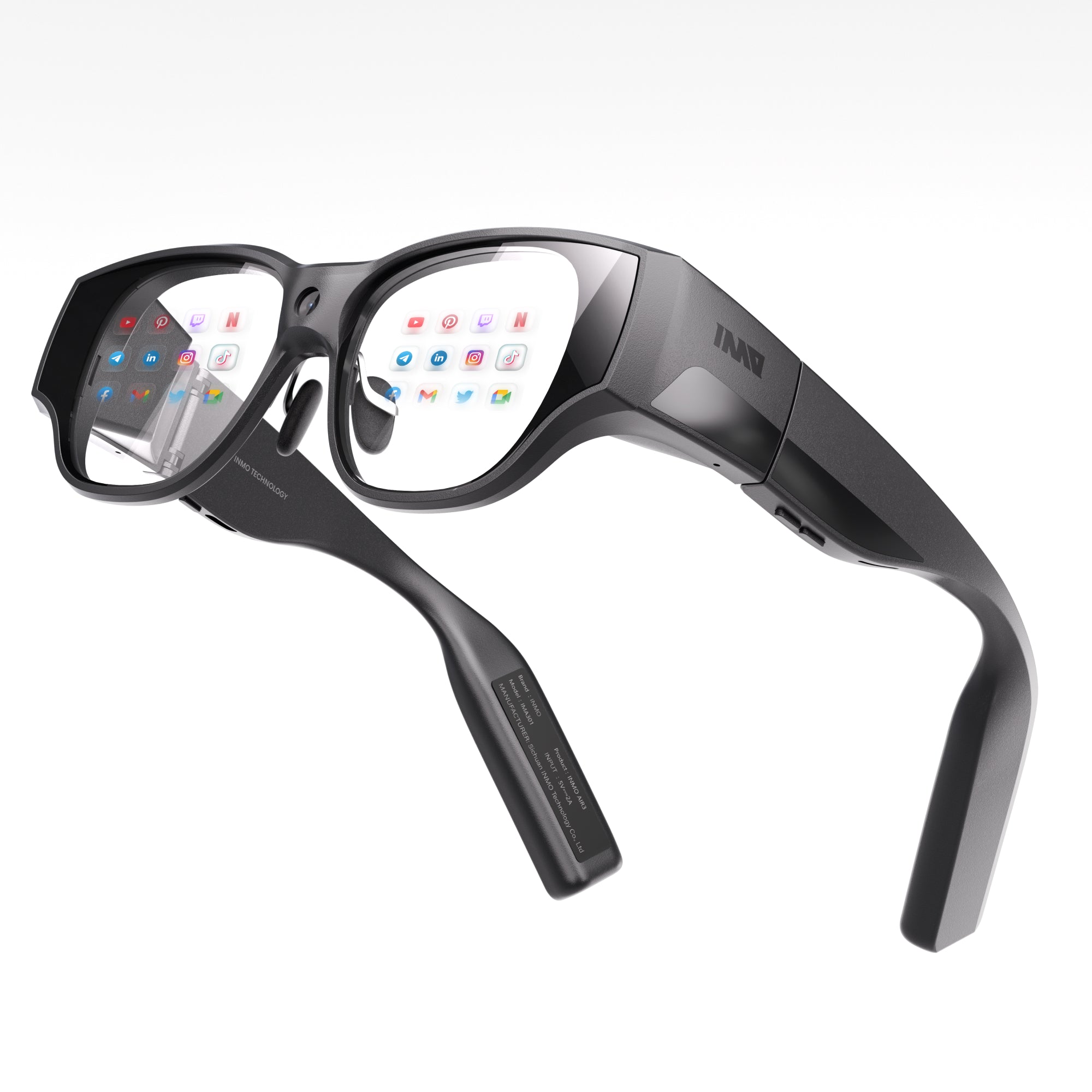
Watching on INMO AIR3 can start from streaming apps installed from Google Play on the glasses or from a phone screen mirrored to its 1080P Micro-OLED display. Installing an app takes a Google account signed in on the glasses. Video files you already own are a third option, since they play from the 128GB of built-in storage without a stream.
Which AR Glasses Work for Watching Netflix and YouTube?
| Viewing route | What you need | When it fits | Where it starts on AIR3 |
|---|---|---|---|
| Streaming app installed on the glasses | Wi-Fi on AIR3 and a Google account for Google Play | Watching a subscription service from the glasses alone | Google Play |
| Phone screen mirroring | Phone and AIR3 on one Wi-Fi network | Something already playing or queued on your phone | App Library → Screen Mirroring |
| Video files stored on the glasses | A computer and the AIR3 USB cable | Personal videos you own as files | Gallery |
Using the glasses as the main screen at home is the focus of a separate guide on replacing a TV with AR glasses in a small apartment.
Installing a Streaming App on AIR3
Because AIR3 runs Android 14, most Android apps can be installed directly through Google Play, and a streaming app is added the same way as any other:
- Open Settings → Internet, turn on WLAN, and join your Wi-Fi network.
- Open Google Play on AIR3 and sign in with your Google account.
- Search for the streaming app and install it.
- Open the app and sign in with your existing subscription account.
Two accounts are involved in these steps. The Google account is the one Google Play uses to download and update apps on AIR3, and the subscription account belongs to the streaming service and is entered inside its app.
After that, the app opens from the glasses like any other installed app, and the video streams to AIR3 over its own Wi-Fi connection on either the 2.4GHz or the 5GHz band. Your phone is not part of this route, so it stays free for messages and calls while you watch.
Mirroring a Phone Screen While You Watch
Screen mirroring shows the phone's screen on AIR3, with the phone and the glasses joined to the same Wi-Fi network.
1. On AIR3, open the App Library and select Screen Mirroring, then stay on that screen while the phone looks for it. 2. Phone: - On an iPhone, open Control Center, tap Screen Mirroring, and choose INMO AIR3 from the list. - On an Android phone, open the screen casting option and choose INMO AIR3.
Keep the phone unlocked while it searches, since the device list appears on the phone's screen. On an iPhone with Face ID, Control Center opens with a swipe down from the top-right corner, and Screen Mirroring is one of its tiles. On most Android phones, the casting option sits in the Quick Settings panel, which opens with a swipe down from the top of the screen.
Once connected, you pick the video and run playback on the phone, and the glasses show the phone screen. To end the session on an iPhone, open Screen Mirroring in Control Center again and tap Stop Mirroring.
Playing Video Files Stored on the Glasses
Home videos, camera recordings, and clips exported from editing software can all be copied straight onto the glasses. Connect AIR3 to a computer with its USB cable, and Windows lists the glasses under This PC as IMA301 or Internal Shared Storage. Copy the video files into that storage, disconnect, and open them in the Gallery app on AIR3. Files can be copied in batches, and the same USB connection is used later to clear out videos you have finished with. With 128GB of internal storage, a set of personal videos can sit on the glasses next to your installed apps.
Keeping stored files in a few clearly named folders on the computer before copying makes them easier to find on the glasses later, especially once the collection grows.
The Hardware Behind Each Route
Inside the frame, a Qualcomm Snapdragon processor works with 8GB of RAM to run Android 14 and the apps installed on it. Bluetooth 5.3 connects the glasses to accessories such as the INMO Touchpad, the ring, or a speaker. The Type-C port on the frame handles the USB connection to a computer used for copying video files. Sound from installed apps and from stored videos plays through the two speakers built into the frame.
The Display Every Route Plays On
The Micro-OLED display has a 1080P (1920×1080) panel and a 36° field of view, which is how wide the picture appears across your vision, with 62 pixels in each degree of that width. The panel refreshes at 60Hz, reaching 120Hz at its maximum, and its brightness goes up to 600 nits. Brightness is set in Settings → Display → Brightness, by hand with the slider or automatically with Adaptive Brightness, and the same menu sets Screen Timeout anywhere from 15 seconds to 30 minutes.
Subtitles get their own walkthrough in 1080p AR glasses for movies and subtitles, with a closer look at on-screen text on a 1080p display.
Handling Playback From Your Seat
The temple touch controls on the frame handle interaction within compatible applications, and AIR3 also works with external wireless accessories such as the INMO Touchpad and Bluetooth ring. The Touchpad and ring can be paired during the first setup of the glasses, and either one can be added later from Peripheral Management on the AIR3 desktop. The touch area for these controls sits on the right temple of the frame, and the voice assistant on the glasses responds to the wake word "ok amu".
If you already own an AIR3, install the free V3.16 system update before using the glasses, and the INMO Support Center can help with setup.
FAQ
Can an iPad mirror its screen to AIR3 as well as an iPhone?
An iPad connects the same way as an iPhone. Choose INMO AIR3 from Screen Mirroring in the iPad's Control Center, and the iPad screen appears on the glasses.
Where do you see which system version AIR3 is running?
Open Settings → About the Smart Glasses and check System Version. When an update is available, tap Update Now with the glasses connected to Wi-Fi, at least 1GB of storage free, and the battery above 80%. Leave the glasses alone while the update installs, without operating, powering off, or restarting them, and they restart on their own once the update is complete.
Can AIR3 play sound through a Bluetooth speaker?
A Bluetooth speaker pairs with AIR3 directly. Put the speaker into pairing mode, then on the glasses go to Settings → Connected Devices → Pair with New Device and select the speaker from the list. Audio from apps on the glasses then plays through it.
Can a keyboard or mouse be used with AIR3?
Bluetooth keyboards and mice pair through the same menu as a speaker, and a keyboard is a convenient way to type an email address and password when signing in to Google Play or a subscription account. Put the keyboard or mouse into pairing mode first so it appears in the list on the glasses, then select it there to finish the connection.
Share:
Translation Glasses for First-Time Users: How INMO GO3 Setup Works Before You Buy
Are AR Glasses Comfortable for Watching a Movie? How to Set Up INMO AIR3 for a Full Film