

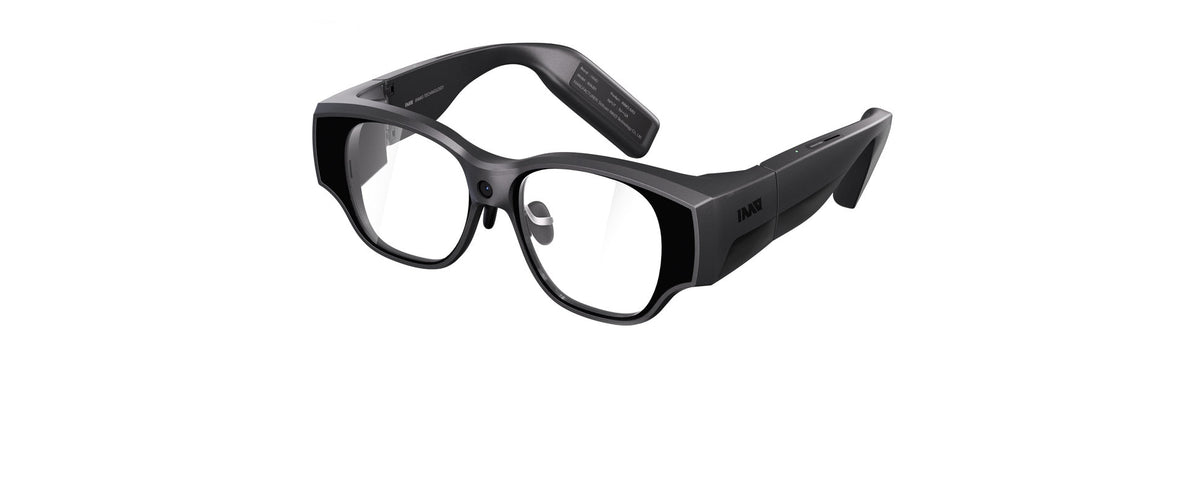
To check streaming resolution before buying, compare each title's quality label, your plan, and your Wi-Fi speed with a 1080P display such as the one on INMO AIR3. Those three checks describe what the service sends, and the display figure describes what the glasses can show. On AIR3 the picture can arrive three ways: an app installed on the glasses, a phone screen mirrored over Wi-Fi, or a video file stored in the 128GB of onboard memory. Each route has its own short check.
How can you check that your services will play at the resolution you expect?
Work through four items in order and write the result of each one in a single note.
| Item | How to check | What it tells you |
|---|---|---|
| Source title | Read the quality label on the title's page, using the service's own definition of that label | The resolution the service offers for that title |
| Subscription plan | Look up the highest video quality your plan includes | The ceiling your account allows |
| Network | Run a speed test where you will watch and compare it with the service's figure for your target resolution | Whether the connection matches the service's recommendation |
| Playback route and display | Note which route you will use, read the title's label in the app on that route, and note the display's resolution | Where the picture comes from and what the screen shows |
The first three rows belong to the service and your home setup, and the fourth belongs to the glasses. When the title, plan, and connection all reach 1080p, those three rows line up with the resolution the glasses can display.
Checking the title and your subscription plan
Start with films and series you actually plan to watch. A title's detail page in the streaming app shows a quality label, and each service defines its labels in its help pages. HD can mean 720p or 1080p depending on the service, so look up the definition before writing the label down.
Next, check the plan. Services with several quality tiers list the maximum resolution for each one, and that figure is the ceiling for every title you stream on the account.
Then look at the playback or data settings inside the app. An automatic setting adjusts quality to the connection, and a data-saving setting lowers it on purpose. For a 1080p target, set the option the service recommends for higher quality, and add that choice to your note.
Checking your home network
Run a speed test at the seat where you will watch, on the Wi-Fi network you will use, and repeat it two or three times. Compare the readings with the service's recommendation for your target resolution. A reading taken beside the router can differ from one taken in another room, so the seat is the place to measure.
AIR3 connects to both 2.4GHz and 5GHz Wi-Fi. The 5GHz band generally carries more data over short distances, and 2.4GHz generally reaches farther through walls. Sitting closer to the router, placing the router in an open spot, and pausing large downloads on other devices during a film all help the connection you measured.
Watching on INMO AIR3
AIR3's display is a 1080P Micro-OLED panel covering a 36° field of view, and the glasses run Android 14 with their own Qualcomm Snapdragon processor. Streaming apps can be installed from Google Play on the glasses, which makes the app route the one where the glasses themselves receive and play the stream. The guide to 1080p AR glasses for movies and subtitles looks at the display side of film detail and on-screen text.
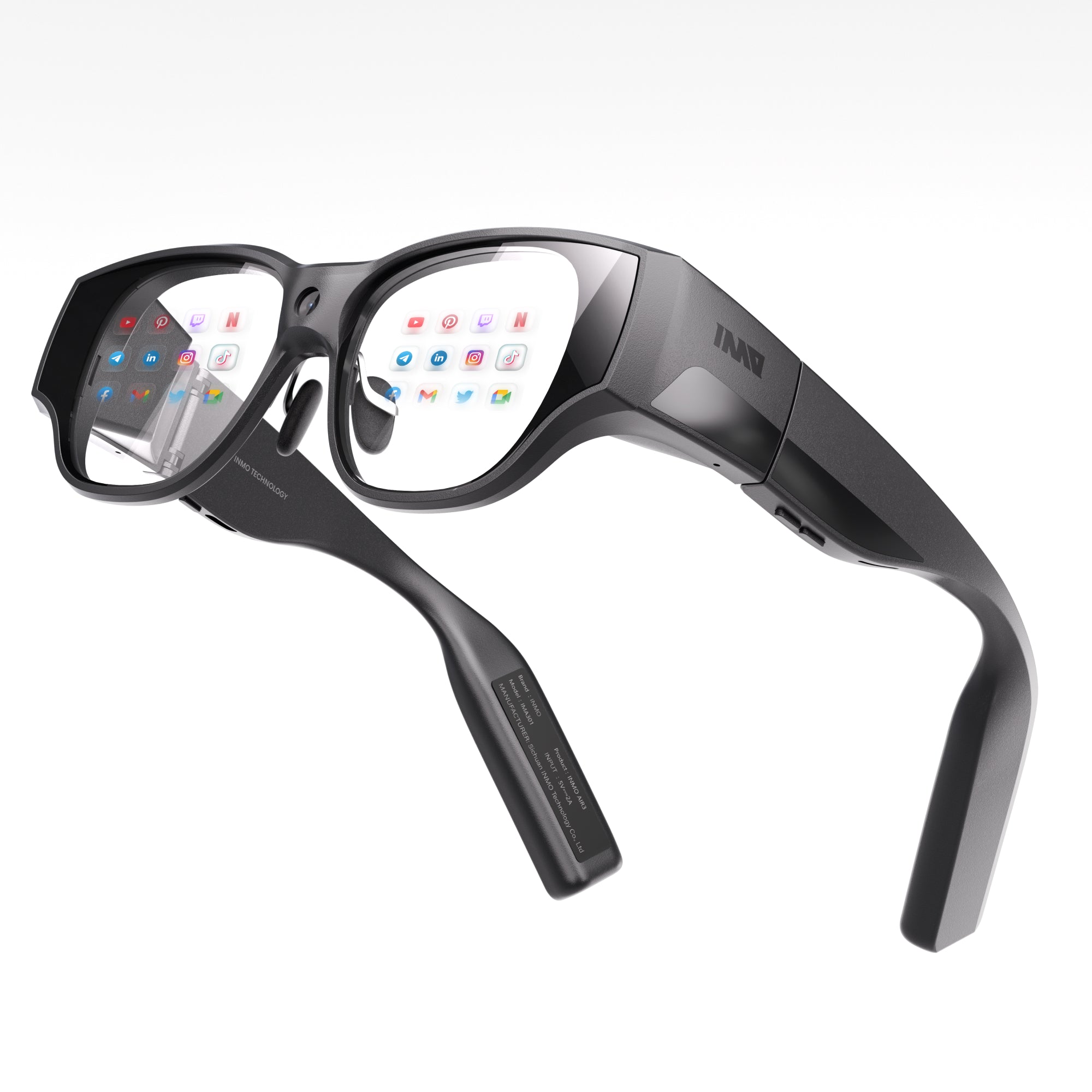
Screen mirroring is the second route. The phone plays the video and sends its screen to AIR3 over a shared Wi-Fi network. On an iPhone, the connection starts from Screen Mirroring in Control Center; on an Android phone, it starts from the screen cast option. Mirroring suits a title that is already playing on your phone, and the phone's resolution setting for that app is the one to record.
Stored files are the third route, and the check is the file itself. Copy a video from a computer to the glasses over the USB data cable, open it in Gallery, and play it from local storage, with no streaming connection involved. For a 3D file, the 3D icon in the upper right corner of the Gallery player switches to 3D cinema mode.
If you already own AIR3, install the free V3.16 system update before using the glasses: go to Settings → About the Smart Glasses → System Version and tap Update Now, with the glasses online, at least 1GB of free storage, and a battery level above 80% recommended. During the update, do not operate, power off, or restart the glasses; they restart automatically when it finishes. INMO Support can help with the process.
If you already own AIR3: a first viewing check
Owners of AIR3 can turn the same note into a first viewing check. Sign in to the streaming app on AIR3 over the Wi-Fi network you measured, choose a title from your list, and set the app's quality option to the one you recorded. Play the first few minutes where you plan to watch, then pause and check the app's playback information if the service shows it. Repeating the same steps with a mirrored phone and with a stored 1080p file gives you three results to compare side by side.
Sound for the test plays through the two speakers built into the frame. For a living room, a Bluetooth speaker can be added through the Connected Devices menu in Settings, and the same menu adds a Bluetooth keyboard for entering account passwords and search terms in a streaming app.
Putting the four checks together
A filled-in note might read: title labeled HD, defined by the service as 1080p; plan includes 1080p; connection meets the service's recommendation; route is the app installed on AIR3 with its 1080P display. Keeping the note for each service you use makes the next comparison quicker. When one line falls short, that line is the one to change, whether that means a different title, a plan with a higher tier, a seat closer to the router, or a different route such as a stored file.
FAQ
Does a quality label seen on my phone apply to the AIR3 app too?
A label describes the title as the service offers it in that app and account. When you watch through the app installed on AIR3, open the same title there and read its label in that app, then add it to your note as a separate line.
What makes a stored video file look its best on AIR3?
Pick a source file with an original resolution of 1920×1080 to match the display. Upscaling a lower-resolution clip does not add detail that was missing from the original, and a filename that says "1080p" is only a name, so check the resolution listed in the file's properties on the computer.
What should I do after improving a slow connection?
Run the speed test again at the same seat, compare the new reading with the earlier one and with the service's recommendation, and then pick the playback setting the service suggests for that result.
Where do I check the display settings on AIR3?
Brightness is under Settings → Display → Brightness, with an Adaptive Brightness option that follows the surrounding light. Setting the level before a film starts means the first scenes play at the brightness you chose.
Share:
Seeing the Whole Screen on AR Glasses: AIR3 FOV and Fit
Teleprompter Glasses: Notification Settings Before a Presentation