

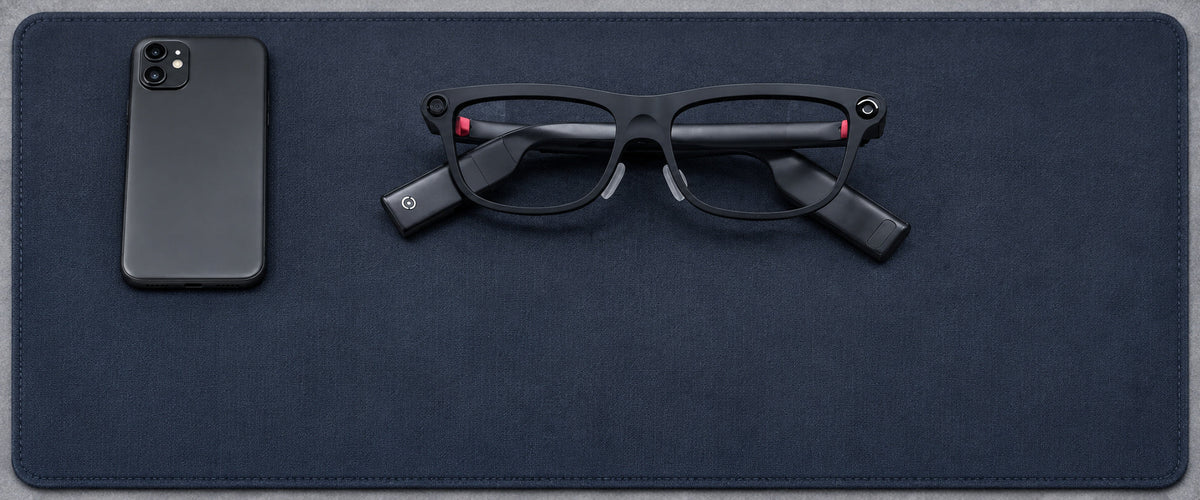
Notification display and voice announcements on INMO GO3 can be customized before a talk, and the page controls can be chosen at the same time. INMO AI wakes with a hold of about one second on the power button, so turning pages with a swipe on the temple touchpad or a press of the GO key on the optional INMO Ring4 keeps your hand away from that button while you speak. Voice-following page turns are another option, and the method you pick is part of the same setup. A rehearsal with these settings in place lets you practice the full sequence.
Pre-Talk Settings Checklist for INMO GO3
| Setting | What to do before the talk |
|---|---|
| Notification display | Review the display preferences in the INMO Global app |
| Voice announcements | Review the notification audio preferences |
| AI activation | Identify the power button and keep it clear during delivery |
| Page turning | Choose manual page turns, app controls, or automatic scrolling |
| Script | Enter and edit the script before the event |
| First startup | On new glasses, choose the language at first startup, then connect the INMO Global app |
Glasses updates belong in the same preparation window. Schedule any available GO3 update for a day before the talk, then rehearse with the updated software. While the update installs, a dynamic progress bar and a real-time percentage show its status.
Which Notification Settings Should You Prepare Before a Speech?
GO3 syncs phone notifications to the glasses, with display content and voice announcements customizable in the INMO Global app. Visual information and spoken announcements deserve separate attention because reading and listening are different parts of the task. Consider the information you want to receive while speaking and set the two preferences accordingly.
The display has adjustable brightness up to 1500 nits. Include brightness adjustment in preparation with the script open and lighting similar to the presentation setting. Use the opening and a later section of the document for this part of the preparation, alongside checking that the text is in the intended order.

Where Your Hands Go During the Speech
GO3 has a touchpad on the temple and a power button with different functions. On the touchpad, a swipe switches between items, a tap confirms, a double tap goes back, and a long press returns to the home screen. On the power button, a tap turns the screen off or on, a hold of about one second wakes INMO AI, and a hold of about three seconds powers the glasses on or off.
In teleprompter mode, swiping the temple touchpad turns the page. The optional INMO Ring4 smart ring provides a GO key for advancing pages, placing that action on the finger. Choose the control you intend to use during delivery and keep it the same from rehearsal to the talk.
The INMO Global app adds a third place to turn pages: the phone. Teleprompter pages can be turned from the app, and the app displays the script in sync with the glasses. During rehearsal, the phone display lets you follow the text while working through the opening and section transitions.
Voice-following is another option: AI Smart Scrolling advances the pages along with your speech in seven supported languages. Include the chosen method in the full run-through.
Rehearse the Whole Flow Once
Schedule one complete run-through before the event, with time afterward to revise the text or practice a movement again.
- Charge both batteries in the charging case beforehand. The two included batteries and the charging case support all-day use across a longer event, and the spare recharges in the case while the other is on the glasses.
- Get your script into the INMO Global app. You can write the script in the app and manually edit it there, and on an iPhone you can also import Word, PDF, or TXT files. Finish any changes to wording, line breaks, and section markers before the rehearsal.
- Work through the settings checklist, then open the version of the document intended for delivery.
- Read through the opening and several section transitions with your selected control. Practice the same hand movement at those points, paying attention to where your fingers rest between actions.
- Deliver the full talk aloud, including the transition into the closing paragraph.
- Finish with the display brightness adjustment and any remaining script edits. If the wording changes, read the revised passage aloud before considering document preparation complete.
The INMO support center provides a user manual entry point and phone-pairing help for initial setup. Handle those setup tasks ahead of the speaking session so rehearsal can focus on delivery.
On the Day, Before You Speak
Arrive with the batteries charged and the script final, then work through a short sequence before you are introduced.
- Turn the glasses on and put them on a few minutes before your slot.
- In the INMO Global app, open the version of the script you rehearsed and check that the first page on the lens begins with your opening line. Advance to the next page with your chosen control and review the order of the text.
- Check that the notification preferences match the ones you set for the talk.
- While you wait to be introduced, tap the power button to turn the screen off. Tap it again as you step up to turn the screen on.
- If you plan to turn pages from your phone, leave the INMO Global app open on the script and place the phone within reach on the lectern or table.
- For manual page turning, position your hand for the control you used in rehearsal.
After the Talk
A few steps after you leave the stage prepare the glasses and the script for their next use.
- Turn the glasses off with the same three-second hold on the power button.
- Put the battery from the frame into the charging case to recharge.
- In the INMO Global app, set the notification display and voice announcement preferences back to the ones you use every day.
- Edit the script in the app with any wording changes you noted while speaking, so the file is ready for the next time you give the talk.
Frequently Asked Questions
What happens if a call comes in during my presentation?
GO3 can sync incoming call information from your phone to the glasses. Include incoming calls alongside messages when choosing notification preferences for the presentation.
What if another feature tries to open while the script is on the lens?
When an attempted application switch creates a resource conflict on the glasses, GO3 displays the name of the application currently in use, with options to cancel or continue. Read the application name and choose whether to proceed with the switch. This prompt provides a decision point when that resource conflict occurs.
Should I also turn on Do Not Disturb on my phone?
Phone Do Not Disturb settings are another preparation step you can take. Set permitted contacts, calls, and notifications according to the presentation's needs, including any exceptions you want to retain. Treat these as phone settings and complete the GO3 preparation separately.
Can the INMO Global app use a dark appearance?
The app offers light mode, dark mode, or following the phone's system setting, and it saves the choice you make. If the phone will sit on the lectern with the script open, choose the appearance you find easier to read in the room's lighting during the rehearsal.
Share:
Seeing the Whole Screen on AR Glasses: AIR3 FOV and Fit
Smart Glasses for PowerPoint Speaker Notes: Preparing a Script for Manual Page Turns