

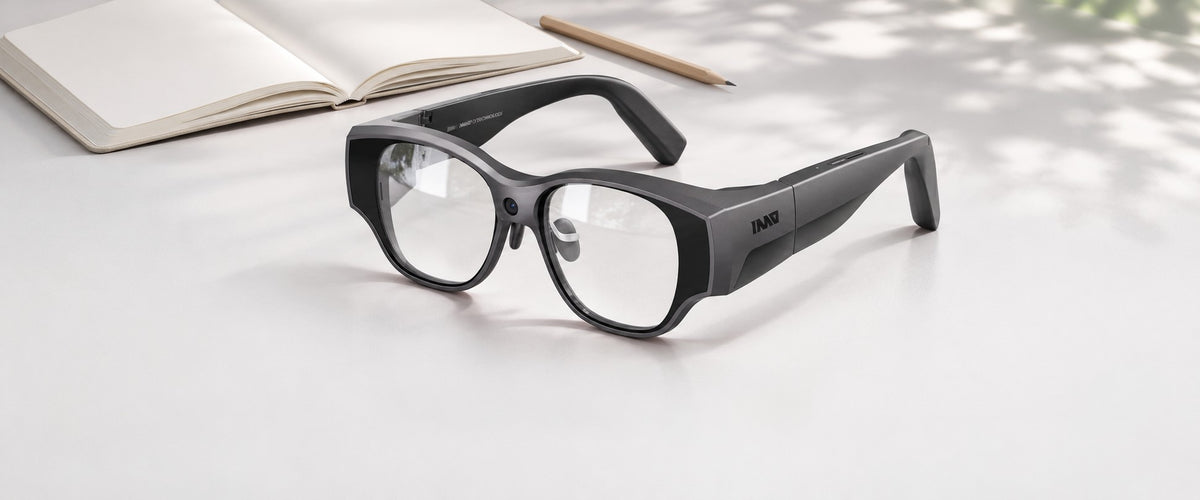
A webpage and your reference files can sit in view together on INMO AIR3 for a short reading task, set up in one of two ways. Its Multi-Screen Space app runs up to three app windows on the glasses at once, so a browser page and the Files page holding your copied references float side by side, and the Ring3 ring points at, moves and resizes them. When the reference is a document whose text you need to read against the page, Screen Mirroring shows a computer screen with both open on the glasses.
Can AIR3 Keep a Webpage and a Reference File Open Together?
Multi-Screen Space, found in the AIR3 App Library, opens a Google webpage and the Files page at the same time as two floating windows, with room for a third app beside them. The Files window shows your reference folder as a list of named files, so an online article on one side and the downloads it mentions on the other sit in one view. That layout serves tasks where the page is the text you read closely and the references are files you look up by name, check against a list of links or sort into a folder.
Reading a reference document's own wording next to the page goes through Screen Mirroring. A laptop or desktop with the webpage and the document open side by side passes that whole screen to the glasses, so both texts appear in view as the computer lays them out, and the comparison can run line by line.
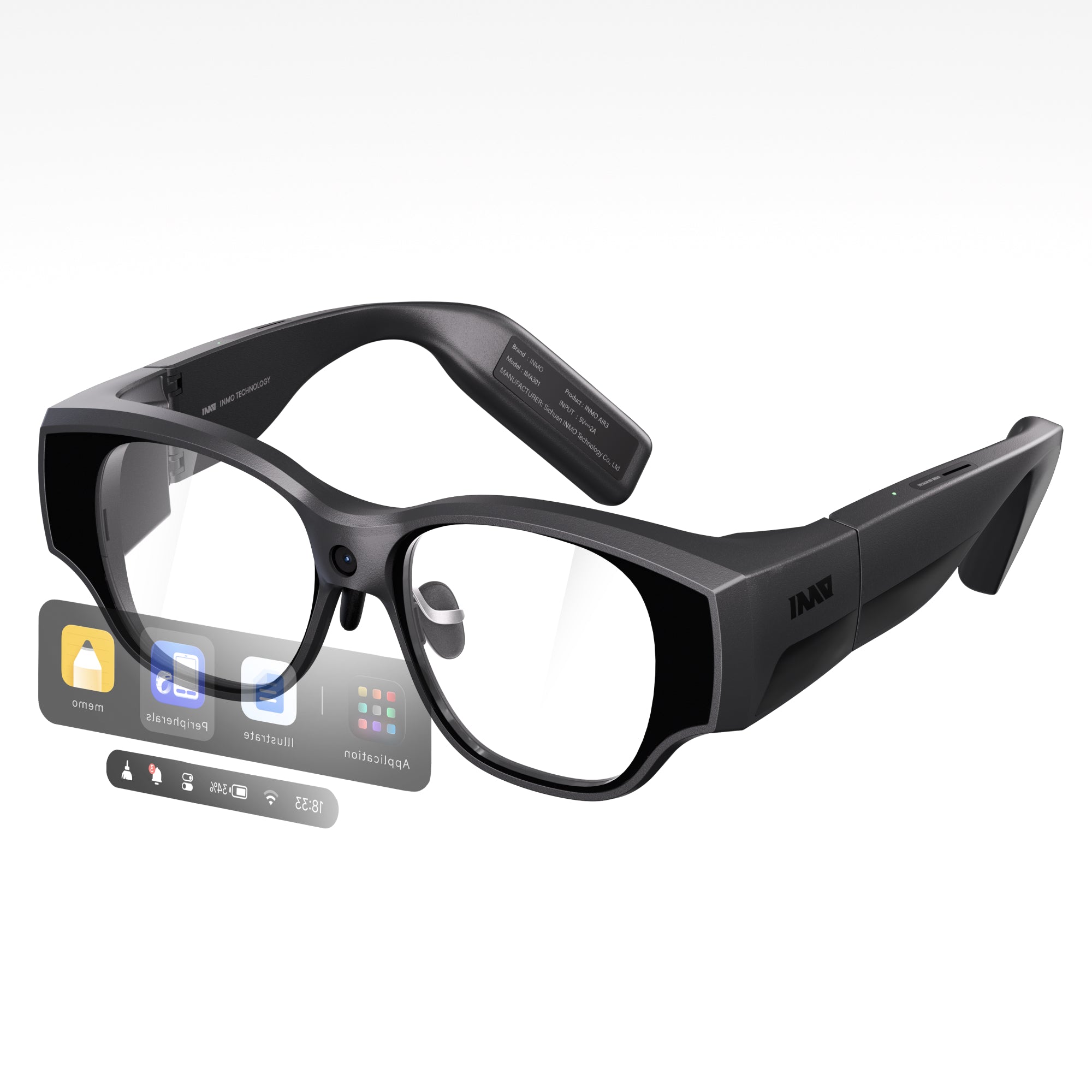
Multi-Screen Space windows are apps on the glasses themselves, not a picture sent over from another device. AIR3 runs Android 14 on its own processor and keeps apps and files in its own storage, a design explained further in how AIR3 works as AR glasses without a phone. For the on-glasses route, the reference files therefore have to be in the glasses' storage before the session starts.
Ring3 is the controller for Multi-Screen Space, and it works by pointing a ray from the ring at whatever you want to use. The beam lands on a window or a button, and a tap on the ring confirms the choice. That pairing of aim and tap is how you open each app, shift your attention from the page to the folder, and grab a window to move it.
Preparing the Reference Folder Before the Session
Files on AIR3 shows its contents in a list or grid view, and tapping a folder opens it to show what is inside. A folder named after the project or the page you plan to read, holding only the files that belong to this session, means the Files window opens straight onto the short list the task uses. Renaming each download on the computer before copying, so it matches the title or label the webpage gives it, lets you pair a reference on the page with its file at a glance. Older or unrelated material can stay in other folders on the glasses.
The document for the mirroring route stays open on the computer that sends the screen, so nothing needs copying to the glasses. Whichever route you take, AIR3 glasses already in use should have the free online system update to V3.16 installed before sessions like this, and INMO Support can help with it.
Opening and Arranging the Two Windows With Ring3
Copying the files comes first, while the computer is still within reach, and everything after that takes place on the glasses.
- Plug the official AIR3 USB data cable into the glasses and a Windows PC, find the glasses listed as IMA301 or Internal Shared Storage in This PC (or My Computer), and drop the reference files into the folder you prepared.
- If Ring3 is not paired yet, long-press its power button until the blue light flashes, then go to Desktop → Peripheral Management, search, and select INMO Ring 3. The indicator light turns off when pairing succeeds.
- Open Control Center and turn on Do Not Disturb to silence notifications and calls during the session.
- Open Desktop → App Library → Multi-Screen Space.
- Point the ray at the browser, tap the ring on the confirmation panel to open it, and load the page you are reading.
- Open Files the same way and tap into the reference folder.
- Tap to swap the positions of the windows, and drag the bottom-right corner of a window to change its display size.
- Point at a window's move control, press and hold the Ring3 confirmation button, and drag the window to a new spot.
- When the task is done, point at each window's close control and click, then tap Home in Control Center to return to the home screen.
A long press on the Ring3 function key brings the cursor and ray back to the center of the screen if the pointer wanders away from the windows mid-task. When the whole view drifts as well, Settings → System → Sensor Calibration recalibrates the glasses, and the two windows can then be opened again from Multi-Screen Space.
Sizing the Browser and the Files Window for the Task
List view in Files puts one file name per row, so a reference folder still reads clearly in a narrow panel, while an article squeezed into a narrow browser window breaks its sentences into short lines that are harder to follow. That difference shapes most layouts for this task. Checking a list of links against a list of files is the exception: your eyes move across both at the same pace and neither side carries longer text, so equal widths serve it better.
| Reading task | Browser window | Files window |
|---|---|---|
| Reading an article with related downloads at hand | Wide | Narrow, list view |
| Checking a link page against files already copied | Similar width | Similar width |
Before the first line of reading, scroll the page to the section you need and open the reference folder, so your first look across lands on the right list. When the work turns to sorting downloads into a project folder, swap Files toward the center and widen it, then narrow it again when you return to the article.
Reading a Document's Text Through Screen Mirroring
Screen Mirroring is a separate app in the AIR3 App Library. Opening it puts the glasses into device discovery, and they stay on that page while you start screen mirroring or casting on the computer and select INMO AIR3 as the display; the computer and the glasses need to be on the same Wi-Fi network. From then on the computer runs the content and the glasses show its screen, so every scroll, click and switch between the page and the document happens on the computer itself. Phones and tablets connect the same way, from the Screen Mirroring control in their Control Center, which suits a document already open in a phone app.
Arranging the two texts on the computer before mirroring saves rework, because the glasses reproduce the screen as it stands: the webpage in one window, the document in another, side by side at a text size you can read on the computer. This route fits a desk where the computer is already at hand, while Multi-Screen Space keeps the page and your file list on the glasses with no laptop in the bag. Mirroring also carries films and shows to AIR3, and the small-apartment guide to swapping a TV for AR glasses sets it beside the other ways to watch.
FAQ
Which controller handles the windows, and which handles the files?
Multi-Screen Space runs on Ring3 ray pointing, so opening, swapping, resizing and dragging windows all go through the ring. Outside that mode, the Files app on AIR3 works with both the Touchpad and the ring, so folder work after the session can be done with whichever controller is already in your hand.
Do the reference files stay on the glasses after the windows close?
Closing the browser and Files windows leaves the copied files in their folder on the glasses. Documents count toward used storage alongside apps, videos and images, and the Storage page in Settings shows how that space divides up. A one-off reference folder can be deleted in Files when space runs short, and a folder you reuse can wait for the next session.
Does a Multi-Screen Space session need a Wi-Fi connection?
The browser window loads its page over the glasses' Wi-Fi, while the reference files already sit in the glasses' own storage after the USB copy. On a trip, copying the folder at home leaves only the webpage side looking for a network, and the AIR3 travel packing list has the rest of the pre-departure setup.
Share:
Are Translation Glasses Practical for Hotel Reception Teams Serving Overseas Guests?
Which INMO GO3 Bundle to Buy for Meetings, Presentations and Client Conversations