

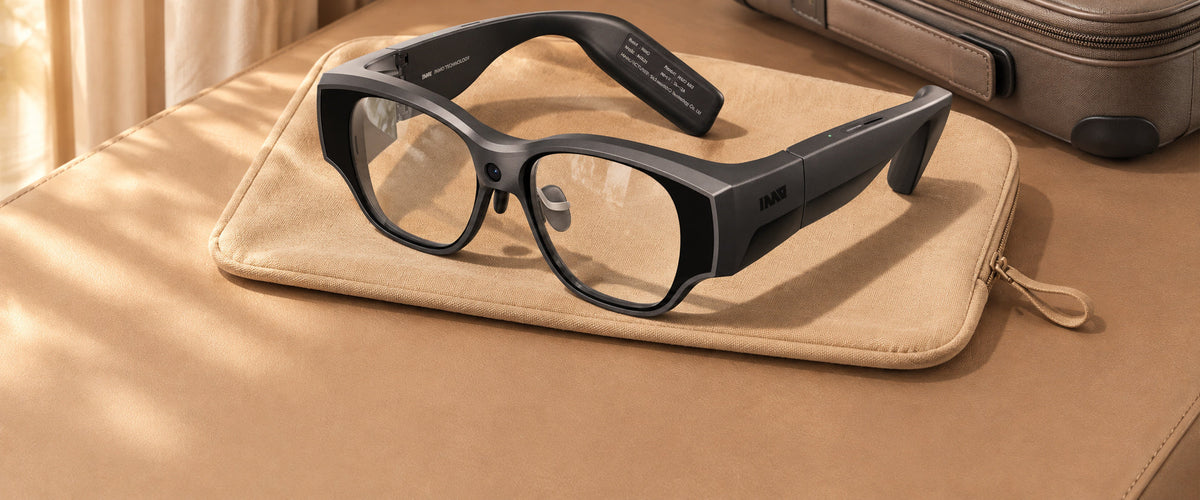
Travelers seeking fewer devices to carry should consider INMO AIR3, a wireless all-in-one AR system with its processor, storage, and operating system inside the glasses. Because the computing hardware sits inside the frame, the glasses are both the screen and the device that runs the content. The extra items are few: the charging cable and Touchpad from the box, and any Bluetooth accessories you choose for typing or gaming. Videos and apps go onto the glasses at home before you leave, and the glasses' own desktop then opens them.
Which Accessories Do Standalone AR Glasses Still Need for Travel?
The AIR3 box includes a Touchpad, a charging cable for the glasses, a sunglasses clip, a cleaning cloth, and replacement nose pads in three sizes with a small screwdriver.
| Item | Pack it? | What it is for |
|---|---|---|
| INMO AIR3 | Essential | Runs apps and plays videos on its own processor, memory, and storage |
| Charging cable from the box | Essential | Charges AIR3 through its Type-C port |
| INMO Touchpad from the box | Recommended | Controls menus, files, and video playback |
| Bluetooth keyboard, mouse, or controller | Task-based | Typing, pointer input, or game controls |
| Bluetooth speaker | Task-based | Plays sound through an external Bluetooth speaker |
| Smart ring | Task-based | Another way to control AIR3 |
| Sunglasses clip from the box | Optional | For wear in bright light |
| Phone | Optional | A source for screen mirroring when you choose it |
| Laptop or media player | Not needed for viewing | Local videos and installed apps play on AIR3 itself |
The official AIR3 USB data cable also connects the glasses to a computer for copying files. That step happens at home, so the computer can stay behind once the videos are on the glasses.
What the All-in-One Design Takes Out of Your Bag
AIR3 runs Android 14 on a Qualcomm Snapdragon processor with 8GB of RAM, and 128GB of onboard storage holds videos, apps, and other files. Preparing those files at home lets the computer serve as a transfer tool without becoming part of the viewing setup you carry.
Its 1080P Micro-OLED panel spans 36° of your view at 62 pixels per degree, reaches up to 600 nits, and runs at a refresh rate of up to 120Hz. Brightness is set under Settings → Display → Brightness, with an Adaptive Brightness option that adjusts the level to the surrounding light.
Apps come from Google Play or from the INMO App Store on the glasses. Installing them on home Wi-Fi puts the entertainment and work tools you plan to use on the device before departure.
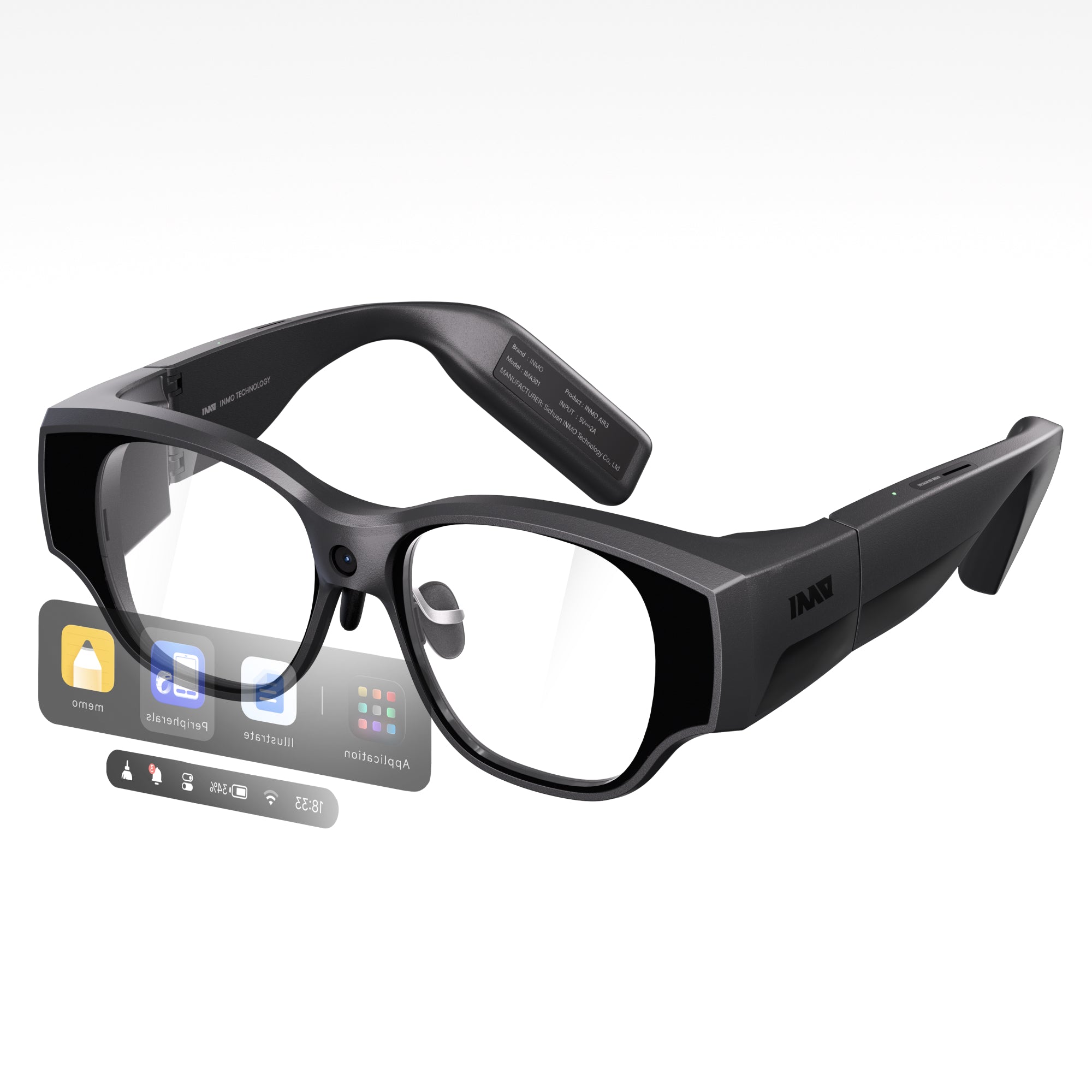
Wireless connectivity includes 2.4GHz and 5GHz Wi-Fi plus Bluetooth 5.3. Wi-Fi handles app downloads, system updates, and screen mirroring, and Bluetooth connects a keyboard, mouse, controller, or external speaker. Sound also plays through the two speakers built into the frame. The same onboard display works at home too, for example for watching without a separate TV in a small apartment.
Preparing AIR3 at Home Before the Trip
Finish these steps where your computer and home network are available.
- Update the system. If you already own AIR3, complete the free system update to V3.16 before use, with help available from INMO Support.
- Copy your videos. Move the films and shows for the trip into the glasses' storage over the USB data cable, then open one in Gallery on the glasses to check that it plays. 3D videos are copied from the computer the same way, and for those, tap the 3D icon in the upper right corner to switch to 3D cinema mode.
- Install your apps. Join home Wi-Fi and install the apps you plan to use from Google Play or the INMO App Store.
- Pair your controls. The Touchpad or a smart ring can be paired during first setup or later through Desktop → Peripheral Management. Keyboards, mice, controllers, and speakers pair under Settings → Connected Devices → Pair with New Device.
- Fit the nose pads. The AIR3 box includes replacement nose pads in Small, Medium, and Large, which adjust the height and angle of the glasses on your face. Swap the nose pad with the small screwdriver provided, and press the cushion in until it clicks into place. Choose the fit before departure so adjustments are part of preparation.
Managing Files and Power During the Trip
Files on the glasses opens the storage directly, and the Touchpad from the box is enough to work in it.
Under Settings → Battery → System Performance, AIR3 offers two modes. Balanced Mode balances performance and battery life. High Performance Mode prioritizes system performance with higher energy consumption, and it is available when the battery is above 50%. Power Saving Mode can be scheduled to switch on and off at set times, and it turns on a dark theme while it runs.
Controlling AIR3 on the Move
AIR3 can be controlled four ways: with the Touchpad, a smart ring, temple touch, or voice. The touch area on the right temple controls the glasses directly, and during first setup a swipe up or down selects the language. The voice assistant answers to the wake phrase "ok amu" or "hey amu". Pressing and holding the power button for three seconds opens the menu to power off or restart.
A Bluetooth keyboard and mouse add typing and pointer input for work, and a Bluetooth controller adds game controls. Pack only the peripherals that match the plans for the trip.
FAQ
Should I bring a power bank for AIR3?
AIR3 uses a Type-C charging connection. As general travel planning, a suitable power bank is worth considering when your itinerary includes extended periods away from outlets. Decide on that addition around access to power, alongside the charging equipment in your packing list.
What can I do on hotel Wi-Fi?
Turn on WLAN in Settings → Internet and join the hotel network; AIR3 remembers networks it has joined before. On that connection you can install apps and check for system updates under Settings → About the Smart Glasses → System Version, then tap "Update Now" when an update appears. An update needs at least 1GB of free storage, and a battery level above 80% is recommended before starting. While it installs, leave the glasses alone without powering them off or restarting them; they restart on their own when the update finishes.
How do I put my phone screen on AIR3 during a trip?
Start Screen Mirroring from the AIR3 App Library, with the phone and the glasses joined to one Wi-Fi network. On an iPhone or iPad, start Screen Mirroring from Control Center and pick INMO AIR3. On Android, open the casting option in the pull-down menu and pick INMO AIR3. On HarmonyOS, use LeBo Cast.
Share:
Seeing the Whole Screen on AR Glasses: AIR3 FOV and Fit
Teleprompter Glasses: Notification Settings Before a Presentation