

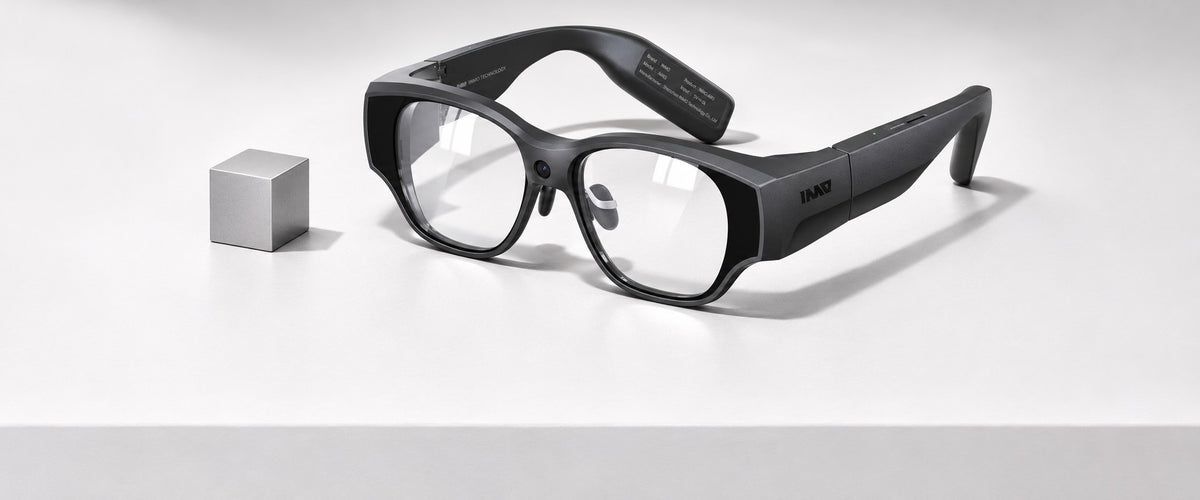
Venue networks at trade shows, client offices and pop-up counters are run by someone else, so their speed, sign-in pages and access rules sit outside the presenter's control. A short product video for one viewer at a time can leave that network out of the demo on INMO AIR3: the clips are copied into the glasses' built-in storage beforehand and play from the glasses themselves, with no venue Wi-Fi, phone or laptop involved while the viewer watches.
AIR3 is a 1080P all-in-one AR device operated with a wireless Touchpad, so the work that shapes the demo happens before the event: editing the clips, rehearsing them on the glasses and deciding how each handover runs.
Can INMO AIR3 Run a Product Video Demo Without Venue Wi-Fi?
A product film stored on AIR3 plays at the stand the same way it played at your desk during rehearsal, because the playback path stays inside the glasses. Processor, storage and display sit in one frame, and the Touchpad links to the glasses over Bluetooth, so opening the file, playing it and changing the volume all take place without the venue's network.
Recorded material suits this setup: a product overview, the operation that best explains the product, close-up detail shots and before-and-after footage. The person wearing the glasses sees the picture alone, with no shared screen for the presenter to point at, so each clip has to carry its key message through its own images, captions and sound.
A Media Pack Built Around Visitor Questions
Each clip in the pack answers one question visitors raise at the stand or in a client meeting. Three or four clips of a minute or two each make a workable starting pack for a short appointment, and the count can be adjusted to the product. One example layout:
| Clip | Visitor question | Preparation before the event |
|---|---|---|
| 01 Overview | What is the product, and who is it for? | Final approved cut, with the product visible in the opening frame |
| 02 Key operation | How does it work in use? | Lead-in trimmed so the action starts early |
| 03 Detail close-up | What do the finish and mechanism look like? | Small text and textures checked on the glasses in rehearsal |
| 04 Spare answer | The follow-up question raised most often | Kept as a separate file, ready on request |
Numeric prefixes and plain descriptions, such as 01-overview and 02-key-operation, go on each file before it leaves the computer, and the same numbers go on a printed running-order card that holds the sequence. All the files sit in one folder named for the event. If the default order never changes, join those clips into a single demo file in your video editor and keep the spare answers as separate files. Copy only footage cleared for the event, and only the final export, since a draft cut is hard to spot once someone else is wearing the glasses.
Rehearsal on the Glasses Before the Event
The transfer is a standard USB copy from a Windows computer, and the guide to putting your own videos on AIR3 for travel walks through the cable and folder steps. Glasses already in use should first receive the free online system update to V3.16, and INMO Support can help with that. With the event folder on the glasses, rehearse in this order:
- Open Files on the glasses and confirm the event folder holds every file in the pack.
- Open Gallery from the home page and play each file from start to finish, listening to the sound and checking the first and last frames.
- Go to Settings → Display → Brightness and set a starting level for the venue's lighting, or turn on Adaptive Brightness.
- In the same Display menu, set Screen Timeout (15 seconds to 30 minutes) long enough to cover a handover.
- Practice the Touchpad shortcuts used at the stand: a single tap on Fn turns the screen off or on, holding Fn while sliding along a side edge changes brightness, and the side keys set the volume.
- Open Settings → Storage and note the space left after the transfer.
Playing each file on the glasses catches what a computer preview hides, such as a title card too near the edge of the frame or a soundtrack mixed too quietly for a busy hall. Rehearse with the Touchpad you will carry on the day, and clear out folders from earlier events with Files, which runs on the Touchpad or Ring. The comparison of onboard storage and an external player sets out how to split a larger video library between the glasses and other devices.
Clip Selection Before the Handover
Choosing a clip means seeing the Gallery list and the cursor, and only the person wearing AIR3 sees them. The operator therefore puts the glasses on briefly, opens Gallery and leaves the cursor on the file planned for this visitor. With the glasses passed over and the viewer confirming that the whole picture is in view, one click on the center area of the Touchpad opens the file.
Between clips, the glasses come back to the operator for the next choice. A follow-up question from the visitor is the moment for the spare clip: take the glasses back, place the cursor on the spare file and hand them over again. When several clips always run in a fixed order, the single demo file joined in the editor removes these mid-demo swaps.
Introducing the clip before the handover and holding the conversation until the glasses come off suits the format, because the visitor can then look at you while you answer questions and note follow-up details. During playback the operator's part is the Touchpad, using the shortcuts practiced in rehearsal whenever the viewer asks for a change.
Between Viewers: Cleaning, Fit and a Fresh Start
Each handover starts with a wipe of the lenses and frame using a clean lens cloth, done where the next visitor can see it. The screen goes dark from the Touchpad while the glasses change hands, and the operator turns it back on when putting them on to cue the next file. Returning to the first file of the default order after every demo gives each viewer the same opening.
AIR3 nose pads come in Small, Medium and Large, and a swap involves a tiny screw and a small screwdriver, which makes it a desk job before the event or during a break away from the stand. At the stand, the frame and pads allow small position adjustments while worn, so the viewer can shift the frame on the nose until the whole picture is in view before the file opens.
Power for the Glasses and the Touchpad Across a Day
Charge AIR3 fully before the event with its charging cable and a 5V/1A charger, and pack both so the glasses can top up between appointments. Quiet stretches such as lunch suit recharging, and a charging spot close to the stand keeps the glasses in sight while they recharge.
The Touchpad runs on its own rechargeable battery, and every clip choice, volume change and screen toggle at the stand goes through it. A red flash when it is touched signals low battery, so a quick touch at each break shows whether it should charge alongside the glasses. On the charger its light stays red and turns green at full charge, the cue to carry it back to the stand.
Updating the Pack After Each Event
A tally mark on the running-order card each time the spare clip is requested shows, by the end of the day, which follow-up question visitors raised most. Short notes on the same card about clips viewers asked to cut short, or details they wanted a closer look at, add a second signal that the tally alone misses.
A spare requested again and again moves into the default order for the next event, joined into the main demo file in the editor, while a clip viewers often cut short can be trimmed or dropped. The master exports stay on the computer, the old event folder comes off the glasses through Files, and each new or recut clip gets the same full play-through on the glasses before it travels.
FAQ
Can a clip be replaced at the venue?
Replacing a clip on site follows the original USB transfer, as long as the laptop and the official AIR3 USB data cable are in the bag. Copy the corrected export into the event folder under the same numeric prefix, delete the old version with Files on the glasses, and play the new file through once before the next visitor arrives.
Can the viewer control playback themselves?
Handing the Touchpad over together with the glasses suits a visitor who wants to look through the spare clips at their own pace, since the cursor then appears in their view. Agree beforehand which files they are welcome to open, and take the Touchpad back with the glasses so the next viewer again starts from the operator's selection.
Does INMO AIR3 need an internet connection at any point?
Initial setup on AIR3 includes network activation, and system updates download over the internet with at least 1GB of free space and over 80% battery recommended, so both belong at the office before the event. Local playback from storage is also what lets AIR3 play your own movies on a flight.
How do you set the sound for a demo clip in a busy hall?
Set a starting level during setup at the venue, when the hall noise is close to what visitors will hear, and adjust it from the Touchpad while the viewer watches. Captions burned into the clip during editing keep product names and figures readable whatever the noise level.
Share:
AR Glasses for Android App Development: Evaluating a First Prototype on INMO AIR3
Teleprompter Glasses for Lyrics: Viewing Prepared Lyrics in Vocal Rehearsal